How to Change the Wi-Fi Details for eufySecurity Devices
To help you change your Wi-Fi details in the App for eufySecurity devices.
To update your Wi-Fi details, here are the steps:
1. Enter the eufy App.
2. Click on the main page > Smart > Device Control, and then tap the HomeBase/Wi-Fi Chime/Wi-Fi Bridge in the device tab or tap the "..." in the device tab.
3. Settings> General>Wi-Fi Connection
- For devices that work with HomeBase/Wi-Fi Chime/Wi-Fi Bridge, please tap HomeBase/Wi-Fi Chime/Wi-Fi Bridge to change the Wi-Fi.
- For devices that work alone, such as wired doorbells, floodlights, and indoor cam, please tap the corresponding main devices to change the Wi-Fi.
4. Tap the Connection, choose Wi-Fi set up, and enter the password of the new Wi-Fi.
You are all set!
Note:
- There is no need to set up the eufySecurity devices again or delete the device from the app.
- This process applies to all eufySecurity devices.
- The S380 HomeBase (HomeBase 3) doesn't have the Wi-Fi Connection option.


788 undefined

SoloCam_L40_manual_eu
Floodlight Cam E340 User Guide (T8425)
Floodlight Cam E340 User Guide
eufy Security Indoor Cam C220 Gebruikersgids (T8W11C)
eufy Security Indoor Cam C220 Guía del Usuario (T8W11C)
eufy Security Indoor Cam C220 取扱説明書 (T8W11C)
View More

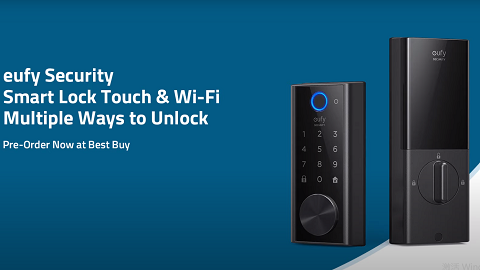
Introducing eufy Smart Lock Touch & Wi-Fi
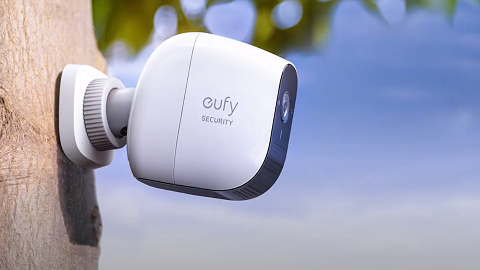
How to Mount Your eufyCam E
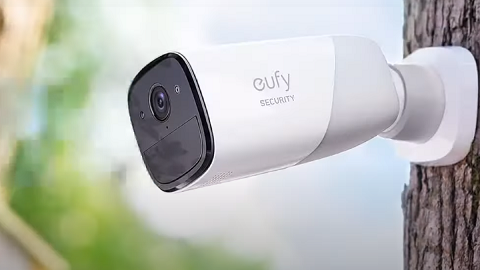
How to Mount Your eufyCam
How to Mount Your eufyCam
How to Mount Your eufyCam
How to Mount Your eufyCam
View More


