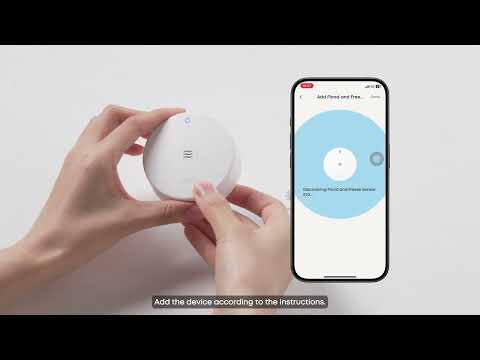
Welcome to the Eufy Expert Secure system E10! This article will guide you through the process of adding your HomeBase Professional S1 to the Eufy App, ensuring a smooth setup so you can start enjoying the convenience of smart home security.
Step 1: Log in to Your Eufy Account
-
Open the Eufy App on your phone.
-
Log in using your Eufy account credentials. If you don’t have an account yet, create one by following the registration process.
Step 2: Add HomeBase Professional
-
On the app’s main screen, tap the “+” icon in the top-right corner.
-
Select “Build Alarm System” under the Security section.
-
Carefully read the installation tips provided in the app to ensure a smooth setup.
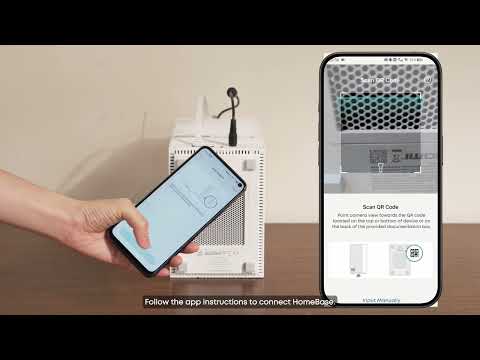
Step 3: Scan the QR Code or Enter the Serial Number
-
On the device setup page, you can either:
-
Scan the QR code located on the bottom of your HomeBase Professional.
-
Manually enter the 16-digit Serial Number (SN) printed on the label or laser-engraved on the bottom of the HomeBase Professional. (Each Eufy device has a unique serial number for account binding.)
-
Step 4: Device Binding and Syncing
-
Ensure your HomeBase Professional is connected to your router via an Ethernet cable and powered on.
-
Follow the app instructions:
-
Press and hold the Sync button on the HomeBase Professional for about 2 seconds until you hear a beep.
-
Tap “Next” in the app to proceed.
-
-
The HomeBase Professional will now communicate with the internet and bind to your account.
Step 5: Firmware Update and Self-Examination
-
Once connected, the HomeBase Professional S1 will automatically check for the latest firmware and update itself if necessary.
Troubleshooting Tips
-
What if the QR code doesn’t scan?
-
You can manually enter the 16-digit Serial Number (SN) printed on the bottom of the HomeBase Professional.
-
Double-check the serial number for accuracy to avoid errors.
-
-
What if the device fails to bind to my account?
-
Ensure the HomeBase Professional is properly connected to your router and powered on.
-
Check your internet connection and ensure it is stable.
-
Hold the SYNC button for 10 seconds to restart the HomeBase Professional and try again.
-
-
What if the firmware update fails?
-
Verify that your internet connection is stable.
-
Check the app for manual update options or contact Eufy support for assistance.
-
By following these steps, you can successfully add your Eufy HomeBase Professional and start enjoying the benefits of a smart home security system. If you encounter any issues during the setup process, feel free to reach out to Eufy’s customer support team for assistance.