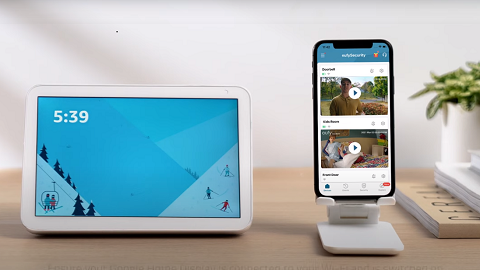
When HomeBase 2 failed to be added to eufySecurity app during the setup process, please follow the tips listed below.
Preparation Before Setting Up the HomeBase 2
1. Make sure the HomeBase 2 has power and the LED turns red. If not, please use the provided 12V/2A power adapter in the package to power on the HomeBase. Make sure the power outlet has power first.
2. Make sure you have connected the HomeBase 2 to your house router’s LAN port using the provided Ethernet cable. The network port light on the back of the HomeBase 2 should be green if it is connected without issue. If not, try another Ethernet cable or router port for troubleshooting.
Please check your firewall setting to see if there are any special restrictions for the device. You can check the firewall setting on your router's official website. Our audio & video communication uses P2P (Peer-to-Peer) technology. In order to improve the success rate of Hole Punching, we use port prediction mechanism (will try to connect on a certain port range), which triggers the firewall mechanism of the router. Our P2P Hole Punching server IP is: 34.235.4.153 , 18.223.127.200 , 54.153.101.7 . In order not to affect your use, you can set these three servers to allowlist.

3. Make sure your smartphone is connected to the same Wi-Fi router that the HomeBase 2 is connected to.

Open the eufySecurity App to Add HomeBase 2
1. When you open the eufySecurity App
Please make sure you have downloaded the latest version of eufySecurity app. You can download it via Google Play (Android) or App Store (iOS). eufySecurity app is compatible with Android OS (5.0+) and iOS (11+) phones and tablets. Learn more about eufySecurity App.
2. When you select the device to begin the setup process
Please make sure you have selected the correct device. When you are setting up a HomeBase 2, please select “HomeBase 2” when you add the device to the app. You can find the device model information at the bottom of HomeBase 2.

3. When the HomeBase’s LED indicator light failed to turn from red to blue, please try the following tips:
- Make sure you have enabled DHCP on your router
- Try to temporarily disable the firewall setting on your router
- Restart / Reset the router

4. When you scan the QR code to add HomeBase 2 but it fails, try the following suggestions:
- Make sure you have scanned the correct QR code located at the bottom of the HomeBase 2
- Manually enter the 8-digit QR code instead
- Restart your HomeBase by unplugging the power adapter


5. When HomeBase 2 broadcasts the sound tip of pairing request
Please make sure you have pressed and held the SYNC/ALARM OFF button for 2 seconds and you can hear a short beep. Then the HomeBase should be added successfully.

Contact eufy Support for More Help
If the above instructions cannot solve your issue, please email us for further assistance. It would be greatly appreciated if you could provide the following information for eufy support team to quickly resolve the issue.
- Send us a video showing the steps taken when pairing the HomeBase
- Upload App log via eufySecurity app by selecting the three-lined menu icon located at the top left corner of the app > About > Upload Log > App Logs and Device Logs; If the 'Upload Log' is not visible, please follow: Three-Lined Menu > About > Tab the "Eufy logo" for five times and choose "App log"