How to Connect eufy Devices to HomeKit
Things to Know Before Connecting
III. Product Features in Apple Home
Smart Lock Features in the Apple Home App
IV. Automation Scenarios Supported by Home
Q1: Can I still use the eufy App after connecting to HomeKit?
Q2: Why can't I see my eufy device in Apple Home?
Q3: Can I control devices remotely when outside (not on the same Wi-Fi)?
Q4: Why is the camera quality lower through Apple Home than in the eufy App?
Q5: Can I use Siri to unlock the door?
Q6: How do battery-powered devices connect to HomeKit?
Q7: Can wired devices connect to HomeKit directly?
Q8: Which eufy devices support HomeKit?
Apple Home Feature Guide
I. Introduction to Apple Home
Apple Home is Apple's smart home platform. Once connected, you can control eufy devices through your iPhone, iPad, Apple Watch, and more. You can also use Siri voice commands and integrate with other brands' smart home devices to create a more convenient and intelligent living experience.
What You Get After Connecting
Unified Control
Users can control devices from multiple brands through the Apple Home App without switching between different applications.
Rich Ecosystem Connectivity
Based on the Apple ecosystem, devices from different brands can build rich automation scenarios, such as arming when leaving home and disarming when returning.
Convenient Control
After connecting, you can control via iPhone, Apple TV, Apple Watch, and more, as well as through Siri voice commands.
Family Sharing
Apple Home allows you to share smart home control permissions with family members, making it convenient for everyone to manage and use smart devices together.
II. HomeKit Integration
How to Connect eufy Devices to HomeKit
Method 1: Authorize via eufy App (Recommended)
Applies to all eufy devices that support HomeKit, including wired devices (connected directly via Solo mode) and battery-powered devices (connected via HomeBase bridge).
Steps:
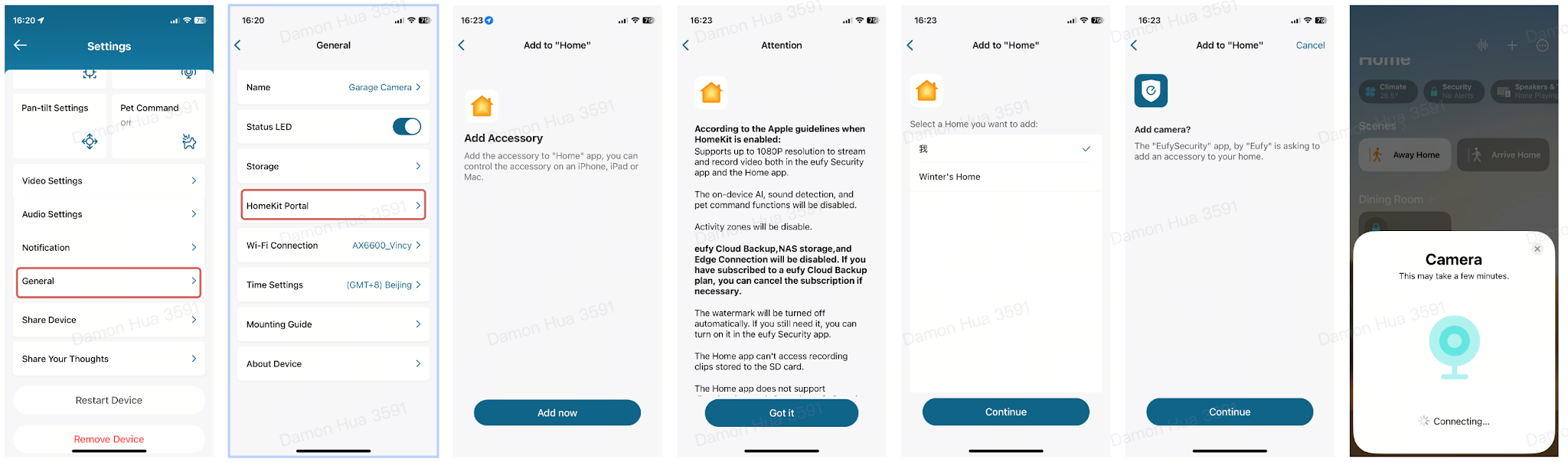
Wired Device (Solo Device) Authorization:
-
Open the eufy App and make sure the device is properly connected
-
Go to the device settings page
-
Find the "Apple Home" or "HomeKit" option
-
Tap "Authorize Access" and follow the on-screen prompts
-
Open the Apple Home App on your iPhone — your device will appear there
HomeBase Authorization (Battery-Powered Devices):
-
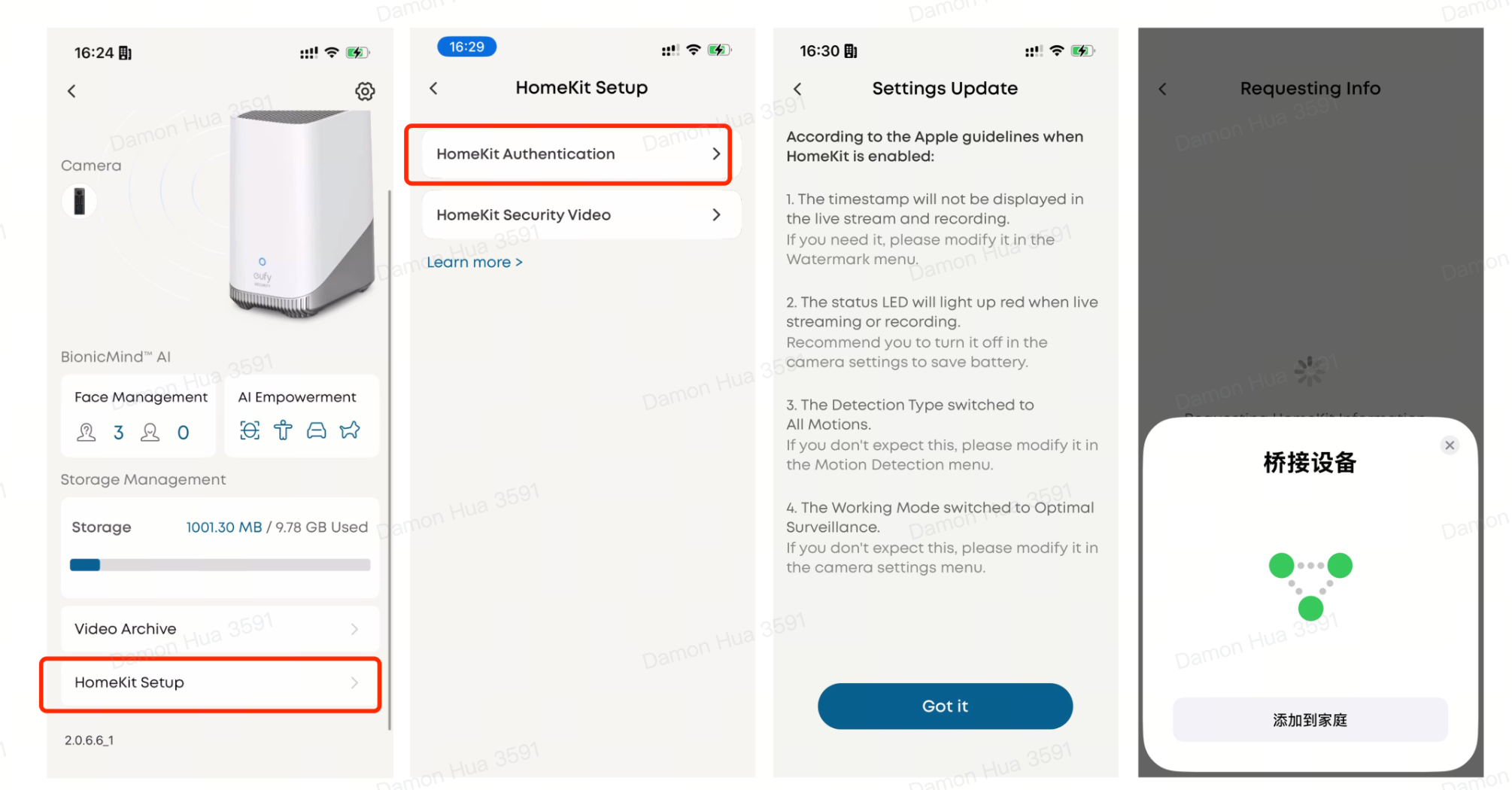
Open the eufy App and make sure the HomeBase and connected devices are working properly
-
Go to the HomeBase settings page
-
Find the "Apple Home" or "HomeKit" option
-
Tap "Authorize Access" and follow the on-screen prompts
-
All battery-powered devices connected through the HomeBase will automatically appear in the Apple Home App
Method 2: Scan the HomeKit QR Code with the Home App
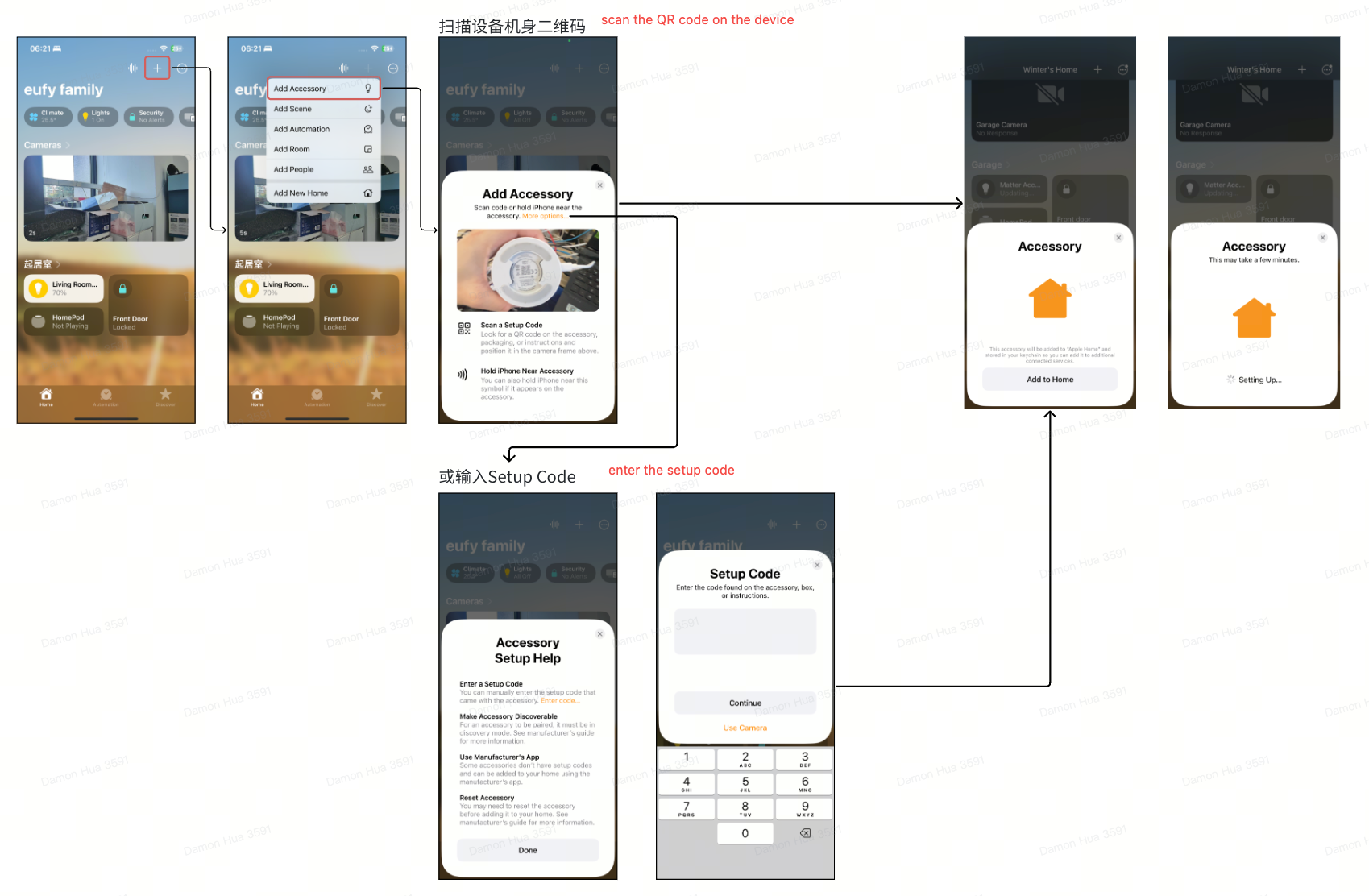
If your device packaging has a HomeKit QR code printed on it, it means the device has passed factory certification and can be added directly by scanning.
Steps:
-
Open the Apple Home App on your iPhone
-
Tap the "+" button in the top-right corner
-
Select "Add or Accessory"
-
Use your camera to scan the HomeKit QR code on the device packaging
-
Follow the prompts to complete pairing
Tip: If your device packaging doesn't have a HomeKit QR code, it means you need to authorize the connection through the eufy App. Please use Method 1.
Things to Know Before Connecting
-
After connecting to HomeKit, you can still use the eufy App normally — both control methods work independently and don't interfere with each other
-
If you want to control your devices remotely (outside your home Wi-Fi network), you'll need one of the following Apple devices as a "Home Hub": HomePod, HomePod mini, or Apple TV
III. Product Features in Apple Home
Camera Devices
After connecting to HomeKit, your eufy camera can use the following features (some features are not supported in Apple Home):
Tips:
-
When viewing the camera through Apple Home, the maximum resolution is 1080P. For higher quality, use the eufy App
-
Advanced features like Color Night Vision, Spotlight Night Vision, IR Night Vision, as well as pan & tilt control and AI tracking, are recommended to be used through the eufy App
-
For dual-camera devices connected to HomeKit, Apple Home only supports one video stream
Smart Lock Devices
After connecting to Apple Home, your eufy smart lock can use the following features (some features are not supported in Apple Home):
Security Reminders:
-
When using Siri to unlock, the iPhone must be unlocked first (Face ID / passcode verification) — this is a security requirement
-
HomePod voice unlock is not supported
-
Fingerprint/palm vein enrollment, lock calibration, auto-lock, and other features should be configured in the eufy App
Smart Lock Features in the Apple Home App
In the Apple Home App, tap your eufy smart lock to perform the following actions:
-
Lock/Unlock: Remotely lock or unlock the door
-
Battery Status: Monitor the remaining battery of your smart lock at any time
-
User Management (Manage Access):
-
Supports issuing unlock passcodes
-
User permissions are set to "Always" (permanent)
-
Automation:
-
Unlock when arriving home
-
Lock when leaving home
-
Notification Management: You can set push strategies based on "whether at home" or "time period"
-
Time: Any time, during the day, during the evening, custom time
-
Whether at home: When I'm at home, when I'm not at home, any time
IV. Automation Scenarios Supported by Home
Automation Capabilities
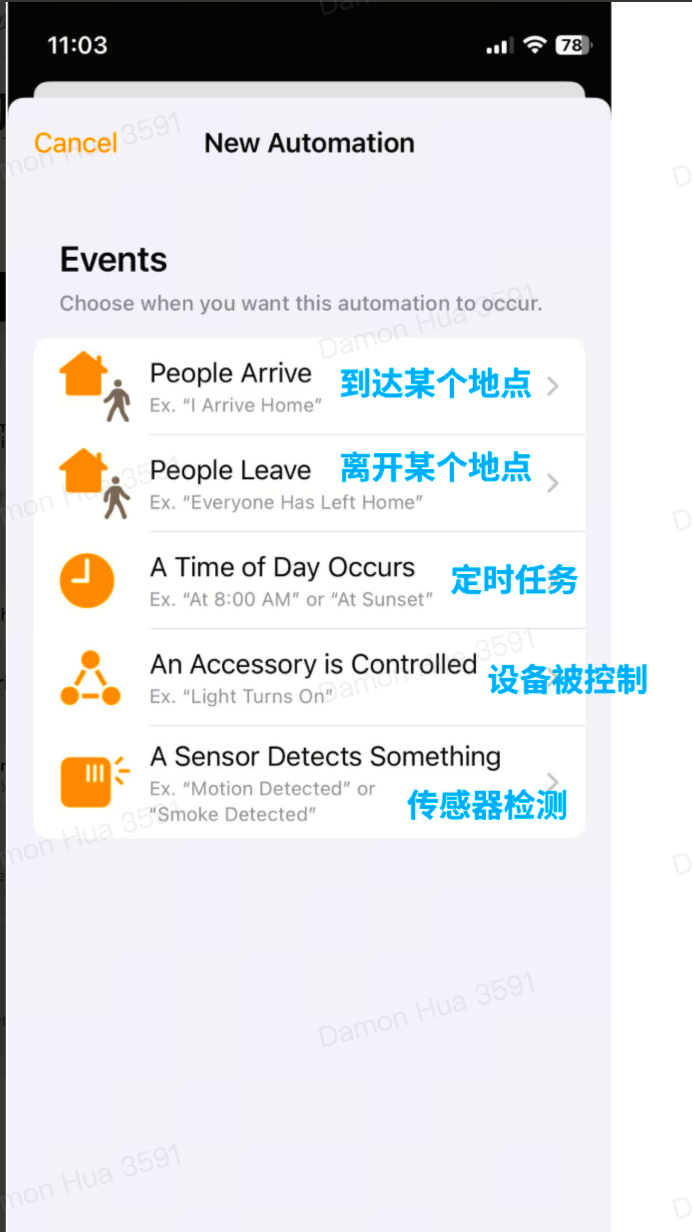
Apple Home supports various automation trigger conditions to let devices work for you automatically:
People Arrive or Leave
Set actions to trigger when family members arrive at or leave a location. For example: auto-lock when leaving home, auto-unlock when returning.
Scheduled Tasks
Trigger actions at specific times or time periods. For example: enable monitoring from 9:00 PM every night to 9:00 AM the next day.
Device Status Change
Trigger actions when a device's status changes. For example: automatically turn on indoor lights when the door unlocks.
Sensor Detection
Trigger actions when a sensor detects an event. For example: send a notification when someone is at the door.
User Scenarios
Scenario 1: Auto Arm/Disarm — No Worries When Leaving, Auto Disarm When Returning
I often forget to arm when I leave home; and I also often forget to disarm when I return, causing false alarms.
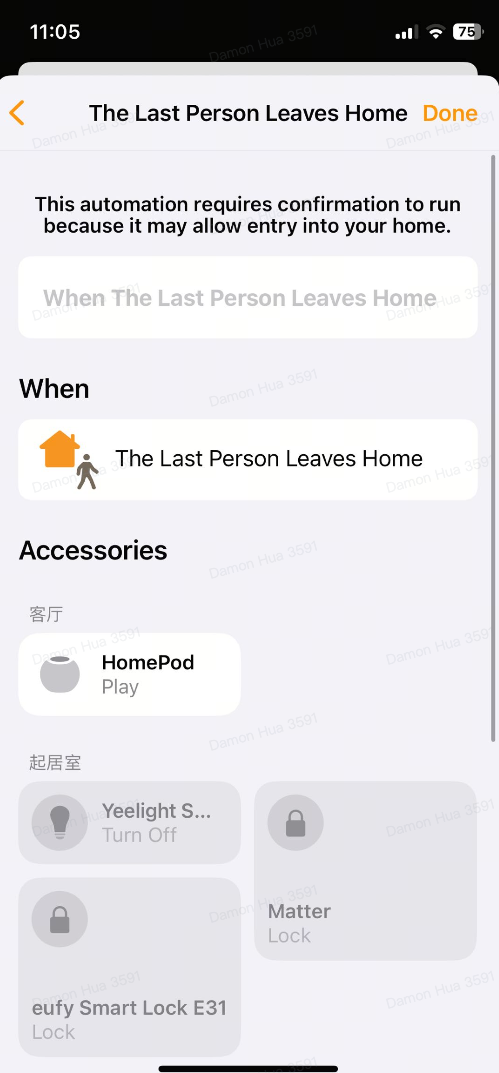
Apple Home uses geofencing to achieve "auto-arm when the last family member leaves" and "auto-disarm when someone returns home."
-
Auto-Arm When Leaving: When the last family member leaves, the door automatically locks, cameras start recording, and all lights turn off
-
Auto-Disarm When Returning: When any family member returns, the door unlocks, indoor cameras enter privacy mode (stop recording), and at night the yard light automatically turns on to light the way home
Scenario 2: Easy Outdoor View & Remote Unlocking — Visitors at a Glance
Whenever a courier delivers a package or a friend visits, I have to go to the door to confirm and unlock.
After connecting to Apple Home, when watching TV at home, if a visitor arrives (the camera detects movement or someone rings the doorbell), you can easily view the live camera feed from outside through Apple TV and use shortcuts to quickly unlock the door.
Scenario 3: Child Arrival Reminder — Stay Informed Even When Away
When I'm not at home, I want to be notified promptly when my child returns from school.
Apple Home cameras can match detected faces with faces marked in the user's photo album, accurately identifying and marking family members or visitors:
-
When the user is not at home, the camera recognizes a family member and sends an accurate notification to the user
-
When the user is at home, notifications are not triggered to avoid frequent message interruptions
Scenario 4: Holiday Atmosphere — Holiday Theme, Endless Surprises
For Halloween, I want to spook the kids coming for trick-or-treating; for Christmas, I want a warm welcome ceremony when I return home.
With Apple Home, you can connect devices from various brands to create various themed scenarios:
-
Halloween: When someone rings the doorbell or is detected at the door, connect the HomePod to play eerie witch sounds and make the outdoor smart light flash Halloween-themed colors to scare visiting guests
-
Christmas: When I unlock the door to return home, the lights in the house automatically turn on, and the HomePod plays Christmas-themed welcome music, making me feel the warmth of coming home
V. Frequently Asked Questions
Q1: Can I still use the eufy App after connecting to HomeKit?
Yes. Both control methods work independently. You can use whichever one suits your habits.
Q2: Why can't I see my eufy device in Apple Home?
-
Please confirm whether your device supports the HomeKit feature
-
Please confirm whether you have completed the authorization in the eufy App or added it via Home App QR code scan
-
Please make sure your iPhone and eufy device are connected to the same Wi-Fi network
Q3: Can I control devices remotely when outside (not on the same Wi-Fi)?
Yes, but you need one of the following devices as a "Home Hub":
-
HomePod or HomePod mini
-
Apple TV (4th generation or newer)
Q4: Why is the camera quality lower through Apple Home than in the eufy App?
Apple Home currently supports a maximum of 1080P resolution. If you need higher quality, please use the eufy App.
Q5: Can I use Siri to unlock the door?
Yes, but your iPhone must be unlocked first (Face ID or passcode verification). This is a security design. You cannot simply say "open the door" to a HomePod to unlock.
Q6: How do battery-powered devices connect to HomeKit?
Battery-powered devices need to be connected via HomeBase bridging. You only need to authorize the HomeBase for HomeKit in the eufy App, and all battery-powered devices connected to the HomeBase will automatically appear in Apple Home.
Q7: Can wired devices connect to HomeKit directly?
Yes. Wired devices connect directly via the HomeKit protocol without going through a HomeBase. You can complete the authorization in the eufy App, or if the device packaging has a HomeKit QR code, you can add it directly by scanning with the Home App.
Q8: Which eufy devices support HomeKit?
Support may vary by device model. Please contact eufy customer service or check whether the product packaging has the HomeKit logo.


