If your eufy HomeBase failed to connect to a 2.4GHz WiFi network and the HomeBase has already been added in the eufy app via Ethernet connection, please try the following troubleshooting steps to verify if the issue can be resolved.
Note: eufy HomeBase only connects to a 2.4GHz WiFi network and not a 5GHz WiFi network. Additionally, please make sure the 2.4GHz WiFi network SSID is not hidden and the security level is set to either WPA or WPA2.
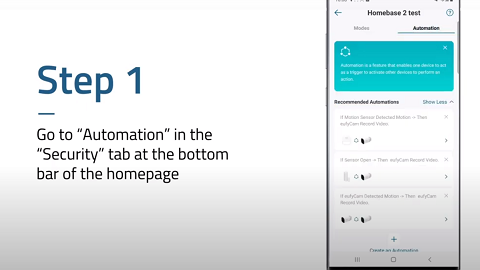
With the HomeBase still connected to the router via Ethernet connection, please launch the eufy app > Devices tab > select the HomeBase >General> Connection > Wi-Fi Setup > select your 2.4GHz WiFi network > enter the password for your 2.4GHz WiFi network and tap Next > HomeBase will automatically connect to the selected 2.4GHz WiFi network and the HomeBase will emit a voice prompt once it is successfully connected.
If you are still experiencing issues connecting your eufy HomeBase to a 2.4GHz WiFi network, please contact us for assistance.