A Glassbreak Sensor is a security device designed to detect the sound or vibrations of breaking glass, triggering an alarm to alert homeowners and deter intruders. It uses acoustic detection (listening for the specific frequency of breaking. These sensors are ideal for protecting windows, sliding doors, and glass entry points, making them a valuable addition to home and business security systems. It integrates with eufy Security System, sending instant notifications to users for quick response.
Before Getting Started
Before installing the Glass Break Sensor E10, you should register your eufy account and install Homebase Professional S1 according to the instructions.
Add Glass Break Sensor E10 to your eufy APP
Step 1: Log in to Your eufy Account
-
Open the eufy App on your phone.
-
Log in to your eufy account. If you don’t have an account yet, create one by following the registration process.
Step 2: Add Glass Break Sensor E10
-
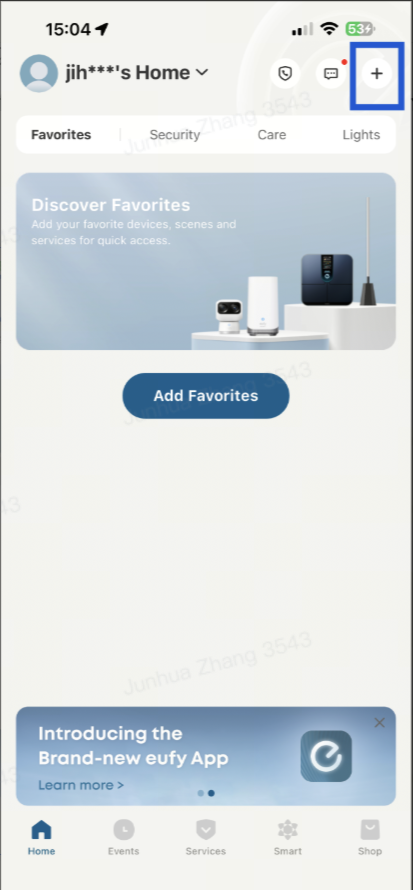
On the app’s main screen, tap the “+” icon in the top-right corner.
-
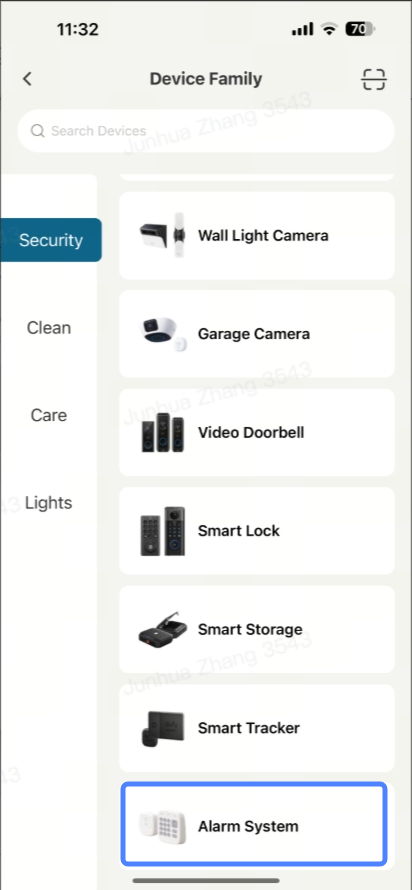
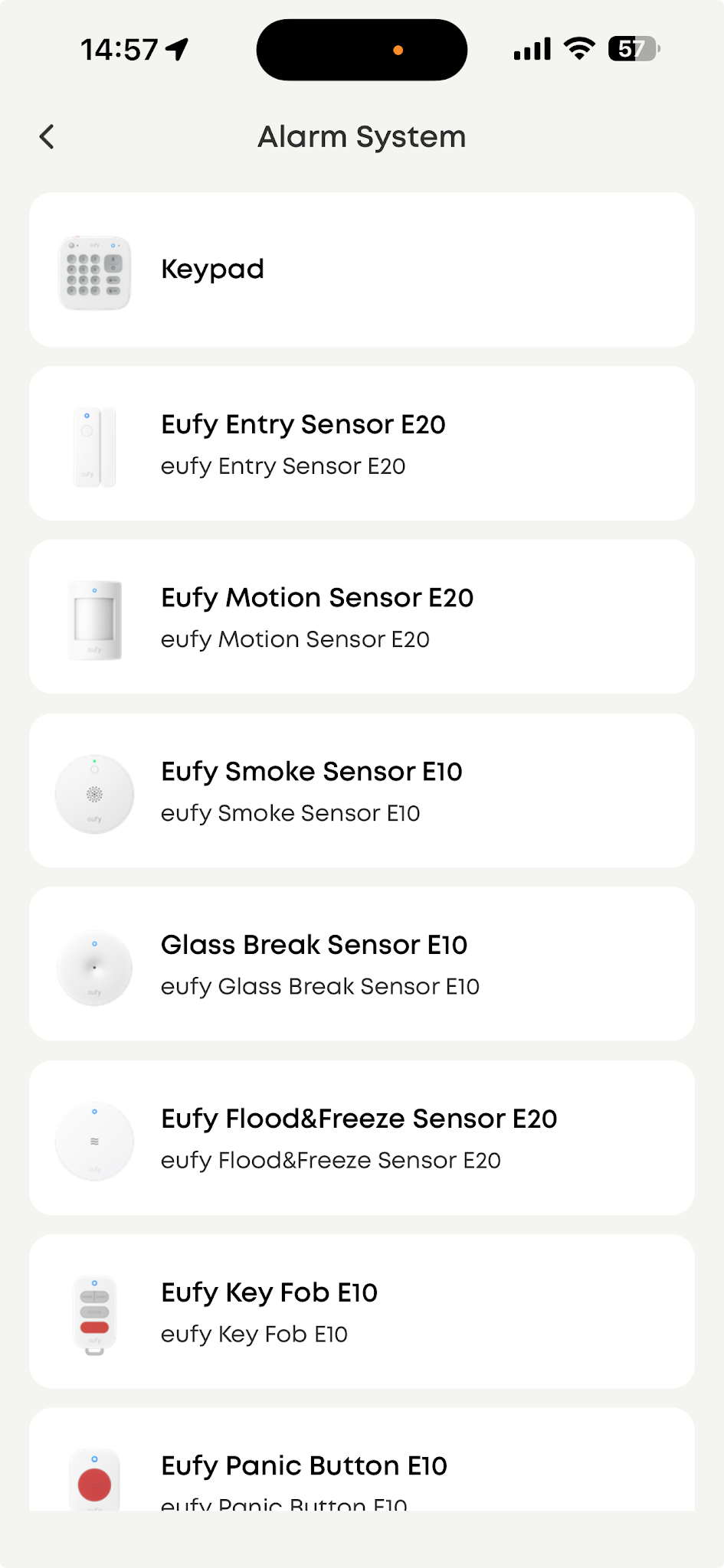
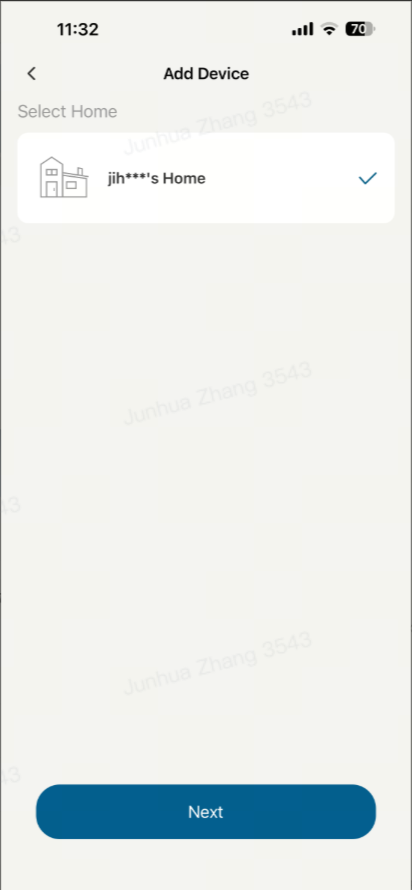
Select “Alarm System” under the Security section, choose eufy Glass Break Sensor E10, and the designated home (where your HomeBase Professional is)
Step 3: Connecting Glass Break Sensor E10 to HomeBase Professional S1
-
Add the Glass Break Sensor E10 under the designated home (where your HomeBase Professional is at).
-
Select the HomeBase Professional S1 that was previously provisioned.
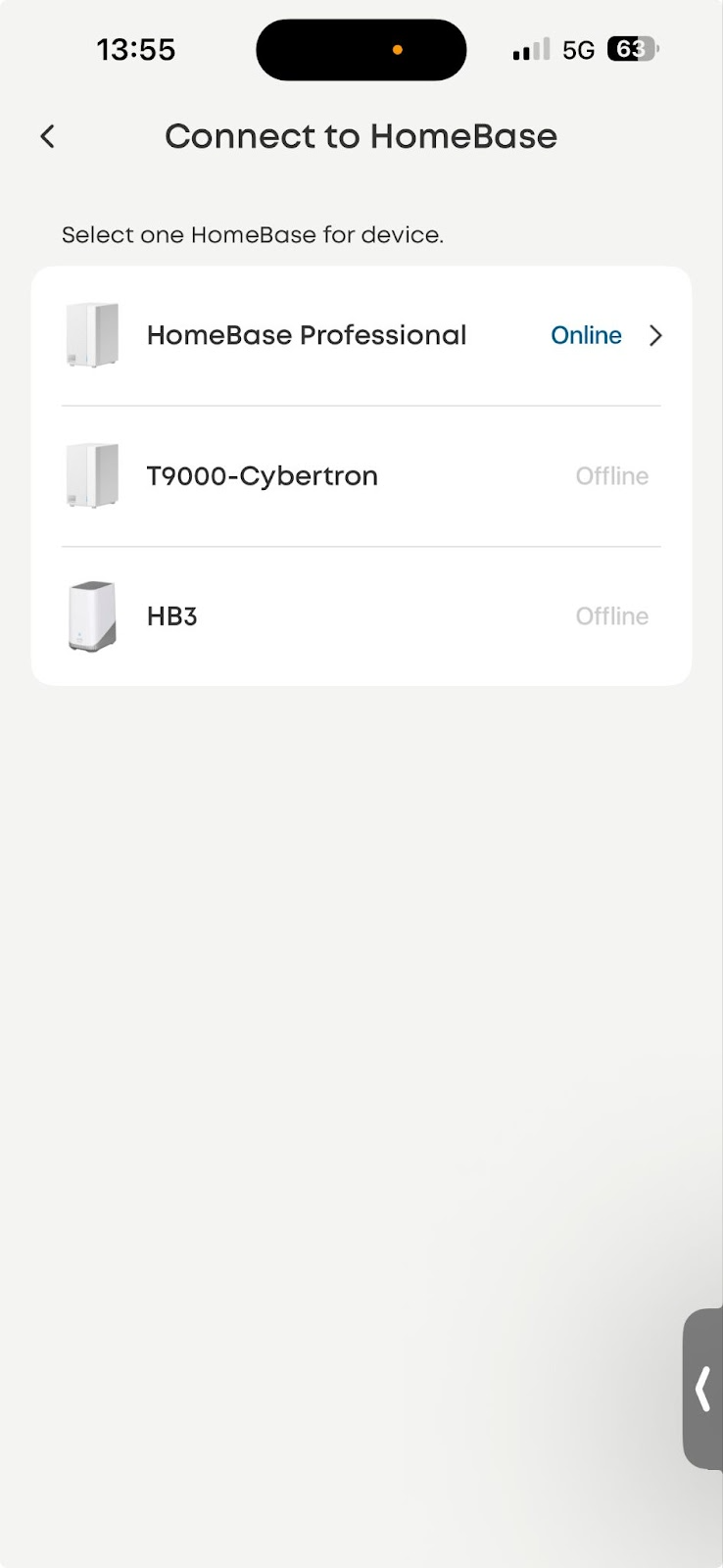
Step 4: Pair the Glass Break Sensor E10
-
Make sure the sensor is powered, then press the 'sync' button for 2 seconds until the LED blinks blue.
-
The LED will flash blue, lasting 1 min, and stop flashing in 5 seconds if the connection is successful
-
After pairing is successful, you can set the device location.
Step 5: Test the Glass Break Sensor E10
-
Press the test button for 2 seconds on the side of the sensor to put the device in test mode.
-
Increase the cell phone microphone volume and play the glass breaking sound near the sensor.
See if the app can receive an event.
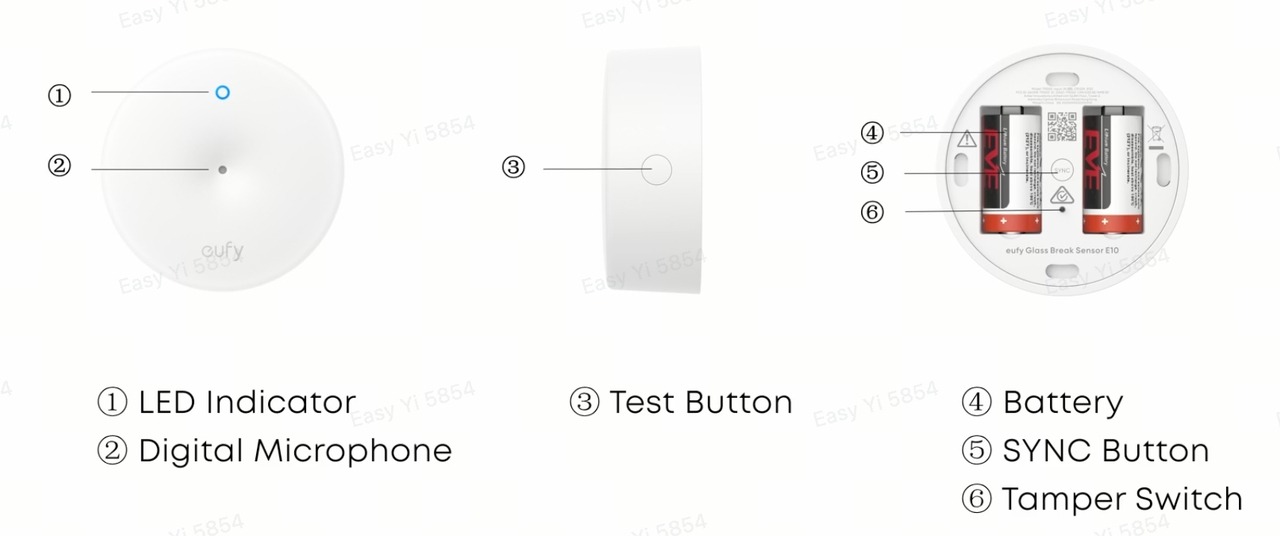
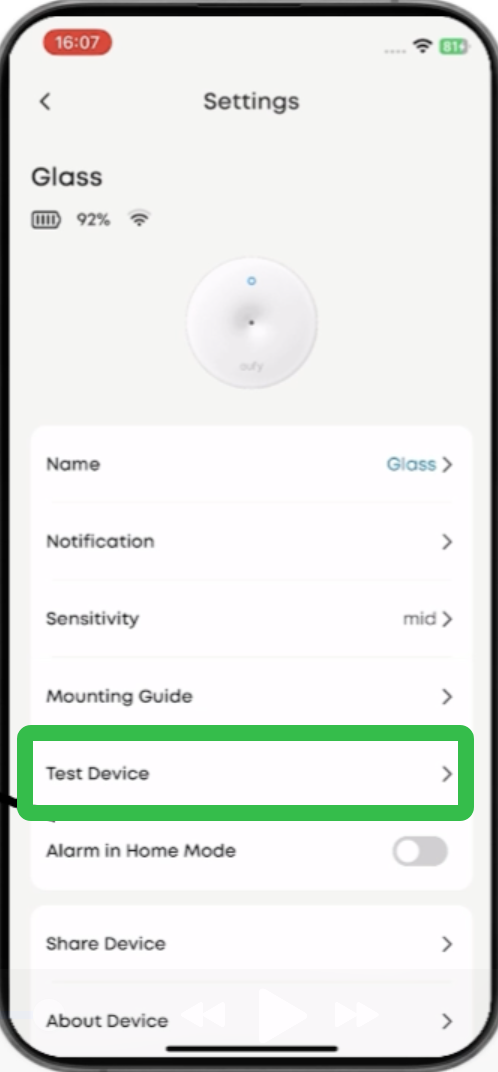
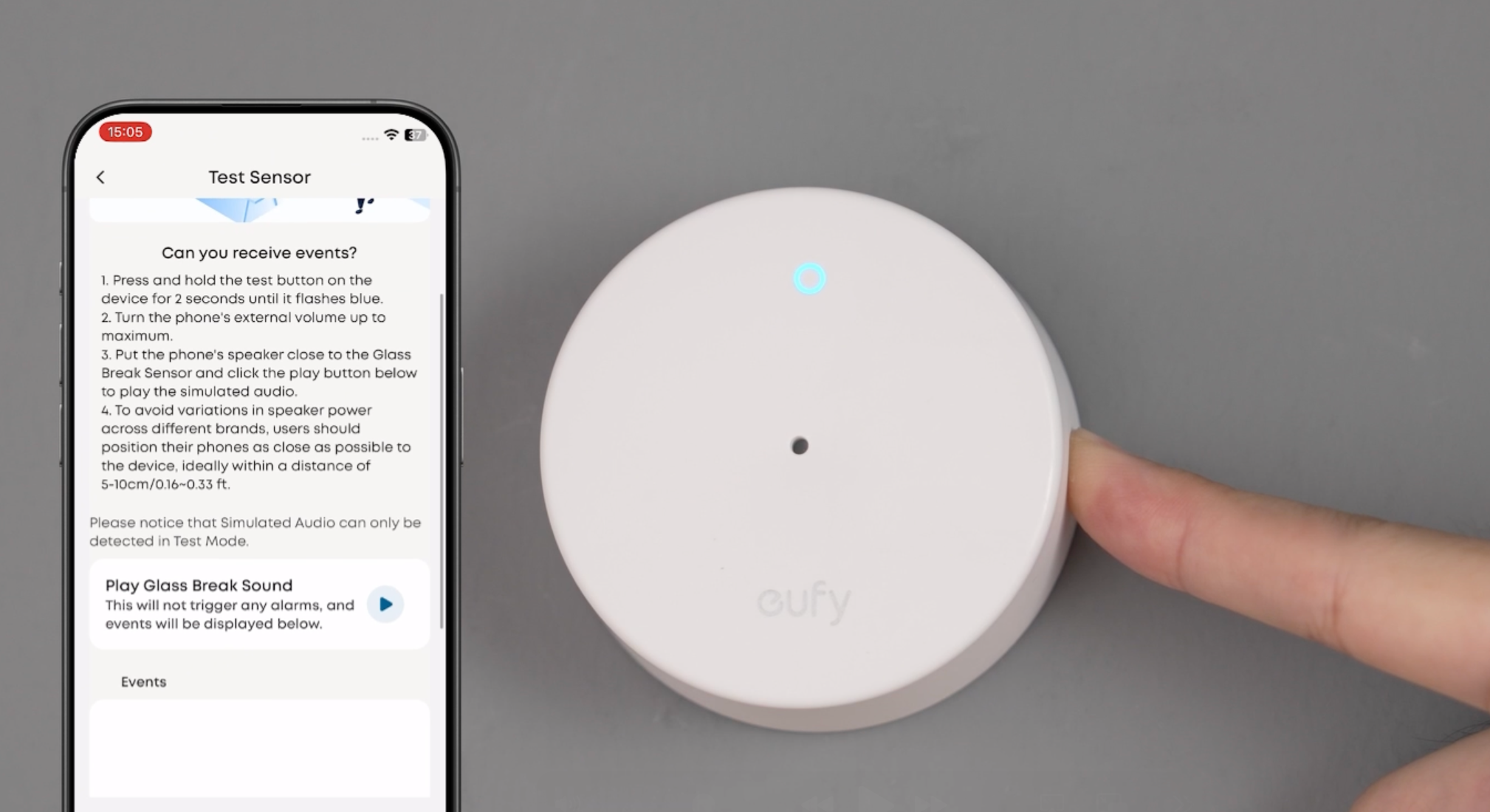
Install Glass Break Sensor E10
Best Locations for Installation
-
Near Windows & Glass Doors – Place sensors close to large glass surfaces that are potential entry points.
-
Living Rooms & Common Areas – Protects large windows often targeted by intruders.
-
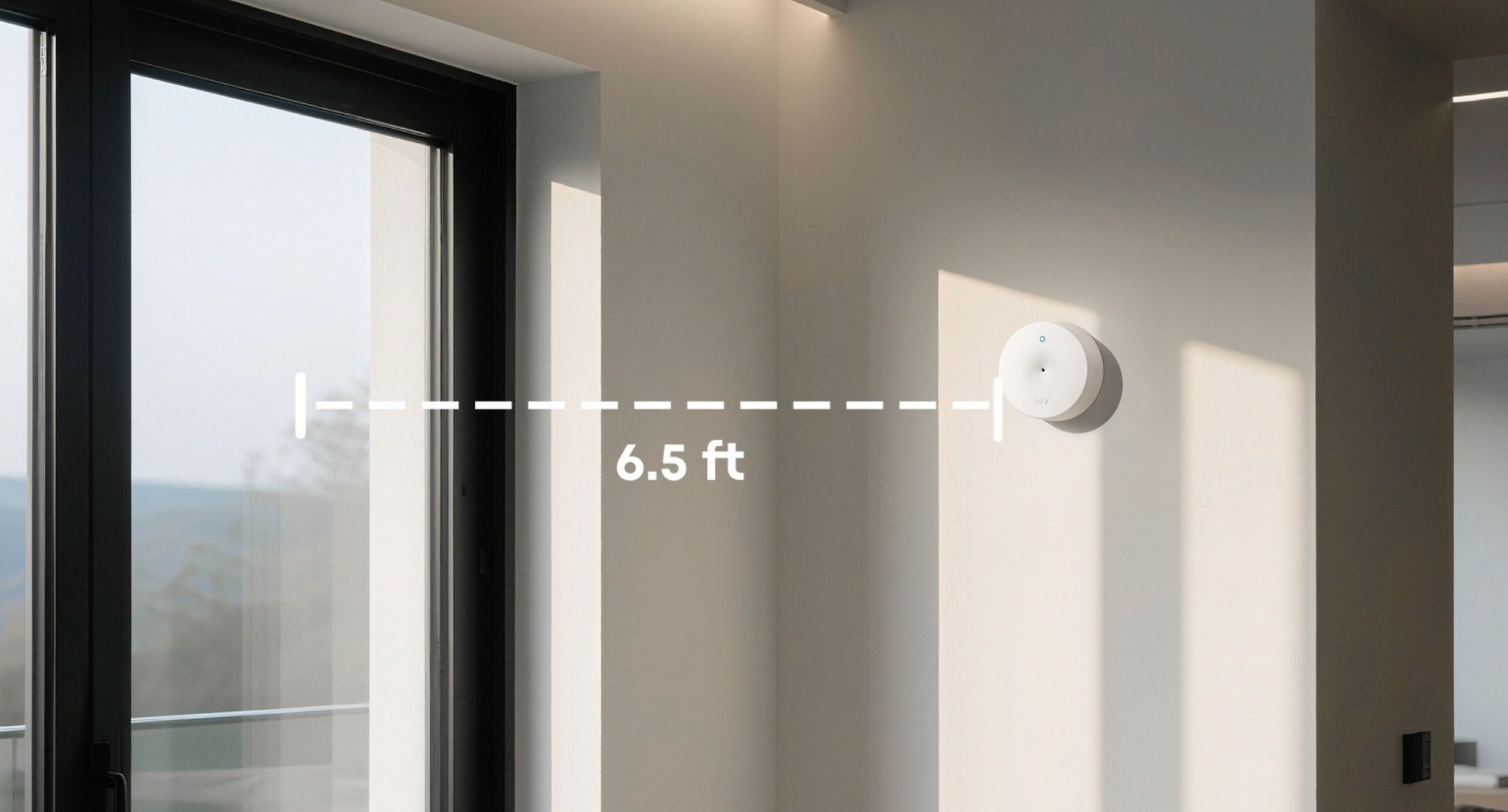
Multiple Windows Coverage – Acoustic sensors can cover multiple windows within 25 ft (<7.5m) range. Recommended distance < 2m.
Recommendations
-
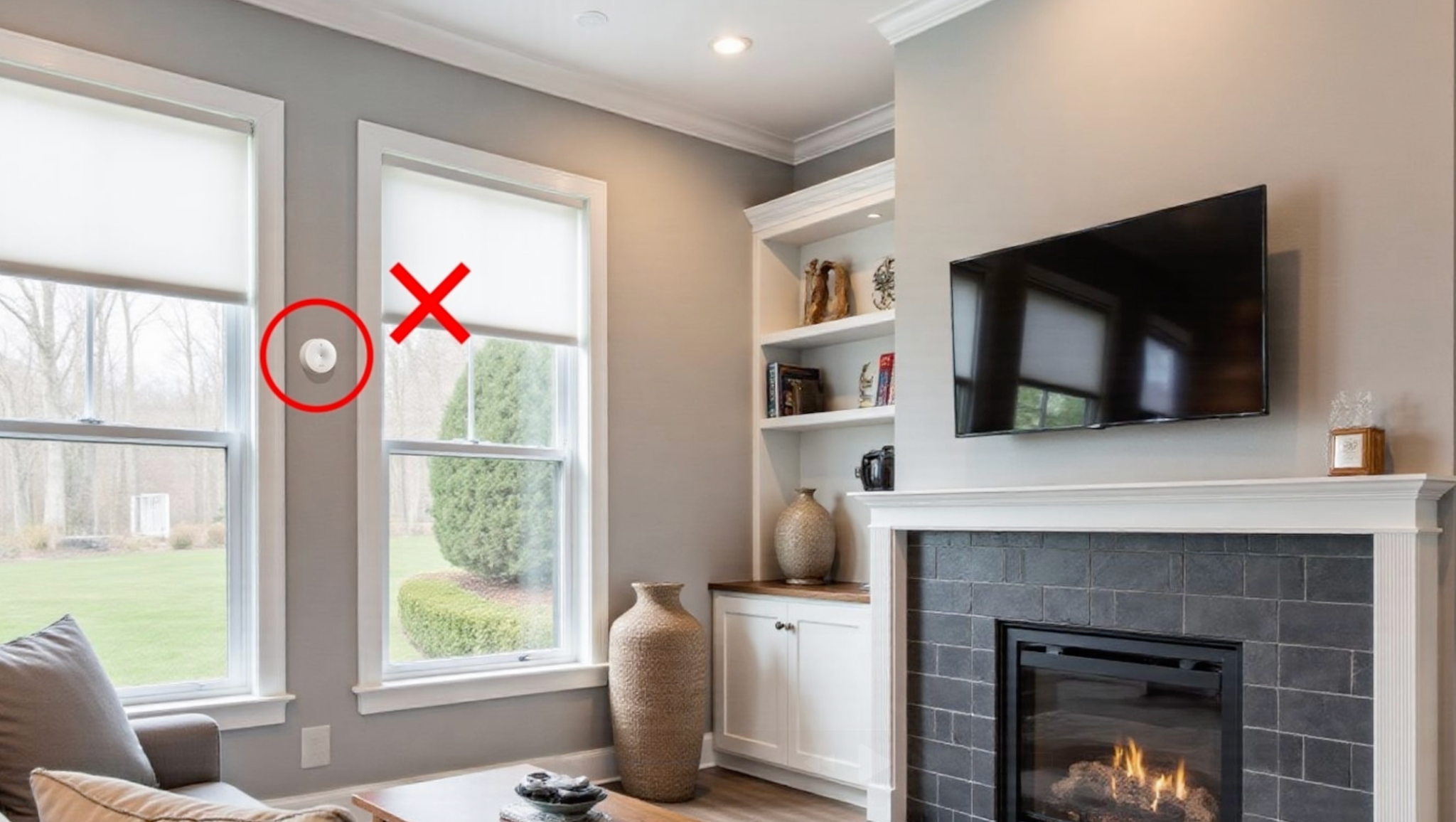
Mount opposite or adjacent to windows for optimal sound detection.
-
Ensure a clear line of sight to the glass for accurate detection.
-
Avoid placing near noisy appliances (TVs, speakers) to prevent false alarms.
Additional Tips
-
Test the Sensor – Use a glass-breaking sound simulator or testing mode to confirm functionality.
-
Avoid False Triggers – Keep away from sources of loud noises that mimic breaking glass.
Use Multiple Sensors for Large Areas – If windows are far apart, install additional units for full coverage.
LED Light Language


