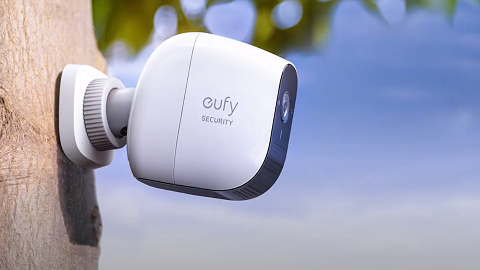
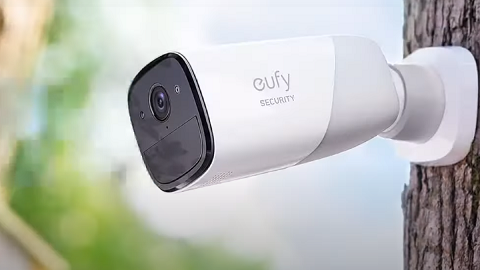
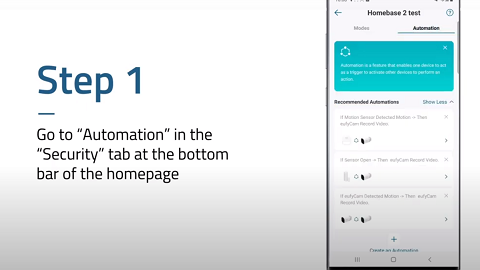
If you are either missing events or receiving too many false triggers on your eufy camera, try these steps to test or adjust the sensitivity level of your camera/doorbell. Please note only eufyCam, eufy SoloCam and eufy Floodlight Cam 2 Pro have motion test mode. Other eufy cameras, such as an indoor cam or video doorbell, can adjust the motion sensitivity settings in the Motion Detection settings directly.
To test motion sensitivity settings on eufyCam and SoloCam:
1. Launch the eufy app and log in to your eufy account.
2. Go to Camera Settings and find Motion Detection.
3. Tap Motion Test Mode at the bottom of the page.
4. Stand in front of the camera from different distances to test motion range. Move the slider bar from 1 to 7 to increase or decrease detection sensitivity. You can test the motion sensor detection distance with motion test mode. The camera will flash red when motion is detected. You can also receive notifications on your phone and view recordings in the eufy app.
Note: The Motion Test Mode value will not be saved to motion detection settings.
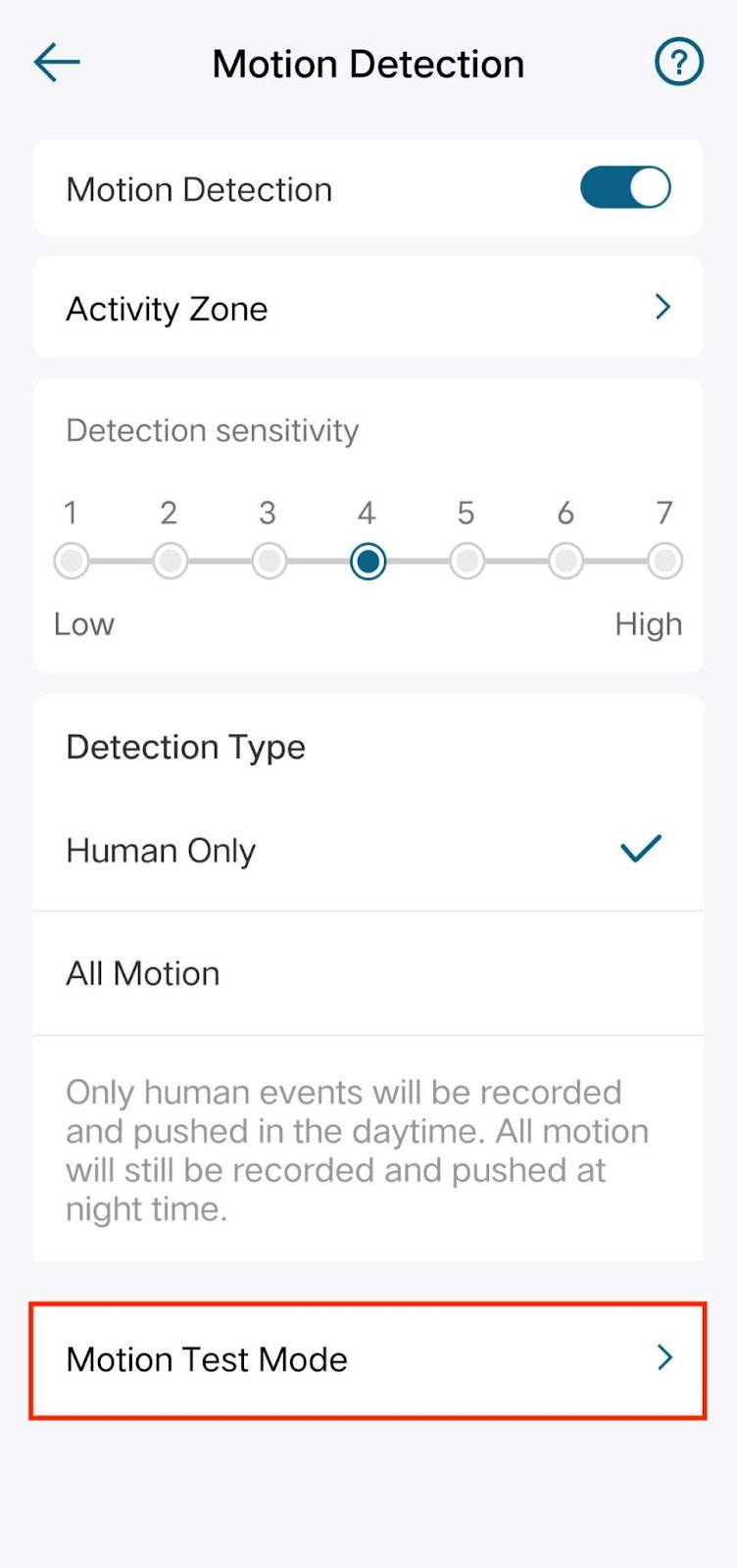

To Adjust Motion Detection Settings on Your eufy Cameras:
1. Launch the eufy app and log in to your eufy account.
2. Go to Camera/Doorbell Settings and find Motion Detection.
3. Find the Detection Sensitivity and tap different numbers to adjust the sensitivity level from low to high or vise versa according to different devices.
4. The sensitivity value will be saved automatically.

The activity zone is also important in Motion detection. For how to set up your camera’s field of view, please refer to Setting Up an Activity Zone for eufy Devices. If you have any further questions, please contact us for assistance.