Most routers come with "dual-band" WiFi, which means they support both 2.4G and 5G WiFi frequency bands. Sometimes they use the same SSID (SSID = network name), sometimes they have a unique SSID, such as "YourWifi" and "YourWifi_5G". Since all eufy devices work on 2.4GHz WiFi network frequency only, this article will guide you to connect your eufy device to the correct 2.4GHz WiFi.
Look at Your Available Networks
1. Open up your WiFi menu on your phone or computer, and check if there are multiple options with your WiFi's name. For example: "home_wifi" and "home_wifi_5G", "home_wifi 2.4G" and "home_wifi", etc.
If there are multiple similar names, choose the one with either 2.4G or nothing extra in the Wi-Fi name. Please do not pick the one with 5G or 5GHz in the Wi-Fi name.
If you can’t find the above scenarios on your phone or computer, follow the methods below to check the Wi-Fi channels and network band.
For Android Phone - Check the Frequency Band in the Wi-Fi Setting
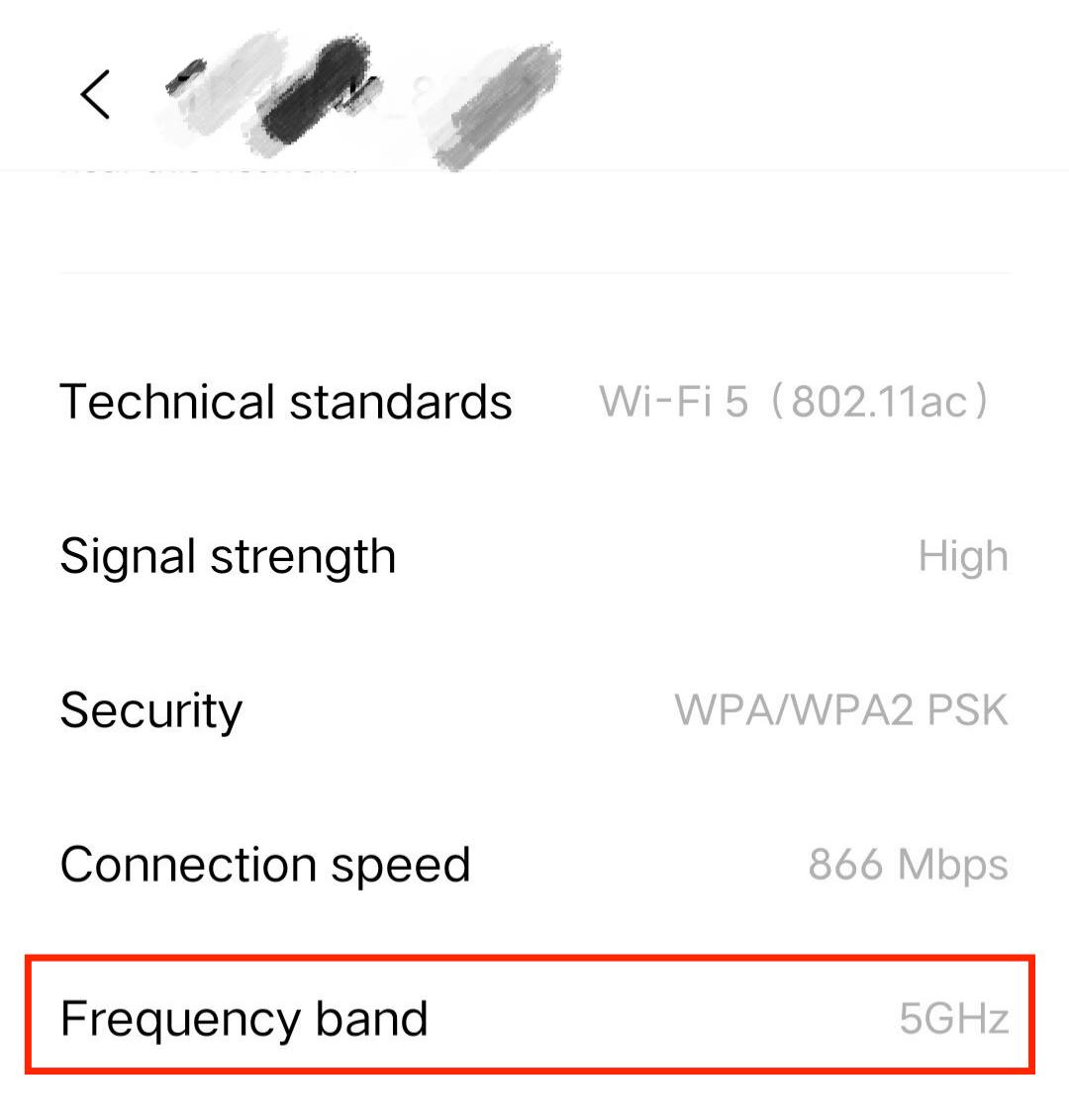
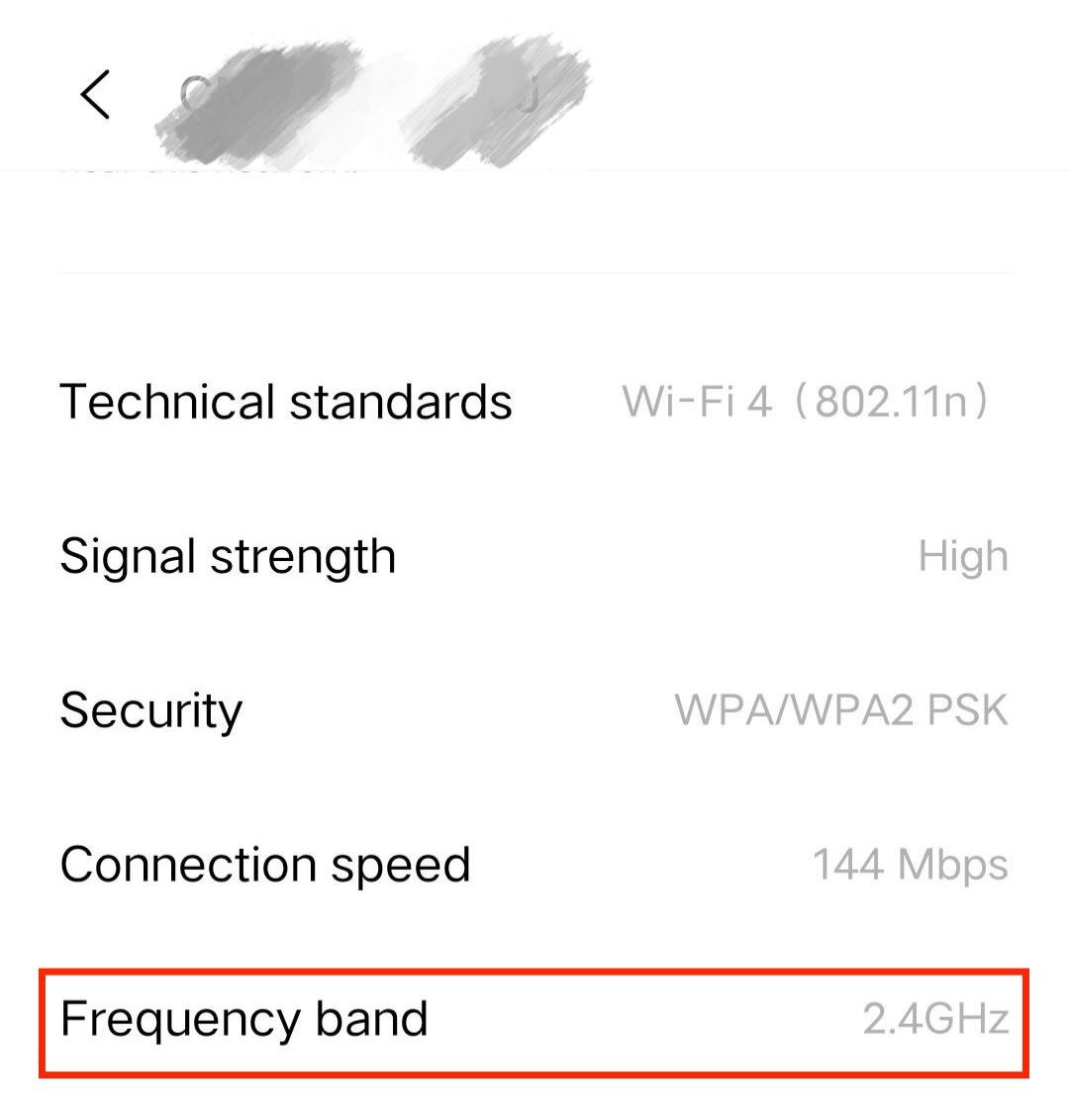
If you have an Android phone, you can confirm whether the network is 2.4G or 5G through the Wi-Fi frequency band. Steps are as follows.
1. Use your Android phone to connect to the Wi-Fi network.
2. Go to Settings > Wi-Fi > Select the connected network to see the Wi-Fi details. Note: Different Android phones might have different settings.
3. Read the frequency band setting. See pictures below about 2.4GHz Wi-Fi and 5GHz Wi-Fi.
For iPhone - Install a WiFi Analyzer App
There is no information on iOS regarding the network band, so we recommend you check your network by using a computer. See the instructions listed below for Apple or Windows computers.
If you don't have a computer, here are some options for finding out your network band on an iOS, you can install a WiFi Analyzer app for further analysis.
For Windows Computer - Check the Network Band in Wi-Fi Properties
1. Connect to the WiFi network and open your network panel from your taskbar (Click the Wi-Fi icon on the bottom right corner of your computer screen).
2. Click on Properties of your connected network.
3. In the new window that opens, scroll down to the properties section.
4. The Network Band will be 2.4GHz or 5GHz.


For MacBook Computers - Find Out the Channel Information of Your Wi-Fi
1. Connect to the Wi-Fi network.
2. Hold the “Option” button on the computer keyboard and click the Wi-Fi icon for detailed information in grey about your Wi-Fi. In the middle it will show which channel your Wi-Fi is using.
3. “Channel” will either say in the brackets 2.4GHz or 5GHz.

If you still have questions regarding the Wi-Fi network band in your house, please contact us for further assistance.