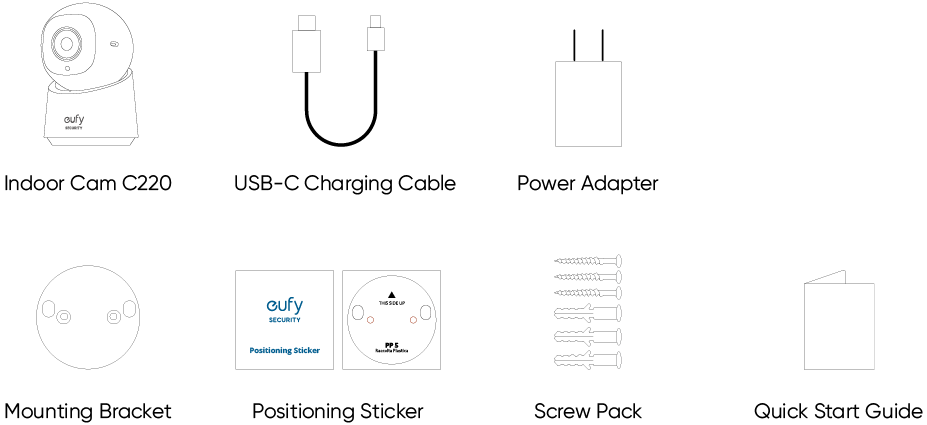
What's in the Box
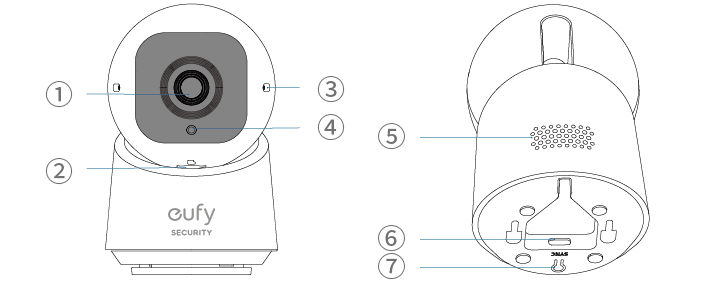
At a Glance
|
❶ |
Lens |
|
❷ |
microSD Card Slot
*Use at least a Class 10 microSD card with a maximum of 128GB. |
|
❸ |
Microphone |
|
❹ |
LED Indicator |
|
❺ |
Speaker |
|
❻ |
Power Input |
|
❼ |
SYNC Button |
Setting up the System
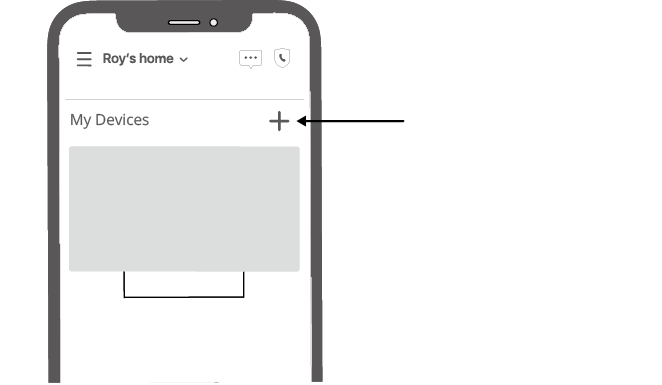
1. Download and install the eufy Security app, then sign up or create an account.
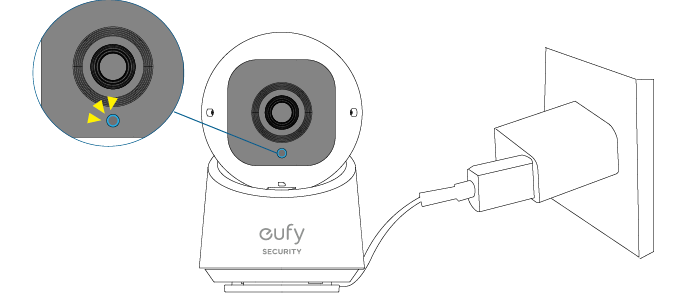
2. Connect the camera to a power source and wait until the status LED turns solid blue.
3. Tap + in the app and follow the in-app instructions to add your camera.
LED Light Guide
|
|
Solid Violet |
System is initializing |
|
|
Solid Blue |
Working normally or ready for setup |
|
|
Blinking Red |
Not connected to the internet |
|
|
Solid Red |
Recording or the live stream is being viewed |
|
|
Flashing Blue and Red |
Firmware upgrade in progress *Keep the camera connected to a power source |


Installing your Camera
Choose a Location
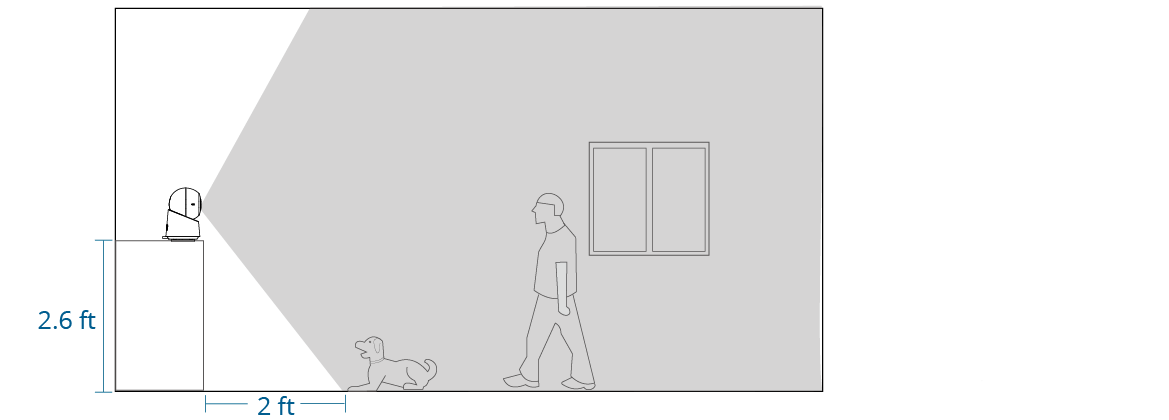
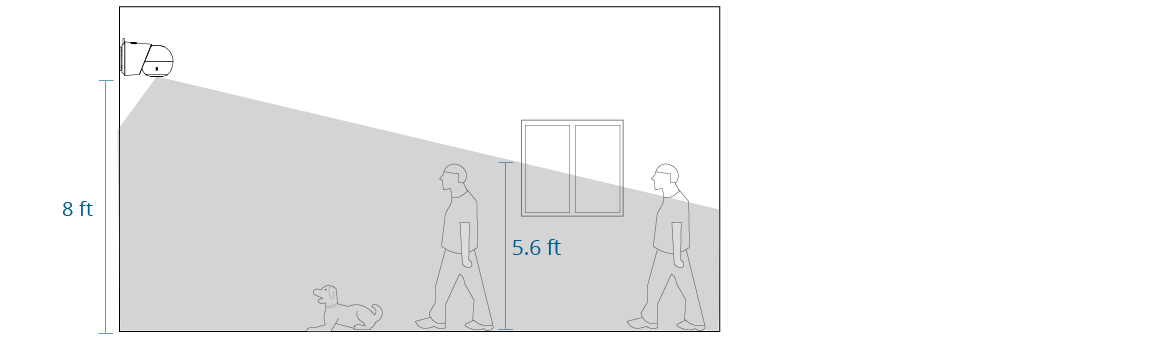
The camera can be placed on a table or shelf, or mounted on a wall or ceiling. Choose a location and height that achieves your desired view and is within reach of a power outlet.
 Keep the camera at least 0.7 ft (0.2 m) away from any objects or walls to avoid infrared reflections that can impact night vision performance.
Camera Field of View
On a Table or Shelf
On the Wall
On the Ceiling
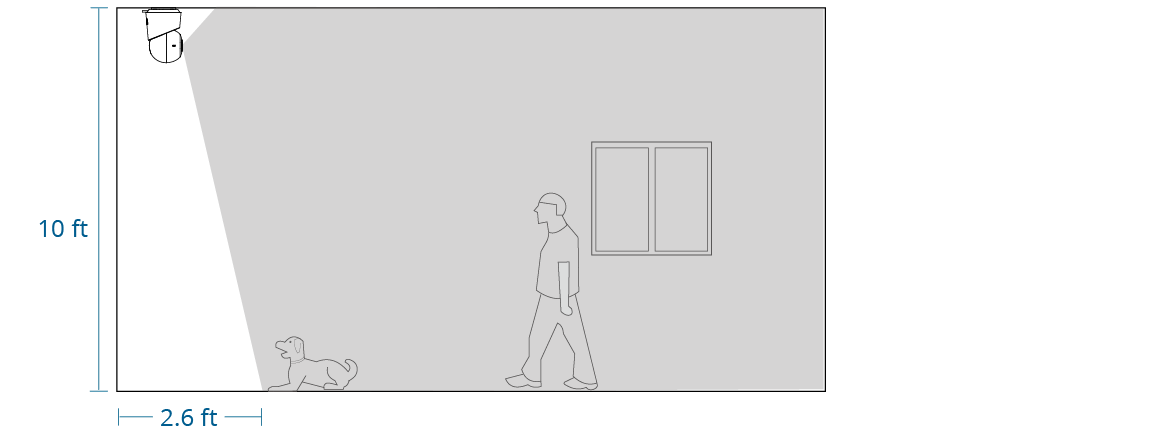
Mount on a Wall or Ceiling
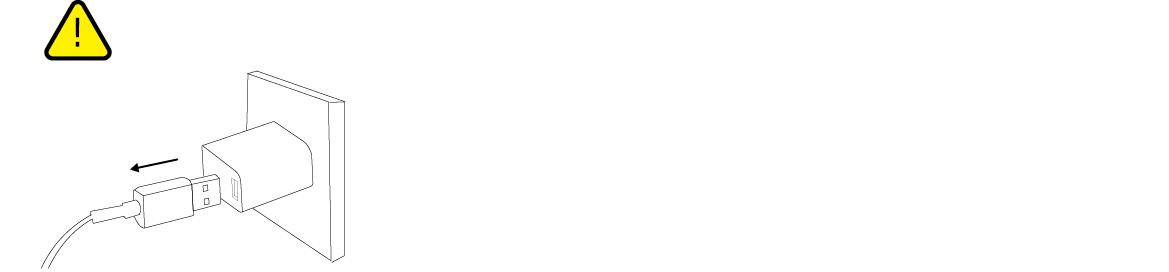
 Warning: Disconnect the camera from the power outlet before mounting.
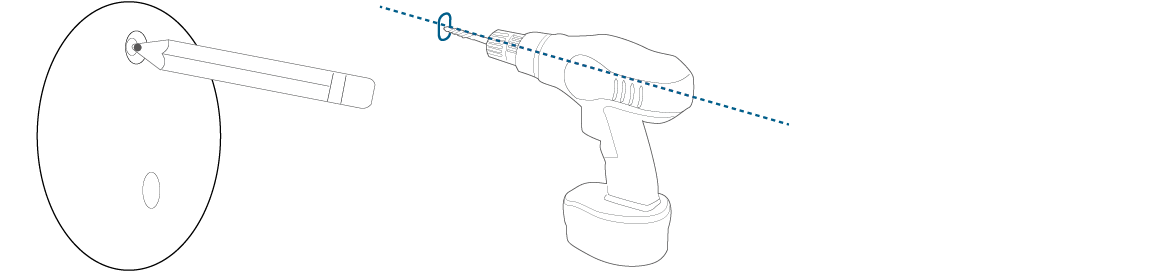
1. Mark the screw positions on the wall or ceiling with the positioning sticker and drill a pilot hole.
2. Hold the mounting plate on the wall and make sure the "UP" arrow is pointing, then secure the mounting plate on the wall or ceiling with the screws.
- On the Wall
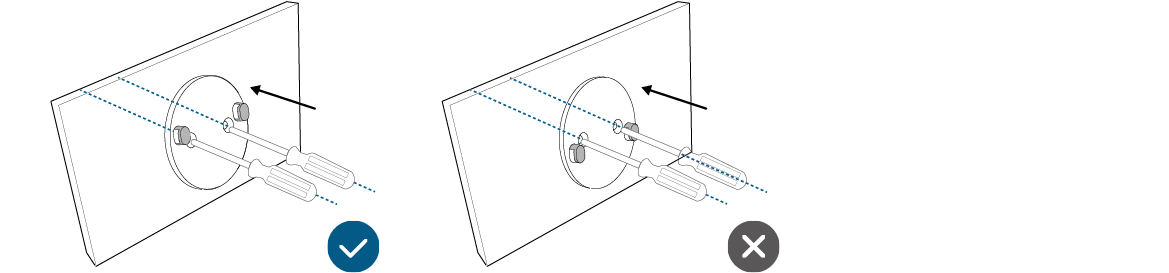
- On the Ceiling

3. Unplug the camera. Connect the USB-C cable to the camera with the other end disconnected from a power source.
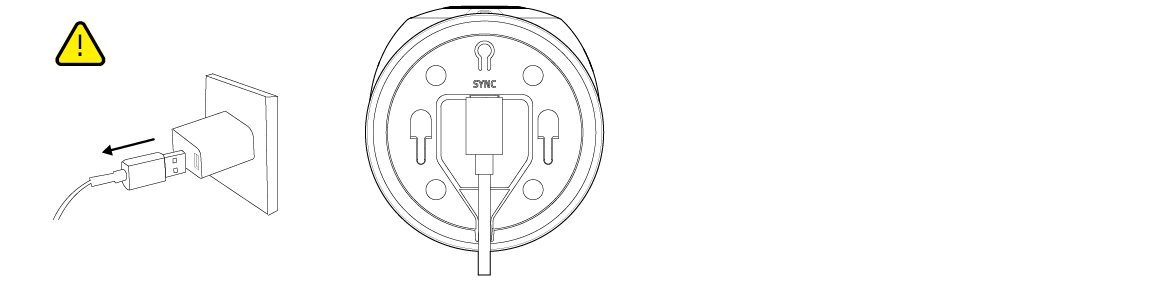
4. For wall mounting, place the cable into the cable channel of the mounting plate.
- Skip this step for ceiling installation.
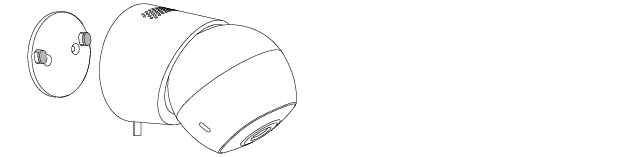
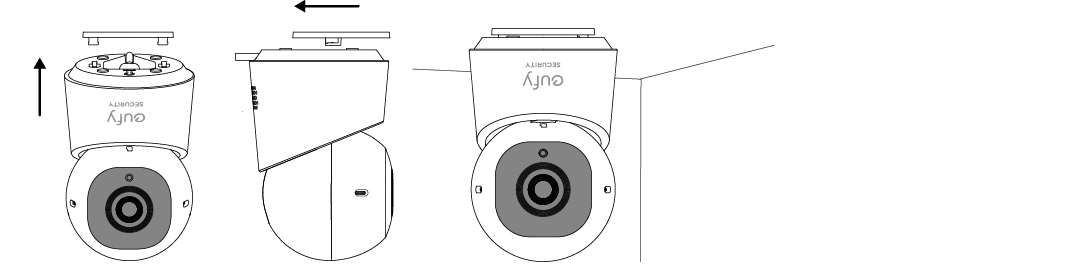
5. Slide the camera onto the mounting plate and make sure it is securely attached.
- On the Wall
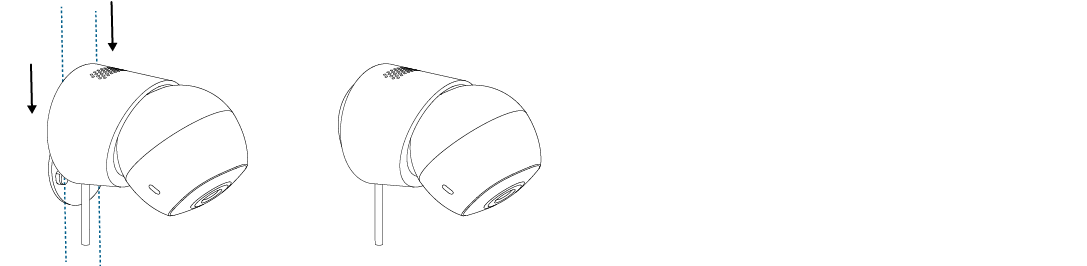
- On the Ceiling