Introducing the Cross-Camera Tracking Function in the eufy Security App

How does the Cross-Camera Tracking function work?

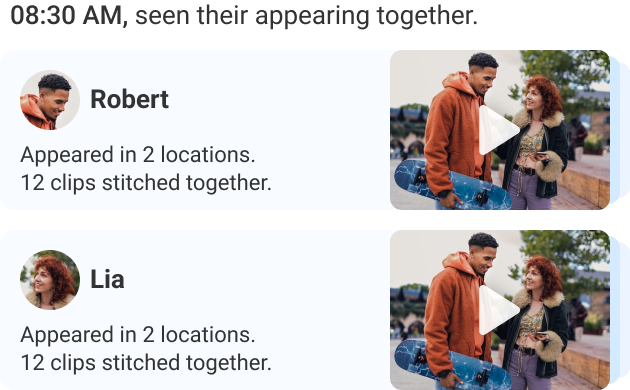
eufy utilizes BionicMind™ A.I. to identify individuals captured on camera in each video. When the same individual appears across multiple cameras within a specified timeframe, the system automatically locates and merges these footage into a single video. This allows you to easily review the entire activity of that specific individual in a single video.

When multiple individuals appear at the same time, a separate event will be created for each individual.
When is the Cross-Camera Tracking function triggered?

Please note that different combinations of cameras will yield different experiences. Please refer to the following table for different scenarios.

User Case 1

All cameras support BionicMind™ A.I.

Expected Experience

  1. An individual passes in front of each of the five cameras sequentially and then leaves. Once the recording from the last camera is complete, the security report will immediately display the stitched tracking video, thanks to real-time analytics.
  2. If you view the stitched video after a certain time period (such as 10 minutes), the real-time stitching results can be automatically corrected using look-back analytics.

Device Example

HomeBase 3 x1

eufyCam x4

Battery Video Doorbell x1

User Case 2

All cameras support BionicMind™ A.I.

All are wired cameras

Expected Experience

  1. An individual passes in front of each of the four cameras sequentially and then leaves. Once the recording from the last camera is complete, the security report will immediately display the stitched tracking video, thanks to real-time analytics.
  2. If you view the stitched video after a certain time period (such as 10 minutes), the real-time stitching results can be automatically corrected using look-back analytics.

Device Example

HomeBase 3 x1

eufyCam Professional x4

User Case 3

All cameras can save video to the HomeBase 3, but they do not support BionicMind™ A.I.

Expected Experience

  1. An individual passes in front of each of the four cameras sequentially and then leaves. Each camera generates a 20-second footage. Once the final camera finishes recording, a wait time of five to six minutes is required, after which the security report will display the compiled tracking video through look-back analysis.

Device Example

HomeBase 3 x1

Floodlight Cam 2 Pro x2

Wired Wall Light Cam x2

User Case 4

Some cameras support BionicMind™ A.I. and other cameras do not support it.

Expected Experience

  1. An individual passes in front of each of the six cameras sequentially and then leaves. Each camera generates a 20-second footage. Once the final camera finishes recording, a wait time of three minutes is required, after which the security report will display the compiled tracking video through look-back analysis.

Note: Although the footage from the four eufyCam cameras can be processed in real-time, the footage from the Floodlight Cam 2 Pro cameras need to be analyzed retrospectively, so it will take a few minutes for the stitched tracking video to appear.

Device Example

HomeBase 3 x1

eufyCam x4

Floodlight Cam 2 Pro x2


When does the system process footage from the Cross-Camera Tracking function?

  1. Real-Time Tracking

As each camera records, HomeBase 3 analyzes the video content and stitches it together in real-time. Once a video recording ends, it is immediately concatenated with the associated video recordings. You can instantly view the cross-camera tracking result on the security report page.

Note: Cameras that are compatible with HomeBase 3 storage as well as HomeBase 3 BionicMind™ A.I. can utilize both the Real-Time and Look-Back Tracking functions. (Examples include eufyCam, Battery Video Doorbell, etc.) More detailed device compatibility information can be found in the following link: https://support.eufy.com/s/article/Centralize-Your-Security-Ecosystem-with-HomeBase-3 

  1. Look-Back Tracking

After each camera has finished recording and saving videos to HomeBase 3, HomeBase 3 re-analyzes the video content for splicing. HomeBase 3 performs this post-processing when it is idle (idle means there is no camera currently recording). A 30-second video usually takes 120 seconds to process (four times the duration of the video).

Note: Cameras that are compatible with HomeBase 3 storage, but not with HomeBase 3 BionicMind™ A.I., will only be able to use the Look-Back Tracking function. (Examples include FloodLight Camera 2 Pro and Wall Light Camera, etc.) More detailed device compatibility information can be found in the following link: https://support.eufy.com/s/article/Centralize-Your-Security-Ecosystem-with-HomeBase-3 


What does the Cross-Camera Tracking function depend on?

The Cross-Camera Tracking function depends on a human feature recognition algorithm that determines the similarity of an individual’s appearances in two videos to stitch them together. Even if the face is not visible in the video, videos of similar-looking individuals are still identified and stitched together. 

If you encounter any issues or have any questions about the Cross-Camera Tracking function, please don't hesitate to reach out to us for further assistance.

Unresolved icon
76 undefined
S380 HomeBase (HomeBase 3) Compatibility
215068 views37 likes/2024-12-25 14:45:40
Differences Between All eufyCams
14787 views1 likes/2025-11-05 10:27:38
Introducing eufy S380 HomeBase (HomeBase 3)
15076 views1 likes/2025-04-07 18:06:40
What is the S380 HomeBase(HomeBase 3) storage type?
16505 views1 likes/2025-04-07 18:03:13
S380 HomeBase (HomeBase 3) Goes Offline
14233 views1 likes/2025-04-07 18:03:14
Issues of the Hard Drive in S380 HomeBase (HomeBase 3)
11496 views1 likes/2025-04-07 18:06:16
Introduction to New eufy App
32260 views9 likes/2025-06-04 14:38:58
Download icon
eufyCam_E330 (Professsional)_4-Cam_Kit_QSG_EU
Download icon
eufyCam_E330 (Professsional)_Add_On_QSG_EU
Download icon
T8600 eufyCam E330 (Professional) EU Declaration of Conformity
Download icon
eufyCam E330 (Professional) User Guide (T8600)
Play videoeufyCam E330 Installation Guide - adjust the angle vertically
eufyCam E330 Installation Guide - adjust the angle vertically
Play videoeufyCam E330 Installation Guide - adjust the angle horizontally
eufyCam E330 Installation Guide - adjust the angle horizontally
Play videoHow to Schedule Your eufySecurity Devices
How to Schedule Your eufySecurity Devices
Play videoeufy Security App Functions
eufy Security App Functions
Play videoHow to Turn On / Off the Snooze Feature
How to Turn On / Off the Snooze Feature
Contact Us
Buy on the eufy Store
Download the App
affirmamazonPayamexapplePaydinnersClubdiscovergooglePaymastercardpaypalshopPayvenmovisa