2.2 Network Environment Requirements
2.3 Firmware Version Requirement
6. Wi-Fi Information Management and Connection Status
Q1: After enabling Multi-Bridge, does the camera connect through the base station or the router?
Q2: Do I need to buy extra equipment to use Multi-Bridge?
Q3: After enabling Multi-Bridge, can I still view the camera normally in the APP?
Q4: When is it recommended to enable Multi-Bridge?
Q5: My camera is very close to the base station. Do I still need to enable Multi-Bridge?
Q6: What happens if the router goes offline after Multi-Bridge is enabled?
Q7: What should I do if my camera firmware version does not support Multi-Bridge?
Q8: Why does it say connection failed after I entered the router Wi-Fi information?
Q9: Will Multi-Bridge affect video storage?
Q11: Does Multi-Bridge support 5 GHz Wi-Fi?
Q12: I have multiple devices. Do I need to configure Wi-Fi one by one?
Q13: What is the difference between Auto mode and Prioritizes Router mode?
Q14: After enabling Multi-Bridge, can Matter smart home still work normally?
Q15: Why does the Multi-Bridge page show “Unable to connect”?
1. Feature Overview
Multi-Bridge (MB for short) is a feature that allows your EufyCam camera to connect to the HomeBase S380 (HomeBase 3) through your home router.
What problem does it solve?
Normally, the camera connects directly to the base station through the base station’s built-in Wi-Fi. However, this method has two limitations:
-
Distance limitation: If the camera is too far from the base station, the signal may become weak, causing video lag or the device to go offline.
-
Device quantity limitation: When many cameras are connected, especially with 24/7 recording enabled, the wireless bandwidth of the base station may not be enough, which can affect the normal use of all devices.
After Multi-Bridge is enabled, the camera can connect to the base station through your home router instead. This removes the limitations above, gives you more flexibility in camera placement, and allows more cameras to work stably at the same time.
2. Requirements
2.1 Device Requirements
-
Your camera and HomeBase S380 base station must already be paired normally.
-
The camera must be working in HomeBase mode.
2.2 Network Environment Requirements
Your home network must meet the following conditions.
Supported network environments for Multi-Bridge:
-
HomeBase S380 is connected to the router via Ethernet, and the camera is connected to the Wi-Fi of the same router.
-
HomeBase S380 is connected to the router via Ethernet, and the camera is connected to the Wi-Fi of a Mesh network or range extender created by that router.
-
HomeBase S380 is connected to the router via Ethernet, and the camera is connected to another wireless AP under the same network.
Unsupported network environments for Multi-Bridge:
-
The camera is connected to the router’s guest Wi-Fi.
-
The camera and the base station are not in the same local network (for example, they are connected to different routers).
-
VLAN isolation is enabled in the network.
2.3 Firmware Version Requirement
Please update your device firmware to the latest version (see the Supported Models section below).
Update path: open the eufy APP → go to Device Settings → Check for Firmware Update.
3. How to Enable the Feature
APP Entry
Open the eufy APP and go to:
Settings → General → Wi-Fi Connection → Multi-Bridge
-
If the device is not connected in HomeBase mode (for example, in Solo mode), or if it does not support Multi-Bridge, this entry will not be shown.
-
Some devices do not support turning Multi-Bridge off. Please refer to Section 4: Supported Models for details.
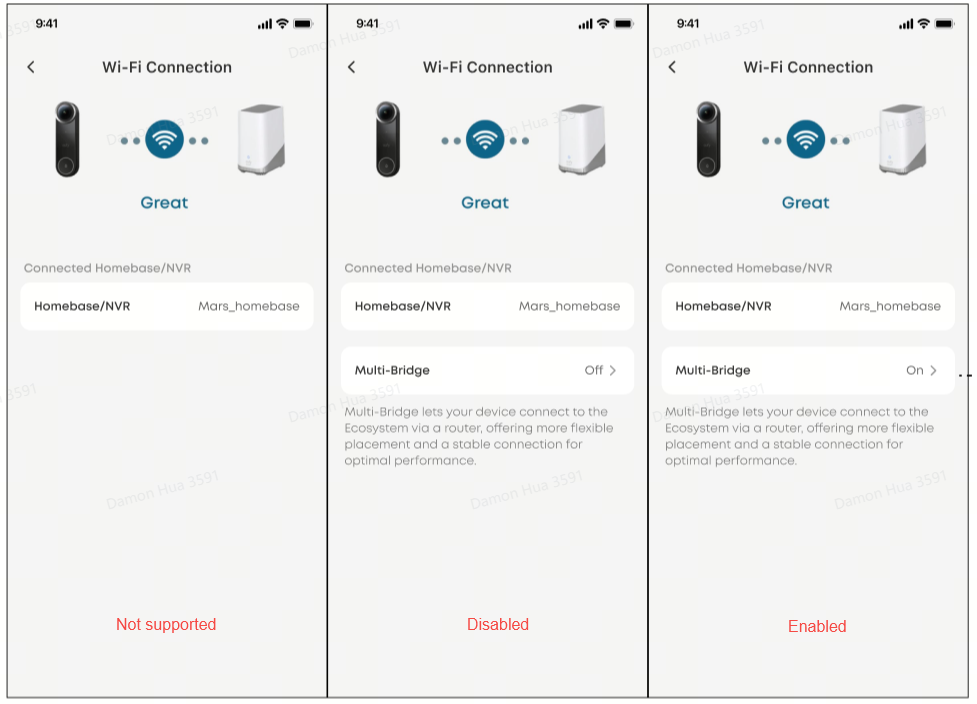
4. Supported Models
The following devices support the Multi-Bridge feature, and also support the Multi-Bridge on/off switch (which means you can manually turn the feature off). After updating the firmware to the latest version, you can start using it. More models are being added continuously, so please refer to the actual device information.
How to Check the Product Model (PN)
You can find the PN information on your device:
-
Device label: Check the label on the bottom of the device. The PN is printed there (such as T8134 or T8425).
-
In the APP: Open the eufy APP → go to Device Settings → Device Information → check the product model.
How to Confirm Whether Your Device Supports Multi-Bridge
-
Update the device firmware to the latest version.
-
Open the eufy APP → go to Device Settings → General → Wi-Fi Connection.
-
Check whether there is a Multi-Bridge related option.
-
If you can see this option, your device supports this feature.
5. Working Modes
Multi-Bridge provides two working modes. Different devices may support different modes.
Working Mode Details
6. Wi-Fi Information Management and Connection Status
Unified Wi-Fi Information Management
-
Set once for all devices: You only need to configure the router Wi-Fi information on any one device. The base station will sync that information to all devices with Multi-Bridge enabled.
-
New devices get it automatically: After a new device is added to the base station, if the base station already has Wi-Fi information configured, the new device will automatically sync it and enable Multi-Bridge without needing to be set up again.
-
Supports both 2.4 GHz and 5 GHz Wi-Fi: The base station stores 2.4 GHz and 5 GHz Wi-Fi information separately to make sure devices on different bands can connect properly.
Connection Status Display
On the Multi-Bridge management page in the APP, you may see the following statuses:
-
Off: Multi-Bridge is not enabled, and the device is connected directly to the base station.
-
Not set: Multi-Bridge is enabled, but the router Wi-Fi information has not been configured yet.
-
Wi-Fi configured: Router Wi-Fi information has been configured, and you can choose Auto or Prioritizes Router mode.
-
Unable to connect: Wi-Fi has been configured, but the connection failed (for example, the Wi-Fi cannot be found or the password is incorrect).
7. Frequently Asked Questions
Q1: After enabling Multi-Bridge, does the camera connect through the base station or the router?
After Multi-Bridge is enabled, the system will automatically choose the more stable connection method based on signal quality. If the router signal is better, the camera will connect to the base station through the router first. If the router signal becomes poor, it will automatically switch back to direct HomeBase connection. No manual action is needed.
Q2: Do I need to buy extra equipment to use Multi-Bridge?
No. Multi-Bridge uses the router you already have at home. No extra equipment is required.
Q3: After enabling Multi-Bridge, can I still view the camera normally in the APP?
Yes. Multi-Bridge only changes the connection method between the camera and the base station. It does not affect normal APP usage, including live view, playback, notifications, and other functions.
Q4: When is it recommended to enable Multi-Bridge?
It is recommended to enable it if you have the following situations:
-
The camera is installed outdoors or far from the base station, and the signal is often weak.
-
You have many connected cameras (for example, more than 8), or multiple dual-lens 4K devices.
-
You have enabled multiple 24/7 recordings and notice that the base station responds slowly or devices go offline easily.
Q5: My camera is very close to the base station. Do I still need to enable Multi-Bridge?
If the camera is close to the base station and the signal is already good, you can still use it normally without enabling Multi-Bridge. This feature is mainly designed for situations with long distance or many devices.
Q6: What happens if the router goes offline after Multi-Bridge is enabled?
If the router network becomes abnormal, the camera will automatically switch back to direct HomeBase connection so the device does not go offline. After the router network recovers, the system will automatically re-evaluate the connection method based on the settings.
Q7: What should I do if my camera firmware version does not support Multi-Bridge?
Please update the camera firmware to the latest version. For the supported firmware versions, refer to the Supported Models section above.
Update path: open the eufy APP → go to Device Settings → Check for Firmware Update.
Q8: Why does it say connection failed after I entered the router Wi-Fi information?
Possible reasons include:
-
The camera is connected to guest Wi-Fi. Please switch to the main Wi-Fi.
-
The camera and the base station are not under the same router network.
-
The Wi-Fi password was entered incorrectly. Please check it again.
-
Your network has advanced settings such as VLAN isolation.
Q9: Will Multi-Bridge affect video storage?
No. Whether the camera connects directly to the base station or through the router, recordings are still stored normally in the HomeBase S380 base station. The storage method and capacity are not affected.
Q10: After upgrading from an older firmware version to one that supports Multi-Bridge, do I need to set it up again?
If your device was upgraded from an older firmware version that did not support Multi-Bridge, the router information would not have been saved on the device. You will need to manually configure the router Wi-Fi information once before using the Multi-Bridge feature.
Q11: Does Multi-Bridge support 5 GHz Wi-Fi?
Yes. If your device supports both 2.4 GHz and 5 GHz Wi-Fi, the base station will prioritize the 5 GHz band for connection. For devices that only support 2.4 GHz, the system will automatically use the 2.4 GHz Wi-Fi information. You can view and switch the Wi-Fi band in the APP.
Q12: I have multiple devices. Do I need to configure Wi-Fi one by one?
No. Multi-Bridge manages Wi-Fi information centrally through the base station. You only need to configure the router Wi-Fi on any one device, and the base station will automatically sync the information to all devices with Multi-Bridge enabled. New devices added later will also sync automatically.
Q13: What is the difference between Auto mode and Prioritizes Router mode?
-
Auto mode: The system automatically switches between direct HomeBase connection and router connection, and always chooses the better signal path. It is suitable for most users.
-
Prioritizes Router mode (currently supported on T8215, with more models coming soon): The device always prioritizes router connection, and only switches to direct HomeBase connection when the router has an issue. It will switch back automatically after recovery. This mode is suitable for 5 GHz Wi-Fi environments or Matter smart home devices.
Q14: After enabling Multi-Bridge, can Matter smart home still work normally?
Yes. If your device supports Matter, it is recommended to choose Prioritizes Router mode. This helps the device stay connected within the local network and ensures Matter smart home features work properly.
Q15: Why does the Multi-Bridge page show “Unable to connect”?
Possible reasons include:
-
The router Wi-Fi name (SSID) or password has been changed.
-
The router Wi-Fi signal is temporarily unavailable.
-
The camera and the base station are not on the same network.
Please check the router Wi-Fi settings and reconfigure the Wi-Fi information in the APP.
8. Reference Documents
-
Multi-Bridge User Guide: https://service.eufy.com/sg/article-description/Multi-Bridge-User-Guide?ref=sg%2Fsearch
-
How to Enable the Multi-Bridge Function in the eufy Security App: https://service.eufy.com/sg/article-description/How-to-Enable-the-Multi-Bridge-Function-in-the-eufy-Security-App?ref=sg%2Fsearch


