“I NEED TO RECHARGE MY DOORBELL AGAIN!?”
You are not alone. We will take a closer look at the inner reason of how the battery drains and how to best optimize battery life.
Main Factors
First, let's take a look at the main factors that impact battery consumption:
1. Internet signal
A steady connection will improve performance and battery consumption.
2. Position of your doorbell
If your doorbell has a street-facing view, frequent triggers are more likely.
3. Live streaming
Each time you use the live view to look or speak through your doorbell power consumption will be required.
At temperatures below 40°F, lithium batteries are less effective in maintaining a charge.
Please consider all the above factors if you are experiencing unusually high levels of battery consumption. Now, let's dive into some helpful tips for how you can make your battery use more efficient and last longer.
Helpful Tips
1. Manage the App settings and Installation
If your doorbell is registering high activity levels you can try making the following changes:
- Turn off the LED light
To turn off the LED light, you can activate the “Optimal Battery Life” mode.
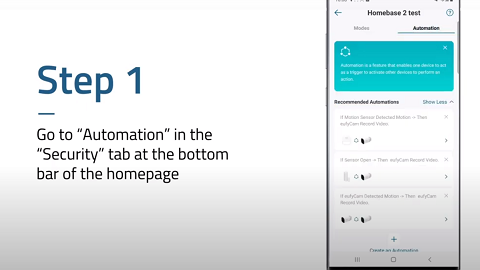
Steps in App: “Settings” -> “Smart” -> "Mode" -> choose “Optimal Battery Life”
- Adjust your camera's sensitivity setting
Adjusting the sensitivity to exclude irrelevant motion events and reduce the number of false alerts.
Steps in App: “Settings”-> “Smart”-> "Automation" -> "Motion Detection" -> choose “Detection Sensitivity Level” -> reduce the level from “1-5”.
- Configure suitable activity zones
It is a helpful way to exclude irrelevant motion events and to reduce the number of false alerts.

- Increase the retrigger interval
Steps in App: “Settings”-> "Smart" -> “Automation”-> choose “Customize Recording”-> increase the “Retrigger Interval” from 5s-60s.
- Set schedules
When you are home, you can set your doorbell to not record events.
Steps in App: “Settings”-> “Smart”-> “Automation”-> “Doorbell”-> choose the “Home” mode setting-> tick the cancel option for “Record Video”-> “Save”.
- Configure appropriate activity areas
You can configure appropriate activity areas.
Steps in App: “Settings”-> “Smart”-> “Automation”-> “Activity Zones”.
- Adjust the direction/angle with the help of 15° mounting wedge
This way is to reduce the number of unnecessary motion events (use the Mounting Wedge provided).
- Hardwire your battery doorbell
If you have existing wiring at your front door you can connect your Video Doorbell so that it has a constant flow of power.
- Mount your doorbell on a side wall
If your door is facing the main street and always has huge traffic, it is recommended that you mount or install your doorbell on a side wall to avoid facing directly to the street.
2. Ensure your doorbell has a strong internet connection
The pictures below demonstrate scenarios in which poor signals may occur and how to resolve the problem using HomeBase Wi-Fi Connection. If you move the Homebase closer to the router and doorbell, the doorbell's battery will be less consumed.
- A scenario showing a weak signal between HomeBase and router:
- A scenario showing a strong signal between HomeBase and router:
3. Please do not use third-party plug-ins, clients, and scripts. Some of these are incompatible with eufy products or not well developed, which might lead to faster power consumption.
Note: some devices do not support Homekit, so using Homekit-associated script may also drain a lot of power.
4.Keep the eufy app at the latest version for all users.
Power Unlocked! So you are now a battery consumption expert!
Be sure to use this information to make the most out of your Video Doorbell and enjoy maximum battery efficiency while keeping the device environmentally friendly.