Security Modes and Automations
1. Security Mode
Home mode: By default, sensors are working but no alarm alerts will be heard and no notifications will be sent. Recommended for use when you are at home.
2. Automation
On the eufy Security app, go to the Security page to set your security modes: Away, Home, and CUS. In each security mode, the device list displays all devices connected to the same HomeBase. You could customize whether the HomeBase rings an alarm or sends you alarm alert notifications when the device is triggered.
Away mode: All sensors are activated and your house is fully monitored. Any human or entry will be detected and an alarm will be triggered. Recommended for use when you are away from home.
Home mode: By default, sensors are working but no alarm alerts will be heard and no notifications will be sent. Recommended for use when you are at home.
CUS mode: Recommended if you feel a customized security mode is needed to match your specific life requirements. Modify the settings on the eufy Security app, and the customized security mode can be assigned to the CUS button. For example, you could customize a “Sleep Mode” in which only certain sensors are monitored and alarms are triggered. When you press the CUS button, “Sleep Mode” will be activated.
Disarmed mode: All detection functions are disabled. No sensors are activated and no alarm alert will be sent. Recommended to use when all devices are not expected to work. The rules in this mode cannot be edited.
The Away, Home, and CUS modes can be edited. You can choose to push notifications or send alarm alerts on the eufy Security app.
Note: You can set a leaving delay and alarm delay in each mode.
- Leaving Delay
If you activate a security mode with an alarm action and you have to pass by a triggered device before leaving your house, you can set a delay time. The delay allows you to leave home without triggering any alarm. You should leave the house before the countdown ends.
By default, the leaving delay is disabled in each security mode. When you need to set leaving delay for a certain mode, you can select the device that needs the delay, and determine a countdown from 0s to 300s.
- Alarm Delay
If you have activated a security mode that has a Homebase alarm action you can set a delay time before the alarm will sound. The alarm delay feature leaves you enough time to enter the house and switch the security mode on the Keypad before the alarm sounds.
By default, the alarm will sound immediately once any device is triggered. If you need to set a alarm delay for a certain device, select the device that requires the delay, and set a time from 0s to 300s.
2. Automation
The Automation feature allows a device that is set as a trigger to activate other devices which are connected to the same HomeBase. For example, you can set the motion sensor as a trigger, and once the motion sensor detects movement, the eufyCam will start recording video.


106 undefined

Monitoring_sticker
T8B00 C210 SoloCam EU Declaration of Conformity

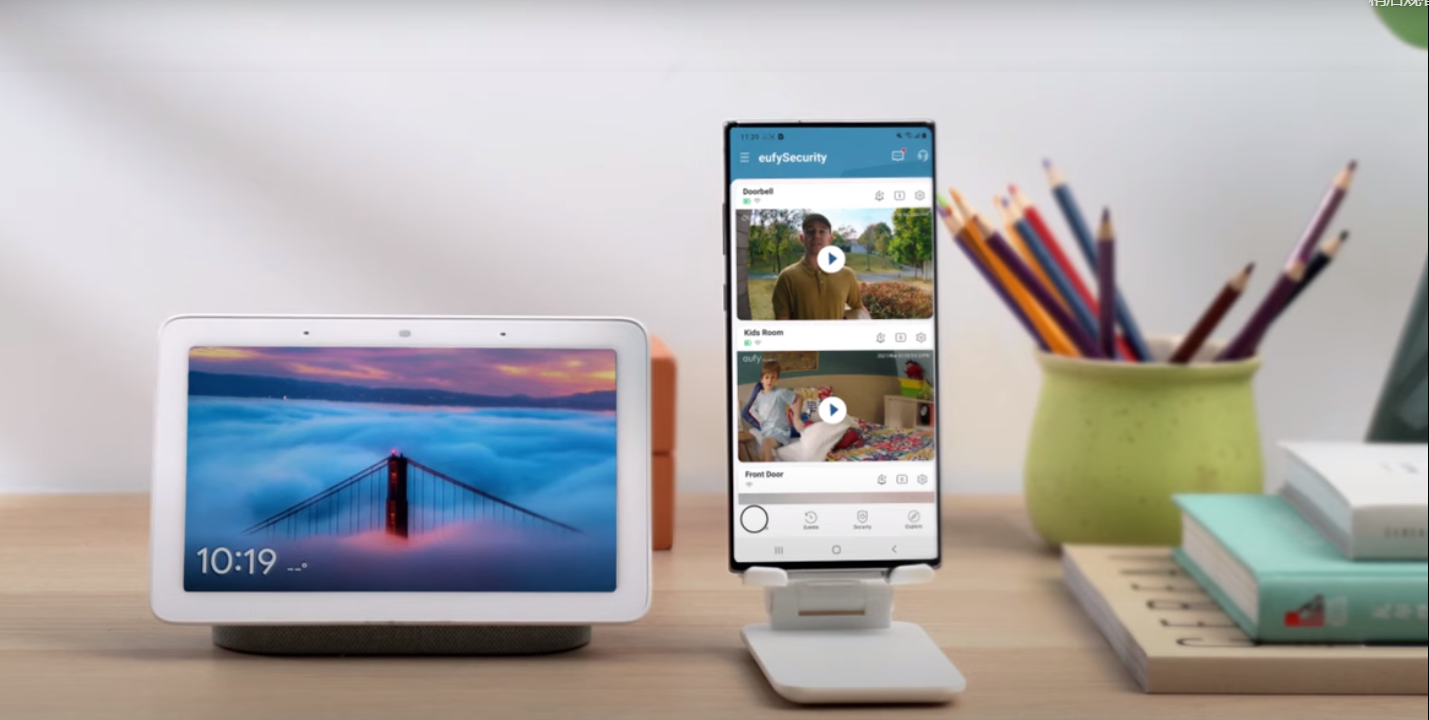
How Do I Connect My eufy Cameras to the Google Assistant App
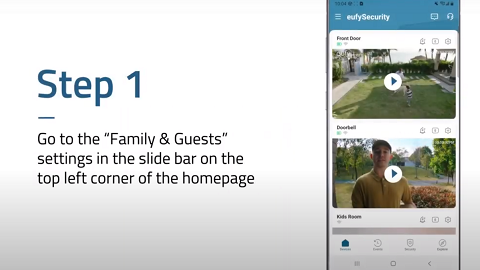
How to Share Account Access of eufySecurity Devices


