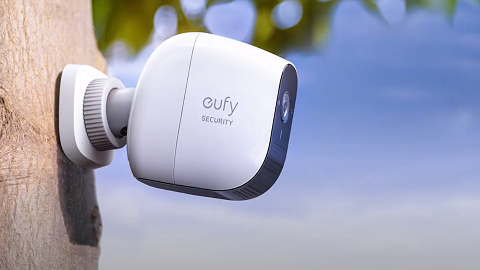
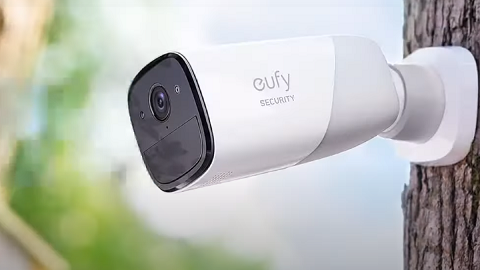
On the eufySecurity app, go to the Security tab to set your security modes: Home, Away, Disarmed, and Customize. For devices that work with HomeBase, they will be displayed under the same HomeBase’s security mode. You can customize the mode settings according to your preferences.

What are Security Modes?
1. Home Mode
By default, security devices are working but no alarm alerts will be heard and no notifications will be sent. It is recommended to use this mode when you are at home.
You are also able to set device rules in the Home mode. For example, if you still want to watch the recorded videos, receive notifications on your smartphone and hear the alarm when you are at home, please enable the Record Video, Push Notification, HomeBase/Camera Alarm settings in the Home mode.
2. Away Mode
All sensors are activated and your house is fully monitored. Any human or motion will be detected and an alarm will be triggered. It is recommended to use this mode when you are away from home.
Please manually switch from Home mode to Away mode when you have not set Geofencing or Schedule mode. To learn more about Geofencing and Schedule mode features, please refer to How Does Geofencing Work for eufySecurity Devices and How to Set Up Schedules for eufySecurity Devices.
3. Disarmed Mode
In Disarmed mode, all detection functions are disabled. None of the devices are activated and no alarm alert will be sent. It is recommended to use this mode only when you do not need devices to work. Please note the device rules in this mode cannot be edited.
4. Customize Mode
Customize mode is recommended if you feel a customized security mode is needed to match your specific requirements. Modify the settings on the eufySecurity app and the customized security mode can be assigned to the Customize button.
For example, you could customize a “Sleep mode” in which only certain sensors are monitored and alarms are triggered. When you press the Customize button, “Sleep Mode” will be activated.
The Away, Home, and Customized modes can be edited. You can choose to push notifications or send alarm alerts on the eufySecurity app. You can also set a Leaving delay and Alarm delay in each mode.
What are Alarm Rules?
1. Leaving Delay
If you activate a security mode with an alarm action and you have to pass by a triggered device before leaving your house, you can set a delay time. The delay time allows you to leave home without triggering any alarm. Please make sure you leave the house before the countdown ends.
By default, the Leaving delay is disabled in each security mode. When you need to set a Leaving delay for a certain mode, you can select the device that needs the delay and determine a countdown time from 0 second to 300 seconds.
2. Alarm Delay
If you have activated a security mode that has a HomeBase alarm action you can set a delay time before the alarm will sound. The Alarm delay feature leaves you enough time to enter the house and switch the security mode on the keypad before the alarm sounds.
By default, the alarm will sound immediately once any device is triggered. If you need to set an Alarm delay for a certain device, select the device that requires the delay and set a time from 0 second to 300 seconds.
If you have any questions, please contact us for further assistance.