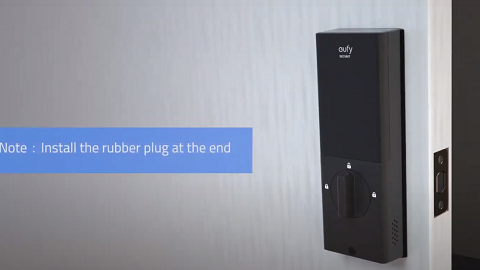
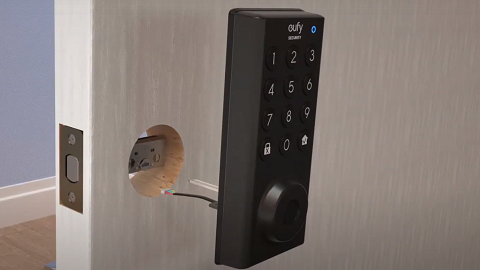
This article is designed to help you set up your Smart Lock Front Door with Wi-Fi Bridge in the eufySecurity app. For hardware installation, please download the Quick Start Guide for the Smart Lock Front Door from our help center.
Download the App
Download the eufySecurity app from the App Store (iOS devices) or Google Play (Android devices). You can also visit eufylife.com on your mobile device.
Create Your Account
After downloading the app, create or Log in to your account. Learn more about Sign up for A eufySecurity Account.
Add Smart Lock Front Door to the App
1. In the ‘ Main Page ’, go to ‘ Security ’, tap ‘ Add Device ’, then select ‘ Scan QR code ’.

2. Scan the QR Code located on the battery compartment or manually input the device’s serial number.

3. Watch the installation guide to finish the hardware installation. When finished, tap “I have finished the installation” to continue the setup process in the app.
4. Long press the Setup button until you hear a beep. After you release it you will hear a voice prompt. Click “I heard the voice prompt” and tap Next so that the phone will connect to the smart lock via Bluetooth.
5. Close the door and calibrate the lock. Tap “I have closed the door” and click “Calibrate the Lock” for calibration.

6. Create a name for your eufy Smart Lock Front Door.
7. Click Next and set your passcode.
8. eufy Smart Lock Front Door will be successfully added to your eufySecurity app.
Add Wi-Fi Bridge to the App
1. Scroll down from the Device tab to Add Device, choose Wi-Fi Bridge to begin the setup process.

2. Scan the QR code which is located on the bottom of the device.
3. Click Next to install the power pin into the Wi-Fi Bridge and plug it into a power outlet close to the Smart Lock Front Door. To get the best Bluetooth signal, it’s recommended that you place the Wi-Fi Bridge and Smart Lock Front Door within a distance of 20 ft / 6m.
4. Press the SYNC button for 2 seconds until the LED blinks green. The Wi-Fi bridge will be ready for setup.
5. Select the Wi-Fi network you want to connect to and input the password. Please only use 2.4Ghz Wi-Fi.
6. Tap Confirm and the Wi-Fi bridge will connect to the selected Wi-Fi network.
7. After successfully connecting to Wi-Fi, you can create a name for your Wi-Fi Bridge.
8. Tap Continue to update the firmware on your Wi-Fi Bridge. Tap Next to test the signal between the Wi-Fi Bridge and router.
9. If you have installed the Smart Lock Front Door in our previous step, you can choose “Connect existed device” and find Smart Lock Front Door in the device list. One Wi-Fi Bridge can only connect to one smart lock at the same time.
10. Click Next and wait until the Smart Lock Front Door connects to the Wi-Fi Bridge. The Wi-Fi Bridge will be successfully added to the Smart Lock Front Door.
You are all set! If you still need help setting up Smart Lock Front Door with Wi-Fi Bridge, please contact us for further assistance.