Your account is the key to unlocking all the features of your eufySecurity products from anywhere in the world. Video doorbells, eufyCams, and other eufySecurity devices require an account to receive real-time motion, sound notifications and video footage. Let’s walk you through how to sign up for a new account.
How to Create a New eufySecurity Account
Step One: Choose Region
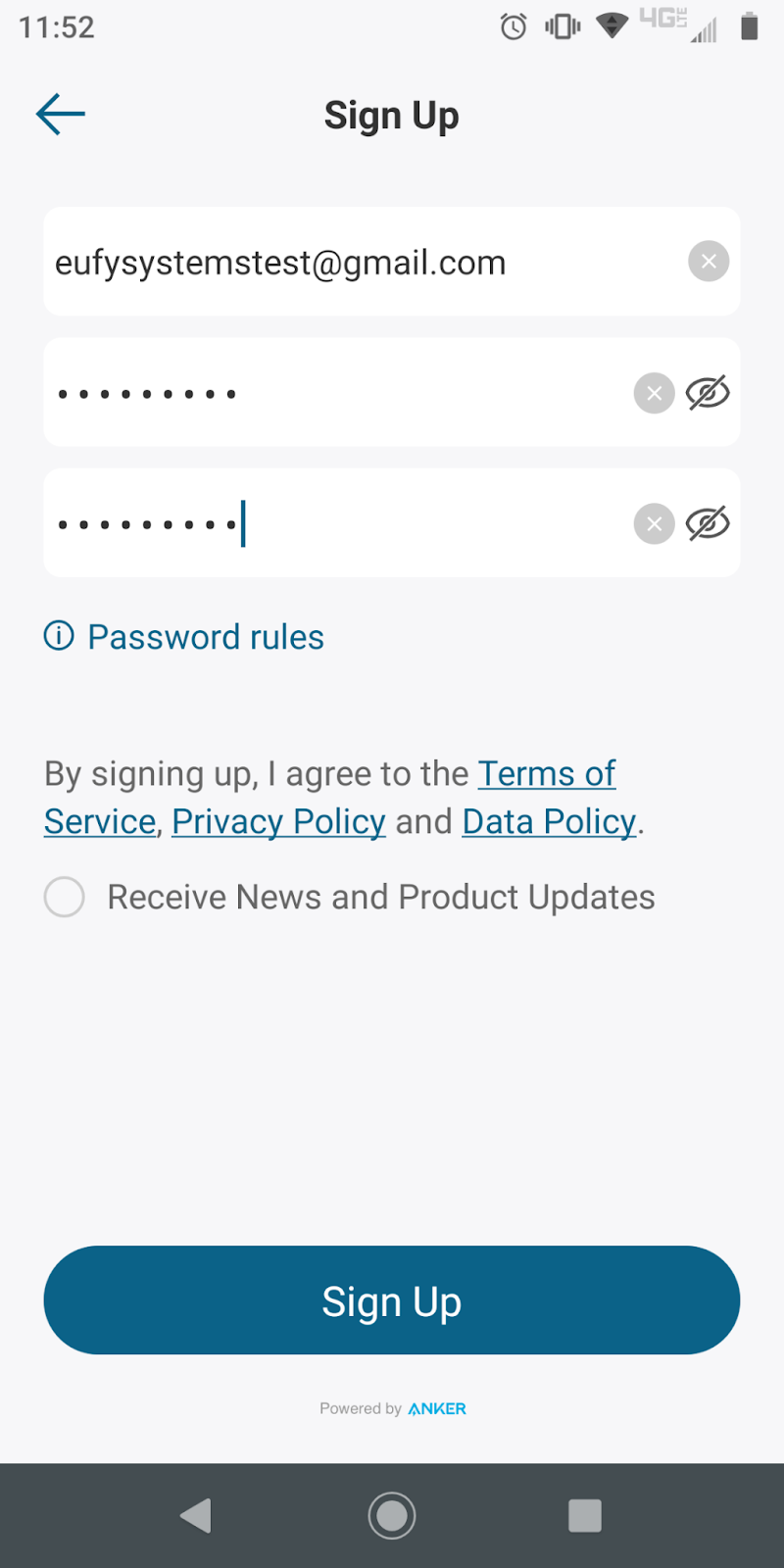
Step Two: Creating an Account
After downloading the eufySecurity app and opening it, you’re prompted to log in. You need to click on Sign up on the lower right corner. You can also choose to receive our newsletter or not and click Sign up.
Create a password that contains 8-20 characters and includes at least one of each of the following:
- An uppercase letter (ABC)
- A lowercase letter (abc)
- A number (123)
- A special character (!@#$%^&*()_-=+|[{]}/?.>,;’:)

Step Three: Authenticate Email
The next prompt is for you to please confirm the email address and finish the sign up process. Without doing this step, it will prompt you to complete it first if you try to log in.
Open mailbox will open the phone mailbox but it won’t be a good choice if you don’t have that email address on your phone. Instead, you should click on Cancel and go to that email. Click on Resend the verification email if you haven’t received it in your email inbox.


Step Four: Email Received
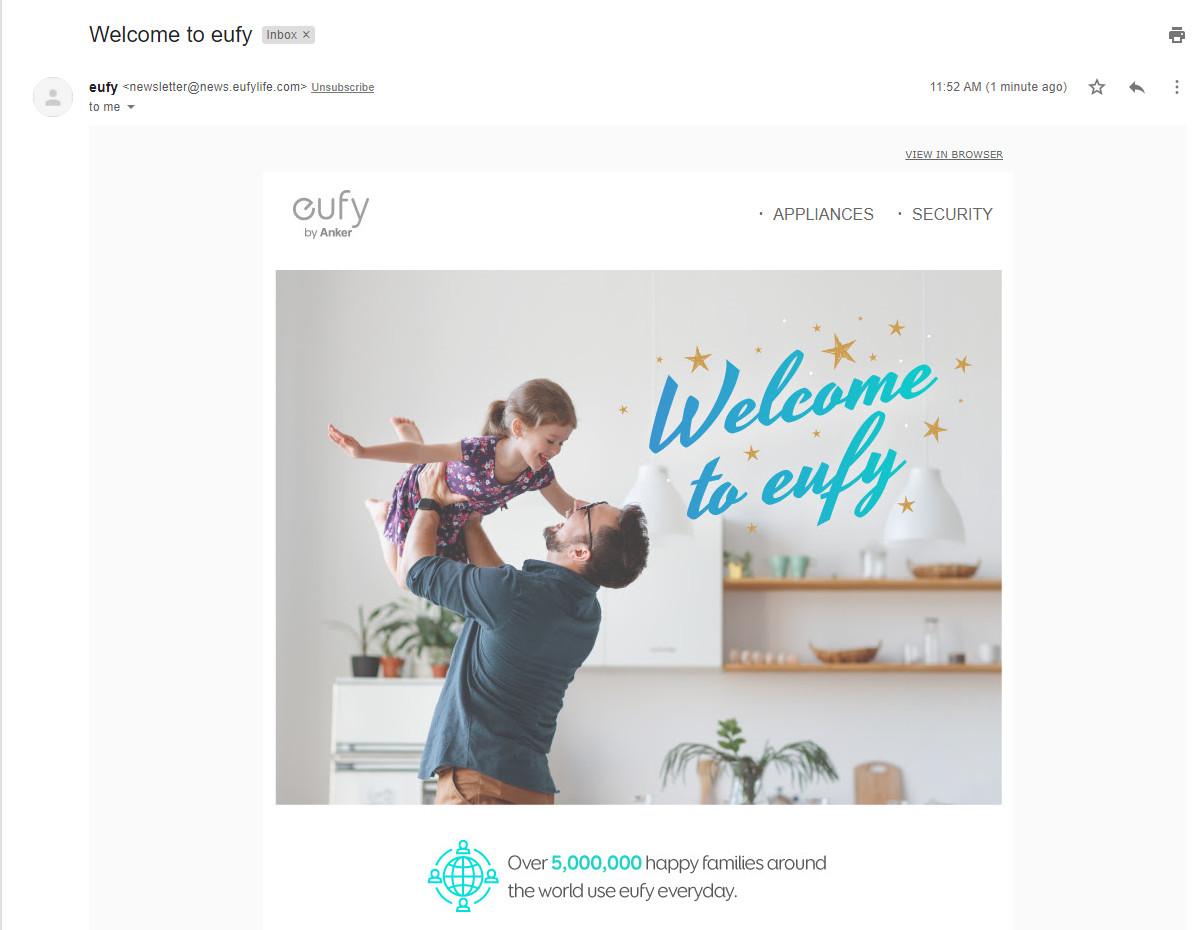
You will receive either one or two emails depending on whether you signed up for the newsletter or not. The following one is the newsletter and it comes from newsletter@news.eufylife.com.
The authentication email shown below as an example has a link to click on and it will show a prompt to enter the verification code to activate your account. It comes from support@eufylife.com.

Step Five: Website Validation
The code entry screen appears when you click on the link from the email. Enter the code from the email and click submit.

After you enter it, you’re prompted to either join the forum by clicking on Go Now or click on Maybe later. Either way, you’re done with the website and can go back to the eufySecurity app.

Step Six: Log In
You can then go back to the login in screen. The Log in button is below the keyboard so for some models, you do need to minimize the keyboard to log in.


If you fail to enter the correct password 5 times in a row, the app will display an error message: Due to 5 failed login attempts, login for your account has been disabled for 5 minutes. Please try again later.

Step Seven: Main Screen
After you choose the region, the app will take you to a screen to begin adding devices!

Step Eight: Captcha Entry
After you correctly enter the password after a lockout, a Captcha challenge will appear.
You can click on the Captcha repeatedly to generate a new Captcha that is easier to understand. Please note due to account security protocol, this step cannot be bypassed.

Troubleshooting for Not Receiving an Activation Email
The eufy team will send an activation email within 15 minutes to the email address you used to sign up. If you do not receive an activation email, please check the following:
1. Check your email’s spam or junk folder.
2. Check if you have correctly signed up for an account. Please check your email address in the eufySecurity app and verify it is the same email account. If it is not, please return to the previous step and sign up by using the correct email account.
3. Check if you submitted the same email address multiple times and received multiple activation emails. Please note the latest activation email voids the previous ones you receive. Please find the latest activation email and click on the URL link to activate your account.
4. If the signup process fails when using the app, you can also activate your account on our official eufylife website to confirm if you can receive an activation code.
If the above instructions cannot solve your specific issue, please contact us for further assistance.