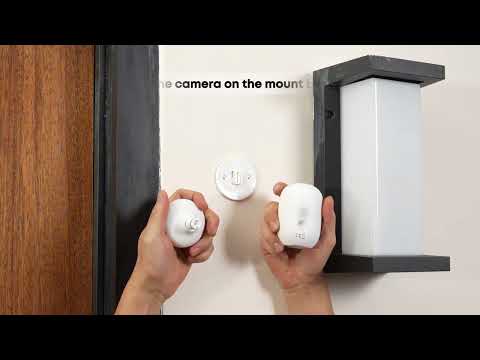
If your camera is experiencing connection drops, missing recordings, or lag during live streaming, an unstable or weak Wi-Fi signal may be the cause. This knowledge base article is designed to help you quickly identify and resolve common Wi-Fi signal issues.
Inside this guide, you’ll find:
-
Frequently Asked Questions and Answers to address common concerns
-
Step-by-step troubleshooting instructions to restore reliable performance
-
Optimal installation guidelines to ensure the best possible signal strength
Follow the recommendations below to keep your eufy camera connected and performing at its best.
Q1: Why does my camera frequently go offline or miss recordings?
Answer:
This issue is most commonly caused by a weak or unstable Wi-Fi signal. Several factors can contribute to poor connectivity, including:
-
Distance: The camera is installed too far from the router or HomeBase.
-
Obstructions: Physical barriers such as thick walls, metal doors, or large objects interfering with the signal path.
-
Router coverage: The router’s signal strength is insufficient to reliably reach the camera’s installation location.
Solution:
Refer to the Quick Troubleshooting Guide below to diagnose signal strength and identify the appropriate corrective actions.
🔧 Quick Troubleshooting Guide
Follow the steps below to quickly diagnose connectivity issues.
Step 1: Basic Checks (30 seconds)
-
Confirm the camera is powered on:
-
Walk in front of the camera to trigger the PIR sensor and check whether the LED indicator lights up.If there is no response, the battery may be depleted.
-
Verify HomeBase status (if applicable):
-
Ensure the HomeBase is powered on and operating normally.
-
Check your router and internet connection:
-
Use another device (such as a phone or tablet) to connect to the same Wi-Fi network.If other devices cannot access the internet, the issue is likely related to the router or network service.
Step 2: Movement Test (1 minute)
-
Temporarily relocate the camera to an open area 10–16 ft (3–5 m) from the router or HomeBase.
-
Wait approximately 30 seconds for the camera to reconnect, then check the signal strength.
-
Signal improves to “Good”:
-
The issue is related to the original installation location. Repositioning or adjusting the setup is recommended (refer to Q3 for installation guidance).
-
Signal remains “Poor”:
-
The issue may be related to the router or camera hardware. Please contact eufy Customer Support for further assistance.
Q2: How do I choose the best camera installation location?
Choosing the right installation location is critical for maintaining a stable Wi-Fi connection and reliable camera performance. Follow the steps below to identify the optimal placement.
Step 1: Evaluate Distance
Consider the distance between the camera and your router or HomeBase:
-
Less than 15 ft (5 m): The camera can be installed in most locations, provided the signal path is not blocked by metal objects.
-
15-50 ft (5-15m): Ensure there are no more than two walls between the camera and the router or HomeBase.
-
More than 50 ft (15 m): The Wi-Fi signal is likely too weak for a direct connection. Reposition the camera closer, relocate networking equipment, or consider upgrading to a mesh Wi-Fi system.
Step 2: Check for Obstacles
Evaluate any physical barriers between the camera and the router or HomeBase:
-
Standard brick walls or glass: Installation is generally acceptable.
-
Thick concrete walls or metal doors: These materials significantly weaken Wi-Fi signals. Repositioning the camera or upgrading your network is recommended.
-
Multiple layers of obstacles: A mesh Wi-Fi system or an alternative installation location may be required for stable connectivity.
Installation Tips:
-
Minimize distance: Keep the camera within 50 ft (15 m) of the router or HomeBase whenever possible.
-
Reduce obstructions: Avoid metal surfaces, concrete walls, and multiple physical barriers.
-
Maintain line of sight: Performance is best when the camera has a clear or near-clear path to the router or HomeBase.
-
Use HomeBase Mini: Placing it between the router and the camera can help extend signal coverage.
⚠️ Important: HomeBase Mini Placement
-
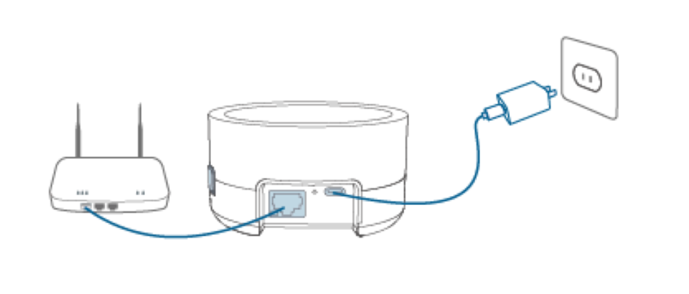
Always place the HomeBase Mini on a flat, stable surface such as a shelf, table, or desk.
-
Do not mount or side-mount the HomeBase on a wall. Wall mounting can significantly reduce signal strength and negatively impact performance.
-
Position the HomeBase between the router and the camera to ensure optimal signal relay and improved connectivity.
Q3: Which obstacles affect the camera’s Wi-Fi signal?
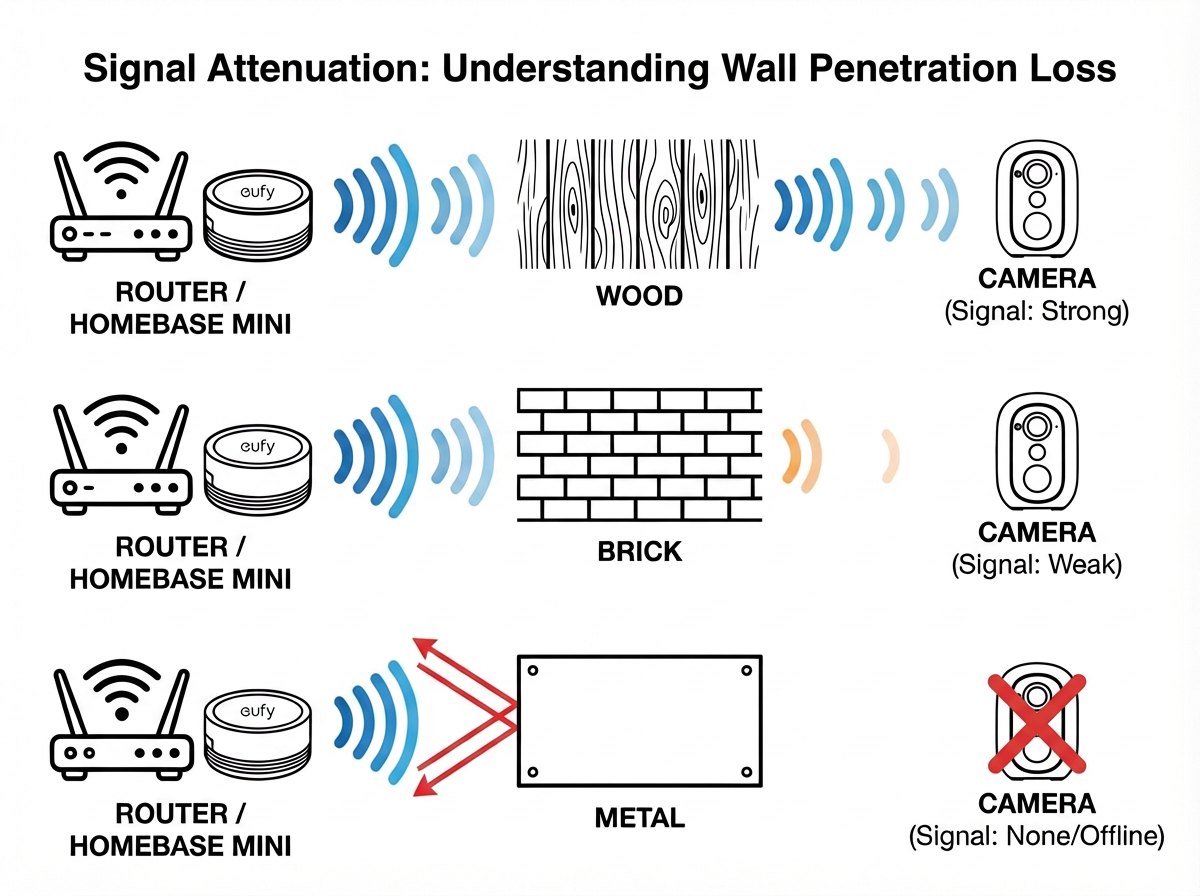
Even when the camera is installed close to the router or HomeBase, certain building materials can significantly weaken or block the Wi-Fi signal. Placing the camera behind these materials may lead to unstable connections or missing recordings.
Answer:
Different materials have varying levels of impact on Wi-Fi signal strength. Use the reference table below to understand how common obstacles may affect performance and to help you choose the best installation location.
Obstacle Impact Reference (Table C)
Please refer to the table below for detailed signal impact by material.
Recommendations:
-
Avoid placing metal, concrete, or similar dense materials between the camera and the router or HomeBase.
-
If the signal must pass through a wall, standard brick or drywall is preferred.
-
Be aware that multiple obstacles compound signal loss. While a single standard wall is typically acceptable, three or more walls between the camera and the router can significantly weaken the Wi-Fi signal and impact performance.
Q4: How can I improve my camera’s Wi-Fi signal?
Choose the solution below that best matches your setup to improve signal strength and overall camera performance.
-
Adjust the Camera Position
-
Move the camera closer to the router or HomeBase. A distance of 10–16 ft (3–5 m) is recommended for optimal performance.
-
Avoid installing the camera behind high-impact obstacles such as metal doors or thick concrete walls.
-
Optimize Router Placement
-
Position the router in a central location within your home to improve overall coverage.
-
Adjust the router’s antennas so they are oriented vertically for better signal distribution.
-
Reduce Signal Interference
-
Avoid placing large household appliances, such as microwaves or refrigerators, between the camera and the router or HomeBase.
-
Disconnect or power off unnecessary Wi-Fi devices to reduce network congestion.
Q5: What can I do if I can’t move my camera closer?
If the camera must remain in a location with a weak Wi-Fi signal, the following solutions can help improve connectivity. Choose the option that best fits your setup.
-
Configure HomeBase Mini (if supported)
-
Place the HomeBase Mini between the router and the camera to strengthen signal coverage.
-
For best performance, connect the HomeBase Mini to the router using an Ethernet cable.
-
The HomeBase Mini acts as a signal relay, helping improve connection stability and reliability.
-
Upgrade to a Mesh Wi-Fi System
-
This is the most comprehensive solution, especially for large homes or complex layouts.
-
Mesh systems provide seamless, whole-home coverage and help eliminate Wi-Fi dead zones.
-
Commonly recommended mesh systems include Google Wifi, TP-Link Deco, and ASUS AiMesh.
-
Use a Wi-Fi Range Extender
-
Install a 2.4 GHz Wi-Fi range extender in a power outlet located approximately halfway between the router and the camera.
-
This can help extend signal reach and improve connectivity in hard-to-cover areas.
💡 Tips
-
If you frequently experience signal issues, it is strongly recommended to upgrade to a mesh Wi-Fi system for more reliable, whole-home coverage.
-
Regularly check for and install router firmware updates to ensure optimal performance and stability.
-
If the issue persists after troubleshooting, please contact eufy Customer Support for professional assistance.
Q6: Why is my camera lagging even though the signal shows “Good”?
Even when the camera displays strong signal bars (RSSI), performance can still be affected by other factors such as network congestion or insufficient upload speed.
Common causes:
-
Network congestion: Too many devices are connected to the same Wi-Fi network, which can slow down camera performance.
-
Insufficient upload speed: Cameras rely on upload speed to stream video, not just download speed. Ensure your internet upload speed is greater than 2 Mbps for smooth streaming.
❓ Still Need Help?
If the issue persists after following the steps above, please reach out to eufy Customer Support for assistance:
-
App Support: Open the eufy app → Settings → Help & Feedback → Contact Support
-
Email Support: support@eufy.com
-
Official Website: https://www.eufy.com/contact
Thank you for choosing eufy—we hope you enjoy seamless security!
If you have any other questions, please don't hesitate to contact eufy Support Engineers for further assistance.