eufySecurity Device QR Code Location and How to Scan QR Code

This article guides users to quickly locate the QR code on different eufySecurity devices and how to troubleshoot if QR code fails to correctly scan.


What Is a QR Code?

A QR code (Quick Response code) is a type of machine-readable matrix barcode that contains unique information about the specific device to which it is attached, and it provides the user a secure and efficient way to quickly set up a device.


Where Is the QR Code Located on My eufySecurity Device?

Please find the QR code location on different eufySecurity devices by using the following charts.  Additionally, please make sure to set up HomeBase, HomeBase E, HomeBase 2, or WiFi Doorbell Chime first if the user’s eufySecurity device requires connection to HomeBase, HomeBase E, HomeBase 2, or WiFi Doorbell Chime in order to work.


Note: Please first scan the QR code that is located on the device before attempting to scan the QR code on the user manual as a secondary option.


HomeBase Series

Model

QR Code Location

HomeBase

On the bottom of the device

*Does not need to scan the QR code to set up

HomeBase E

On the bottom of the device

*Does not need to scan the QR code to set up

HomeBase 2

On the bottom of the device


eufyCam Series

Model

QR Code Location

eufyCam

On the bottom of the device

*Does not need to scan the QR code to set up

eufyCam E

No QR code

eufyCam 2

On the bottom of the device

*Does not need to scan the QR code to set up

eufyCam 2 Pro

On the bottom of the device

*Does not need to scan the QR code to set up

eufyCam 2C

On the bottom of the device

*Does not need to scan the QR code to set up

eufyCam 2C Pro

On the bottom of the device

*Does not need to scan the QR code to set up


SoloCam Series

Model

QR Code Location

SoloCam E20

On the eufySecurity app

SoloCam E40

On the eufySecurity app

SoloCam L20

On the eufySecurity app

SoloCam L40

On the eufySecurity app

SoloCam S40

On the eufySecurity app


IndoorCam Series

Model

QR Code Location

Indoor Camera C22

On the bottom of the device

Indoor Camera C24

On the bottom of the device

Indoor Camera P22

On the bottom of the device

Indoor Camera P24

On the bottom of the device

Indoor Camera P42

On the bottom of the device

Indoor Camera P44

On the bottom of the device

Indoor Camera Mini 2K

On the eufySecurity app


OutdoorCam Series

Model

QR Code Location

OutdoorCamera C22

On the bottom of the device

OutdoorCamera C24

On the bottom of the device


Floodlight Cam Series

Model

QR Code Location

Floodlight Camera 1080p

On the bottom of the device

*If no QR code is printed, please skip this process by selecting “No QR code on the device”

Floodlight Camera 2K

On the bottom of the device

Floodlight Camera E 2K

On the bottom of the device

Floodlight Camera 2 Pro

Press the button to open up the camera’s wall mount, and then the QR code is located at the center of the base


Wired Video Doorbell Series

Model

QR Code Location

Video Doorbell 1080P

On the back of the device

Video Doorbell 2K

On the back of the device

Video Doorbell 2K Pro
(Best Buy)

On the back of the device


Battery Video Doorbell Series

Model

QR Code Location

Video Doorbell 1080P

On the back of the device

Video Doorbell 2K

On the back of the device

Video Doorbell 2C

On the back of the device

Video Doorbell Slim

On the back of the device

Video Doorbell 2E

On the back of the device


WiFi Doorbell Chime

Model

QR Code Location

WiFi Doorbell Chime

On the bottom of the device


Smart Lock Series

Model

QR Code Location

Smart Lock

On the bottom left corner of the battery compartment after the battery cover is removed 

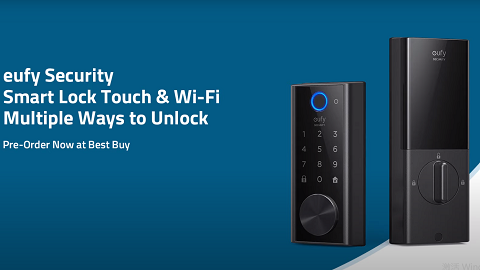
Smart Lock Touch

On the bottom left corner of the battery compartment after the battery cover is removed

Smart Lock Touch & WiFi

On the bottom left corner of the battery compartment after the battery cover is removed

Solo Smart Lock D20

On the bottom left corner of the battery compartment after the battery cover is removed


WiFi Bridge

Model

QR Code Location

WiFi Bridge

On the bottom of the device


Alarm System

Model

QR Code Location

Keypad

No QR code

Entry Sensor

No QR code

Motion Sensor

No QR code


How Do I Scan QR Code Using the eufySecurity App?

In order to scan the device’s QR code using the eufySecurity app, the user will need to first grant permission for the eufySecurity app to access the smartphone's camera.  If the QR code fails to scan, please try the following troubleshooting steps.

  • Verify the correct product was selected by going to the Add Device button and confirm the correct product type and model. 
  • Reposition the device away from the smartphone in order for the smartphone’s camera lens to refocus on the QR code.
  • Ensure there is sufficient lighting in the surrounding environment.
  • Select the flashlight icon on the eufySecurity app screen’s lower right corner and the eufySecurity app will turn on the flashlight on the user’s smartphone to provide better lighting to scan the QR code.
  • Manually enter the code, which is the device’s serial number.
 

Note: 

1. The security of the user’s local storage data, such as video recordings, will not be compromised even if the user no longer has the device or its user manual, and this is because the user’s data is accessible only when the same eufySecurity account matches the same QR code.

2. QR codes on some specific products are on the eufySecurity app. Please use the camera to scan the QR code generated by your phone.


If you still have questions regarding QR code on eufySecurity devices, please contact us for further assistance.

Unresolved icon
832 undefined
S380 HomeBase (HomeBase 3) Compatibility
209822 views36 likes/2024-12-25 14:45:40
HomeKit on eufySecurity Devices
148590 views7 likes/2025-04-07 18:37:55
How to View eufySecurity Cameras on a Computer
65607 views10 likes/2025-04-07 18:27:47
Compatibility Between eufySecurity Devices
14974 views1 likes/2025-11-17 15:19:54
What type of microSD card does eufySecurity device use?
46300 views4 likes/2025-04-07 18:27:10
Share Your eufySecurity Devices With Your Family
43046 views6 likes/2025-04-07 18:27:23
Using NAS Storage Step by Step
41363 views1 likes/2025-04-07 18:04:31
Introducing Cloud Backup
28307 views1 likes/2025-04-15 14:12:20
Two-Step Verification for eufySecurity App
47068 views10 likes/2025-04-07 18:27:11
Which eufy cameras work with HomeKit?
212503 views44 likes/2023-01-06 11:49:40
Download icon
SoloCam_L40_manual_eu
Download icon
Floodlight Cam E340 User Guide (T8425)
Download icon
Floodlight Cam E340 User Guide
Download icon
eufy Security Video Smart Lock E330 (T8531) / eufy Security Video Smart Lock E330 with Chime (E8531) USER GUIDE
Download icon
Video Doorbell E340 User Guide
Download icon
SoloCam S340 User Guide
View More
Play videoIntroducing eufy Smart Lock Touch & Wi-Fi
Introducing eufy Smart Lock Touch & Wi-Fi
Play videoHow to Mount Your eufyCam E
How to Mount Your eufyCam E
Play videoHow to Mount Your eufyCam
How to Mount Your eufyCam
Play videoHow to Mount Your eufyCam
How to Mount Your eufyCam
Play videoHow to Mount Your eufyCam
How to Mount Your eufyCam
Play videoHow to Mount Your eufyCam
How to Mount Your eufyCam
View More
Contact Us
Buy on the eufy Store
Download the App
affirmamazonPayamexapplePaydinnersClubdiscovergooglePaymastercardpaypalshopPayvenmovisa