eufyCams Cannot Be Charged

Every eufy Cameras ships out from the factory with the battery charged to approximately 60% - 80%.


HomeBase has one USB charging port with Anker Power IQ Technology. We recommend that you charge your eufyCams with HomeBase. 

 
  • Charging via HomeBase from 0 to 100% takes about 4 hours.
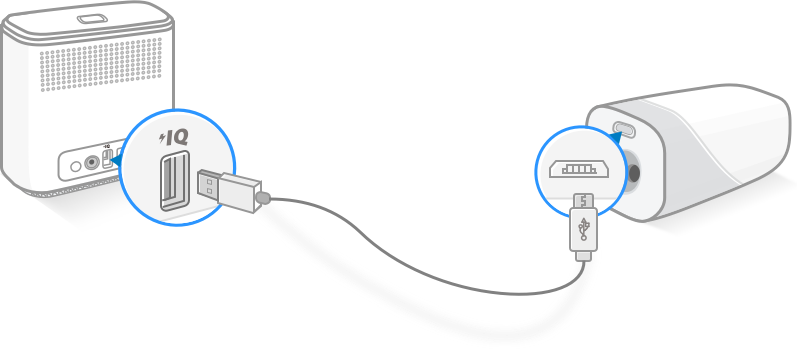

  • In addition, any 5V or 9V USB charger can charge eufyCam.


If the camera cannot be charged, please read the following steps.


1. Please try to use the USB cable in the package and connect to a 5V/2A or 9V/2A charger. Or please try to connect the camera to the USB port on the back of HomeBase.


The eufycam camera’s LED will be solid red when the battery is being charged, and the app will show charging status. The eufyCam 2C and eufyCam 2’s LED will be solid blue when the battery is being charged, and the app camera settings menu will show battery percent.


2. Please make sure the camera's ambient temperature is between 0℃(32℉) - 45℃(113℉) during charging. 


3. Please use another cable to charge the camera and put it in the wall socket


If you still have questions, please contact us for further assistance.
Download icon
eufyCams Cannot Be Charged
Unresolved icon
320 undefined
S380 HomeBase (HomeBase 3) Compatibility
206233 views36 likes/2024-12-25 14:45:40
HomeKit on eufySecurity Devices
145156 views7 likes/2025-04-07 18:37:55
How to View eufySecurity Cameras on a Computer
63115 views10 likes/2025-04-07 18:27:47
Compatibility Between eufySecurity Devices
12484 views1 likes/2025-11-17 15:19:54
What type of microSD card does eufySecurity device use?
43649 views4 likes/2025-04-07 18:27:10
Share Your eufySecurity Devices With Your Family
40309 views6 likes/2025-04-07 18:27:23
Using NAS Storage Step by Step
39558 views1 likes/2025-04-07 18:04:31
Introducing Cloud Backup
26595 views1 likes/2025-04-15 14:12:20
Which eufy cameras work with HomeKit?
210997 views44 likes/2023-01-06 11:49:40
Download icon
V1_T8160C_QSG_CS
Download icon
V1_T8160C_QSG_FI
Download icon
V1_T8160C_QSG_DA
Download icon
V1_T8160C_QSG_PL
Download icon
V1_T8160C_QSG_NO
Download icon
V1_T8160C_QSG_SK
View More
Play videoHow to Schedule Your eufySecurity Devices
How to Schedule Your eufySecurity Devices
Play videoeufy Security App Functions
eufy Security App Functions
Play videoHow to Turn On / Off the Snooze Feature
How to Turn On / Off the Snooze Feature
Play videoHow to Schedule Your eufySecurity Devices
How to Schedule Your eufySecurity Devices
Play videoeufy Security App Functions
eufy Security App Functions
Play videoHow to Turn On / Off the Snooze Feature
How to Turn On / Off the Snooze Feature
View More