eufy Security's Multi-Bridge function is a powerful tool designed to provide optimal connection for your cameras. This function becomes particularly beneficial when more than four cameras are connected to the HomeBase 3. Here's a step-by-step guide on how to enable this specific function:


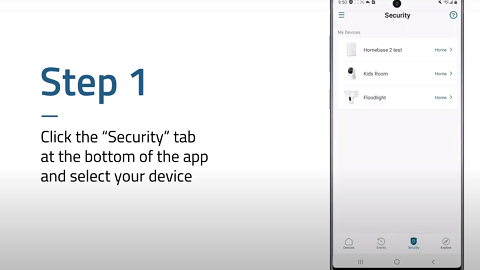
Step 1: Access the HomeBase 3 Settings Interface
Start by opening the Settings interface of your HomeBase 3. Once there, look for the Multi-Bridge function. This specific function is designed to enhance the Wi-Fi signal of your cameras by allowing them to connect directly to your router's network.
Step 2: Enable the Multi-Bridge Function
Follow the instructions provided on the eufy Security app screen to enable the Multi-Bridge function, which is a straightforward and user-friendly process designed to make the setup as easy as possible.
Step 3: Configure the Connection
The Multi-Bridge function is able to automatically establish optimal connection for your cameras. It allows for one-click configuration, making the setup process even simpler. However, if you prefer, you can manually set the device's connection according to your specific needs.
Note:
1. Currently, only the eufyCam E330 model is equipped with the Multi-Bridge function.
2. It is recommended to enable the Multi-Bridge function for a maximum of six cameras to ensure the preservation of 4K video quality.
3. If the Multi-Bridge function is enabled for more than six cameras, the video quality will automatically downgrade to 2K or Auto mode.
By following these steps, you can easily enable the Multi-Bridge function and optimize the performance of your eufy Security system.
If you encounter any issues or have any questions about the Multi-Bridge function, please don't hesitate to reach out to us for further assistance.