1. Device NAS / RTSP Introduction
1.2 Network Configuration Requirements
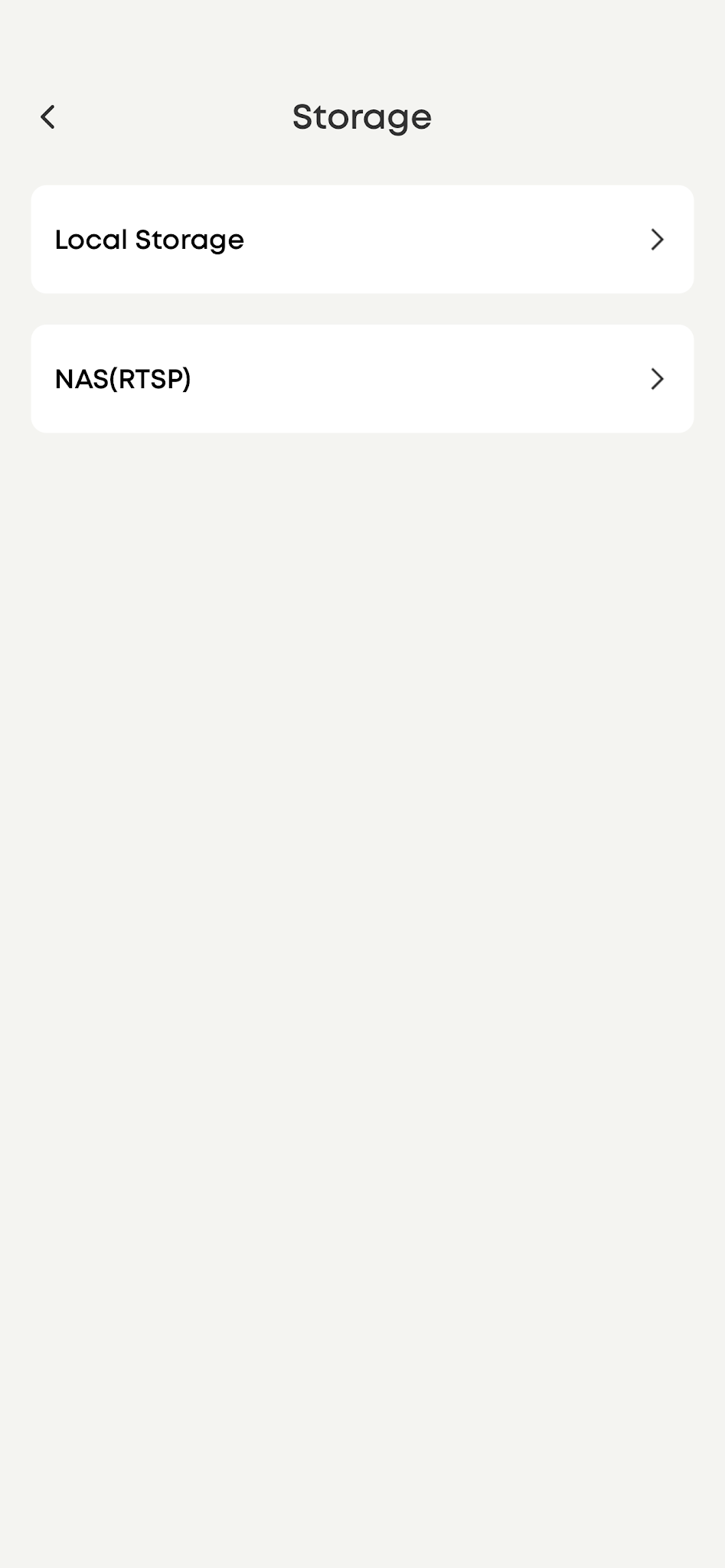
2.1 Open Storage Configuration Interface
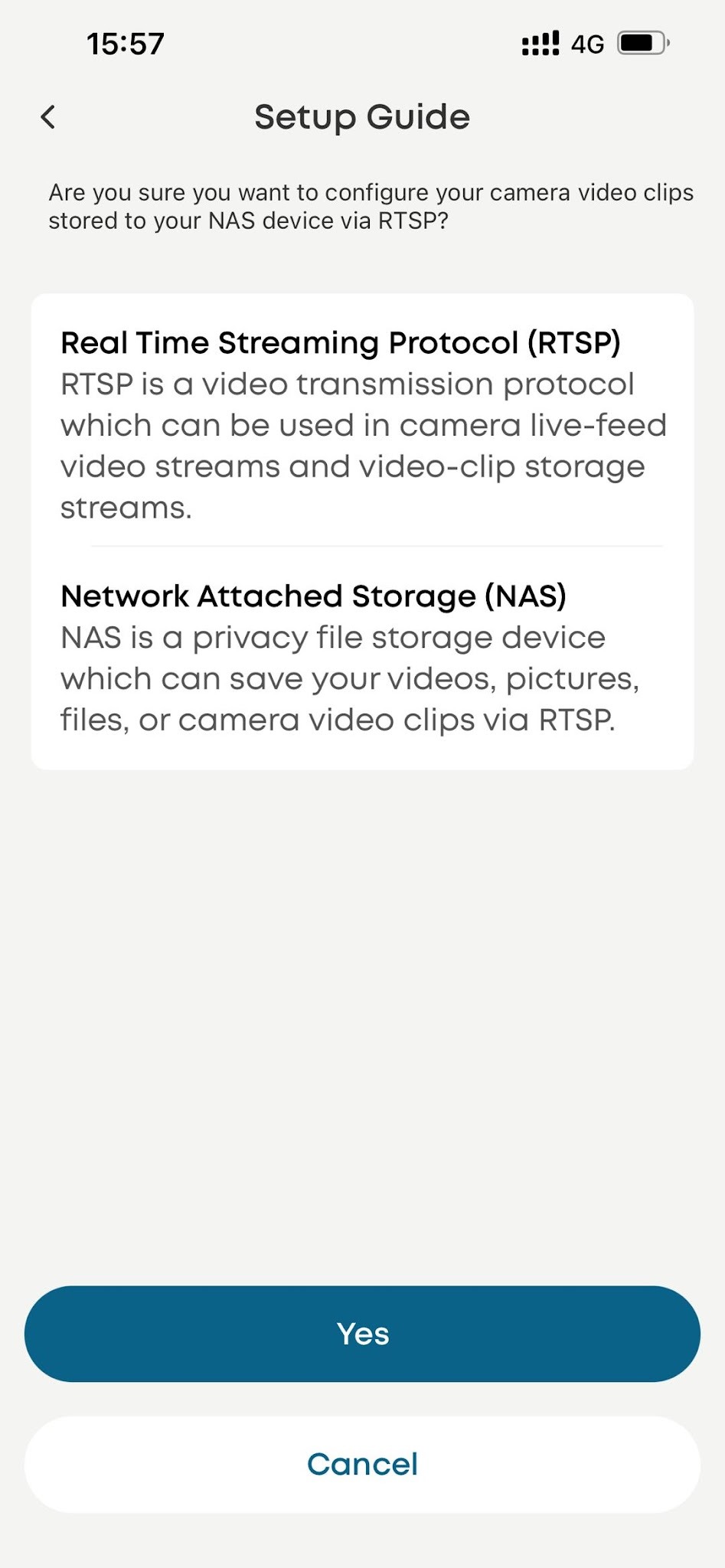
2.2 Configuration Guide Introduction
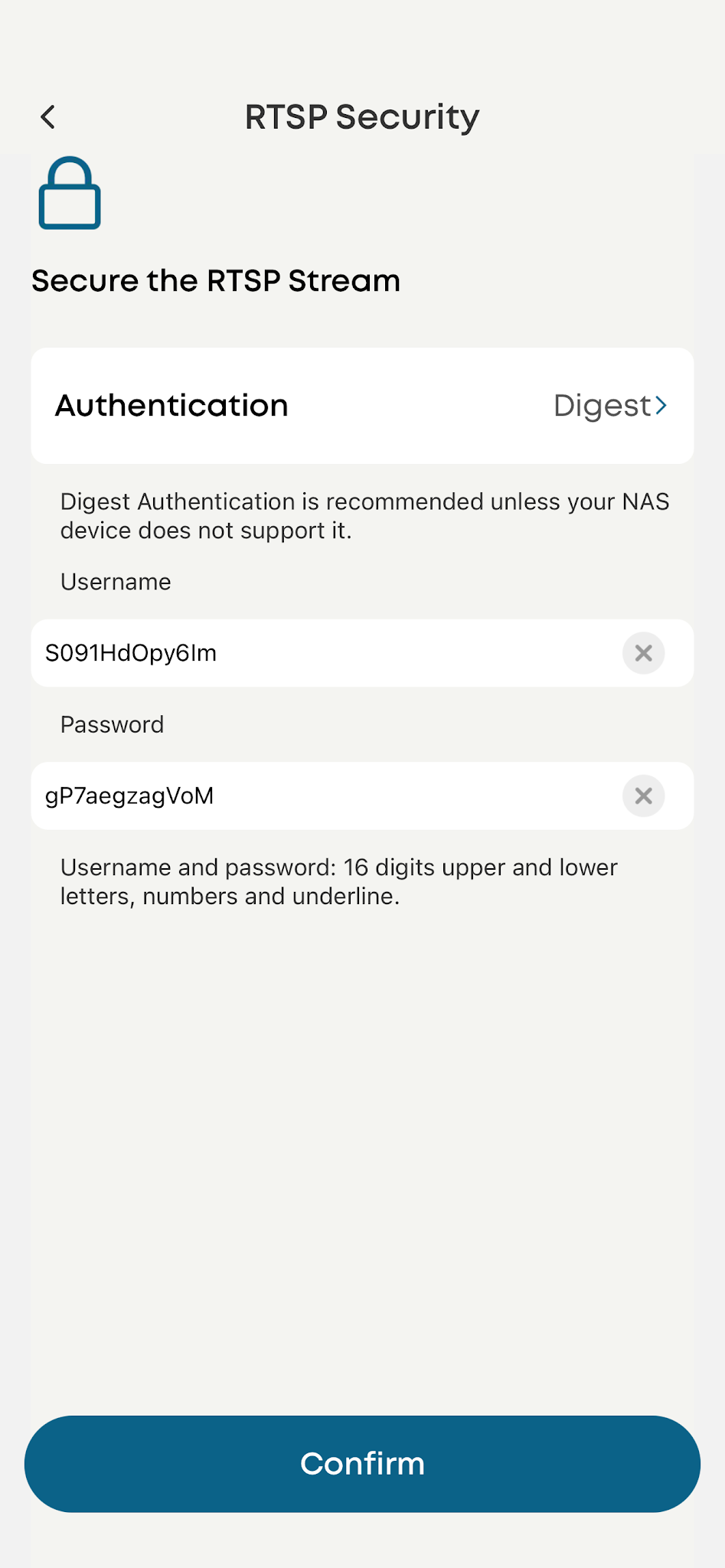
2.4 Configure Encryption Mode and Key
2.6 Configuration Completion Screen
3.1 Using NAS Storage Step by Step
1. Device NAS / RTSP Introduction
1.1 Feature Overview
Eufy cameras support saving recordings to third-party NAS devices via the RTSP protocol. Configuration can be done in the camera settings under the "RTSP/NAS" menu. The NAS must run surveillance software that supports the RTSP protocol. This feature is provided by the push_stream module in the baize_eufy process.
Supported Features: Eufy cameras support saving recordings to third-party NAS devices via the RTSP protocol.
Compatible Brands: NAS devices that support the RTSP protocol. Brand compatibility must be verified independently.
Static IP:Please set up your Camera with static IP address in your router. Otherwise, the Camera's RTSP streaming address will be changed and video clips will not be stored to your NAS when the Camera's IP address is changed by the router.
1.2 Network Configuration Requirements
Ensure that both the NAS storage device and the camera are connected to the same Wi-Fi router.
1.3 Recording Storage Rules
Event Recording (triggered by Motion, Human, Vehicle, Pet, etc.): Streaming starts only when an event is triggered. The third-party NAS can pull the stream only when streaming is active. The VLC player can also pull the stream for playback only during this time.
Continuous Recording: Streams 24/7, and the third-party NAS can continuously pull the stream.
Recordings stored on the third-party NAS can only be played within the NAS application itself; they cannot be played in the Eufy app.
1.4 Technical Specifications
Maximum Number of Clients: The camera supports up to 4 concurrent clients.
Video Specifications: Forced H.264 resolution at 1080P (no switching). NAS device achieves 99.99% recording storage success rate. Video playback is normal without stuttering or artifacting.
Audio Specifications: AAC-LC, 16K sampling rate, 16-bit, mono channel.
Continuous Uptime:
Continuous Recording: 24/7 without interruption.
Event Recording: Duration depends on the event recording time, ranging from 20 seconds to 5 minutes.
Username/Password Authentication: Username and password support a maximum of 16 bytes. Supports underscores, uppercase/lowercase letters, and numbers. Supports both Basic and Digest authentication methods.
1.5 Configuration Result
After completing the NAS / RTSP configuration, the video will be stored on the NAS, and you can also view the live stream using the VLC player.
2. Configuration Process
2.1 Open Storage Configuration Interface
Select NAS (RTSP).
2.2 Configuration Guide Introduction
Click "Yes" directly.
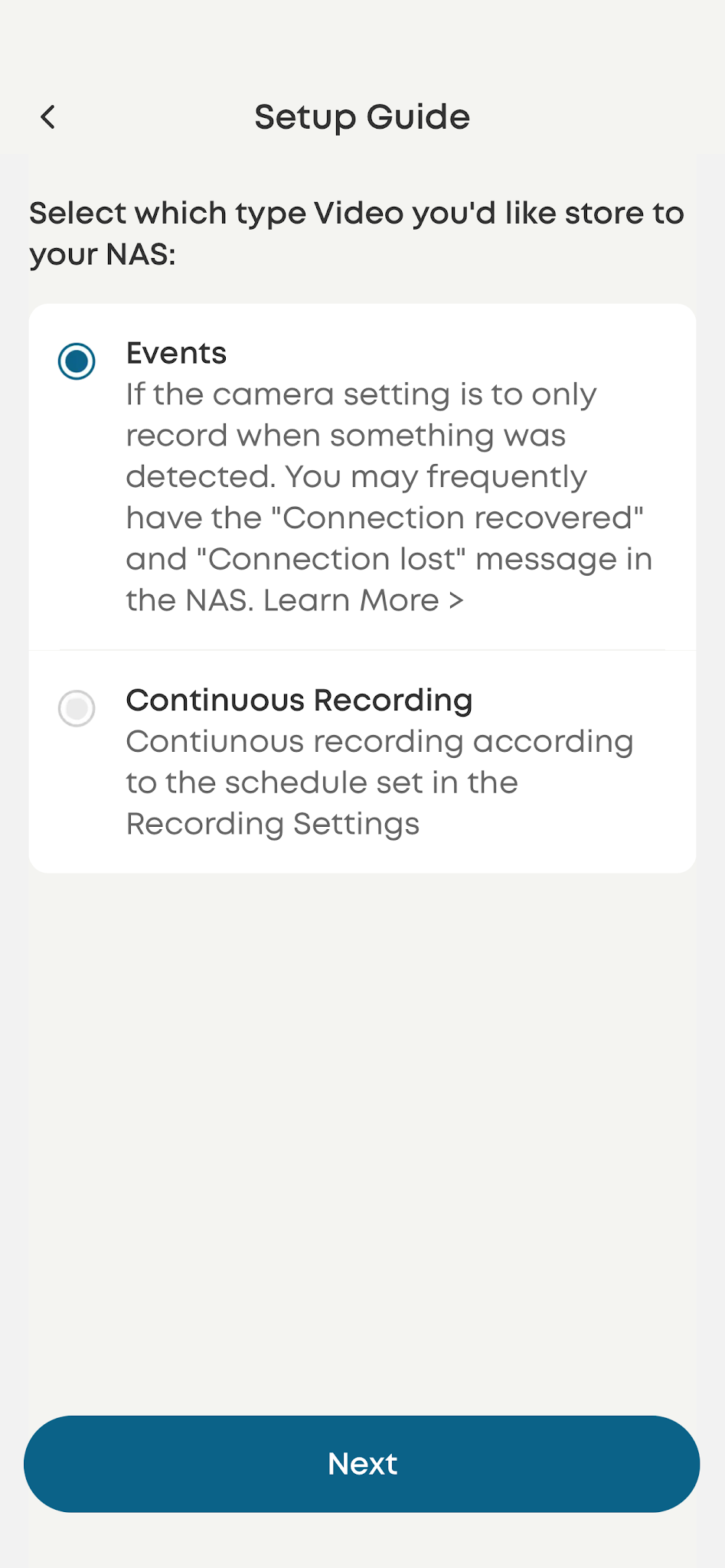
2.3 Select Recording Mode
Event Mode: Recording starts when an event is triggered and stops when the event ends.
Continuous Mode: Records continuously 24/7.
2.4 Configure Encryption Mode and Key
Default encryption authentication mode is Basic. Username and password are randomly generated by default.
2.5 Generate RTSP Connection
After configuration, an RTSP address will be generated. Copy this address and configure it on your third-party NAS device.
This address can also be entered into the VLC player to play the network stream.
In event mode, the VLC player can only successfully play the stream when an event is triggered.
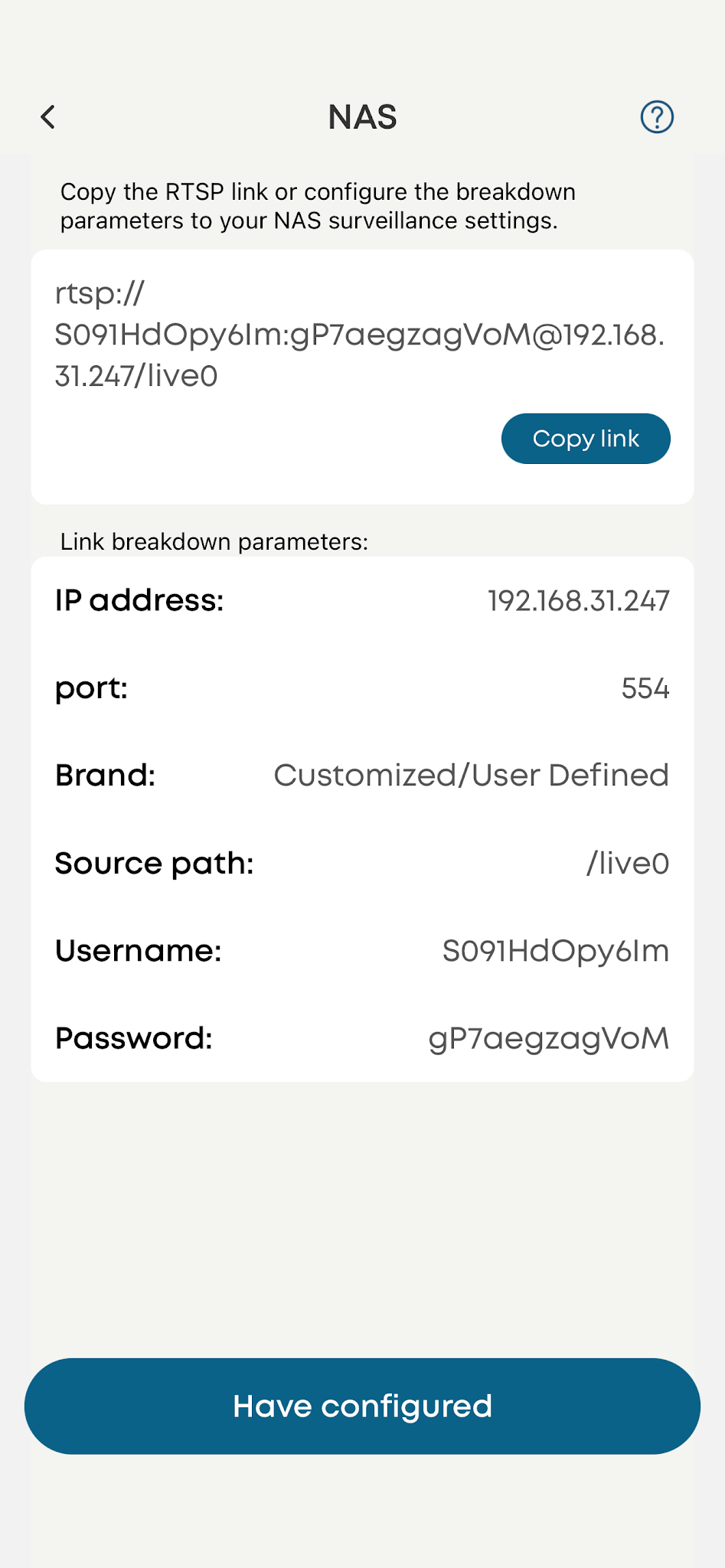
2.6 Configuration Completion Screen
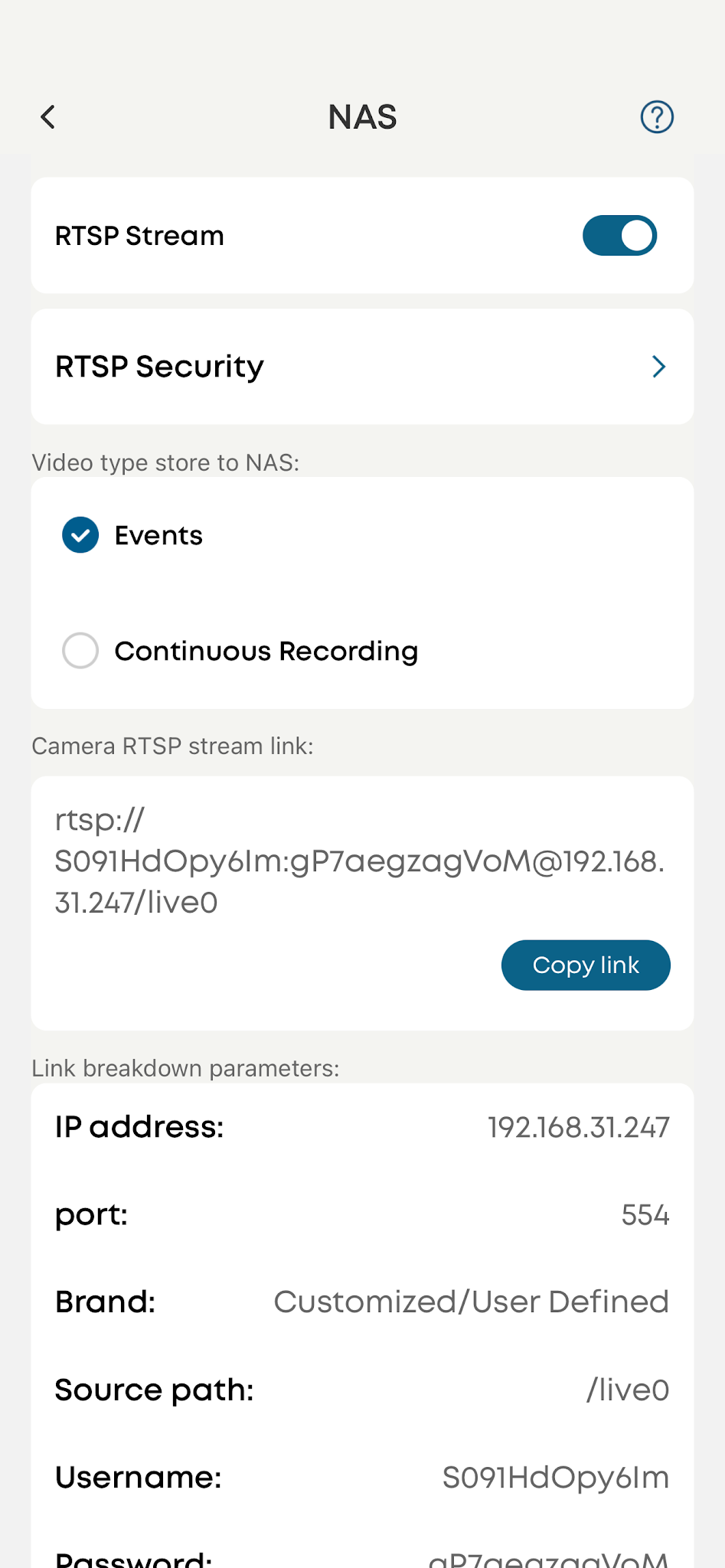
3. Reference Guide
3.1 Using NAS Storage Step by Step
https://service.eufy.com/sg/article-description/Using-NAS-Storage-Step-by-Step?ref=sg%2Fsearch
3.2 About NAS / RTSP
https://service.eufy.com/sg/article-description/About-NAS-RTSP?ref=sg%2Fsearch


