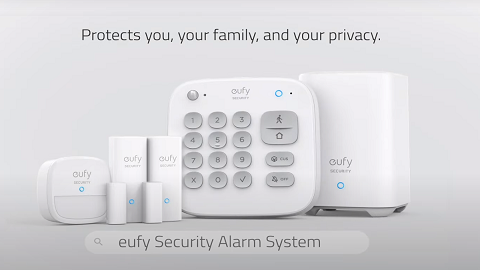
The keypad is a physical panel that provides convenient, in-home control of your eufy ExpertSecure System E10. Use it to arm or disarm your system whenever you leave or come home. Place it near an entry point, in a different room than where your HomeBase Professional is located, or on a desk to arm and disarm your system or trigger an alarm in an emergency. You can also customize your Keypad's settings from the Eufy app at any time.
Switch Alarm mode
Switch Security Modes
-
Enter 'Access Code' first, then click on the mode button on the right side of the panel to switch security modes.
One Click to Arm the System (only when you are under disarmed mode)
-
There is no need to enter the access code while switching from Disarmed Mode to any other modes. Just click on the mode button on the right side of the panel.
-
If you don't like the solution in 1, there is an option to arm the system with access code. Just click on the keypad→click on the gear button →enable the function 'Arm with access code'
Note: If the system detects an issue while arming— for example, an entry sensor has not been properly closed — the keypad's button ✔ and ✘ would blink white for 5 seconds. You'll be given two options: tap ✔ to proceed with arming anyway, or tap ✘ to cancel the arming process. This way, you stay in full control of your system's security.
Generate Duress Alarm
You may need to generate a Duress Alarm if you are under the hostage and are forced to disarm your eufy ExpertSecure System E10, but still intend to secretly send out an alarm.
The Duress Alarm can be generated without an ongoing alarm. If you are under the hostage and are forced to disarm your security system, enter 'Duress Code' first, then click on the '🔕 off' button.
The alarm light and sound will be turned off, and security mode will switch to Disarm, but a 'disguised' Duress Alarm will be sent to the monitoring center.
Change Duress Code via your keypad E10 settings
-
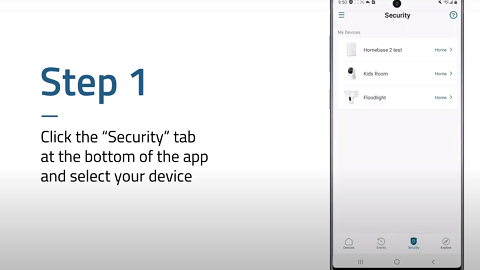
Open the eufy App →
-
select the keypad →
-
click "Access Code" →
-
click "Emergency Code" to change it