What is Motion Detection?
Motion Detection is designed to monitor the situation from your camera’s live view by detecting and recording moving objects and then pushing notification alerts to your phone.
Motion Detection works by combining motion sensors, software image motion comparisons, and the AI engine. Detection distance can be adjusted with sensitivity settings.
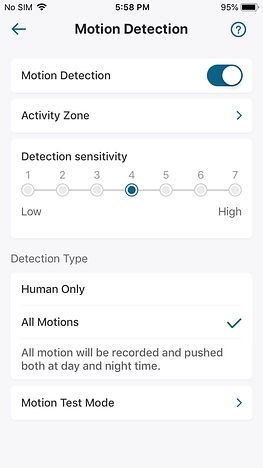
In the eufy App, the Motion Detection part usually includes four categories. They are Activity Zone, Detection Sensitivity, Detection Type and Motion Test Mode.
Note: For different versions of App and product, the UI page may have some tiny differences.
1. Activity Zone
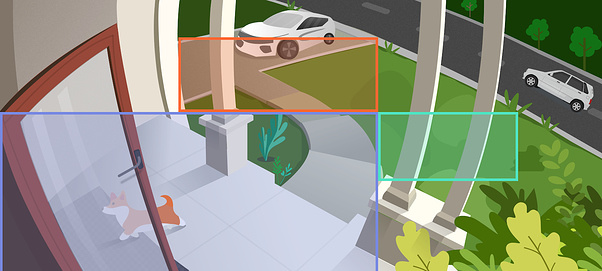
Activity Zones can be set up in the Motion Detection settings. You can specify an Activity Zone within your eufyCam’s view in which you want the motion to be detected. Anything captured outside this area will be ignored by the system’s AI. You can now set up three Activity Zones to minimize the chance of false alerts.
The live-view from everyone’s camera, of course, will be different, so it is important you take the time to properly assess which Motion Detection settings are required.
2. Detection Sensitivity
There are seven sensitivity levels for eufyCam series. The corresponding PIR sensor sensitivity is Level 1 (1-20), Level 2 (21-50), Level 3 (51-70), Level 4 (71-80), Level 5 (81-88), Level 6 (89-92), Level 7 (93-100). The system’s default motion detection sensitivity is set at level 4. If you think that the detection distance is too short or it has occasionally missed some events, you can use the Motion test mode to increase the sensitivity and test the maximum detectable distance of the camera. Finally, adjust the camera’s motion detection sensitivity to the appropriate level to suit your home.
3. Detection Type
Motion Detection has two detection types:
- All Motions
Select this setting if you don’t want to miss any action that occurs in front of the camera. The camera will record and notify you of all motion events. All motion will be recorded and pushed both at day and night time.
- Human Only
When you select this setting the system’s AI will filter out non-human motion events. This is done to save the camera’s battery and to reduce the number of false alert notifications you receive. For safety purposes, Motion Detection will be switched to “All Motion” at night.
The system defaults to Human Only. During the day, the camera only records human motion events and the app only sends push alerts for humans. At night, all motion events are recorded and push alerts are sent by the app for all events. If you want to monitor more motion events during the day, such as cars or animals, try switching to All Motions mode.
4. Motion Test Mode
Before you confirm the sensitivity value for your house, you could test the Motion sensitivity to adjust the motion sensor well.

If the above instructions cannot solve your issue, please contact us for further assistance.
Learn More