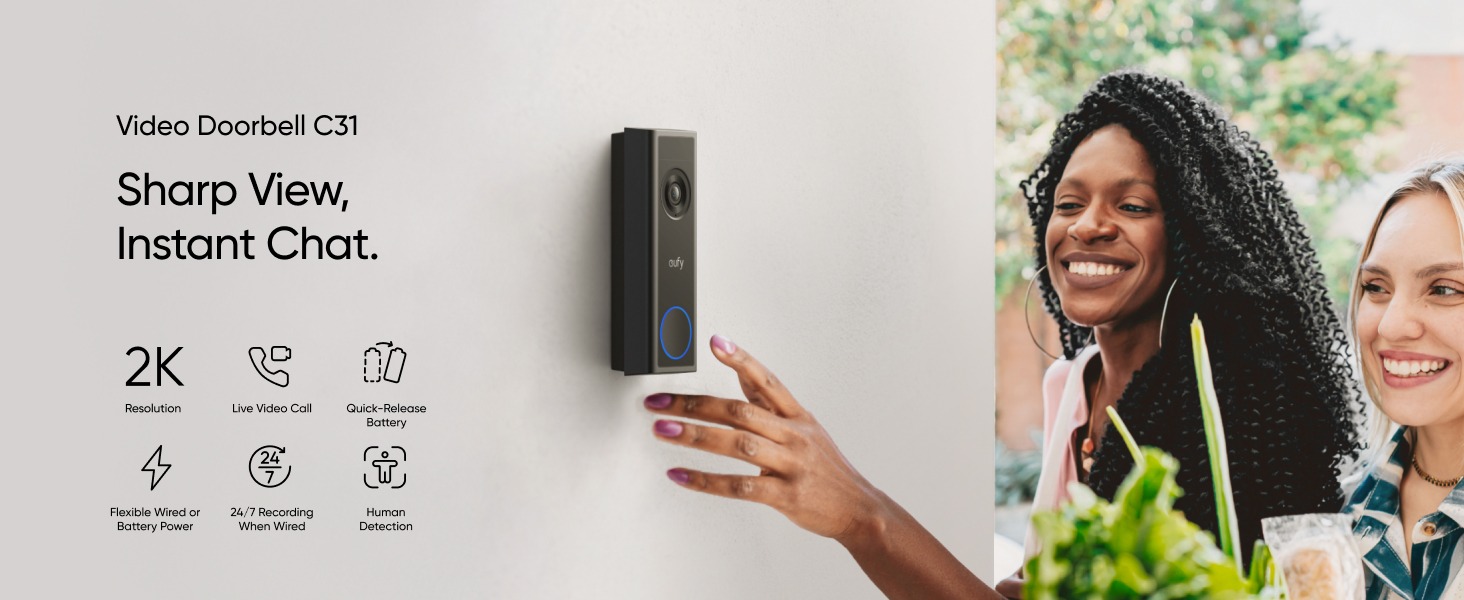
Understanding Flexible Power Modes
Our doorbell offers two power supply options: Battery-Only Mode and Wired Mode. Each mode has different installation methods and feature sets. You can choose the appropriate power mode based on your skill level and specific requirements.
Battery-Only Mode is suitable for novice users (no electrical knowledge or skills required), offering easy and safe installation. However, this mode does not support 24/7 continuous recording and requires regular battery charging.
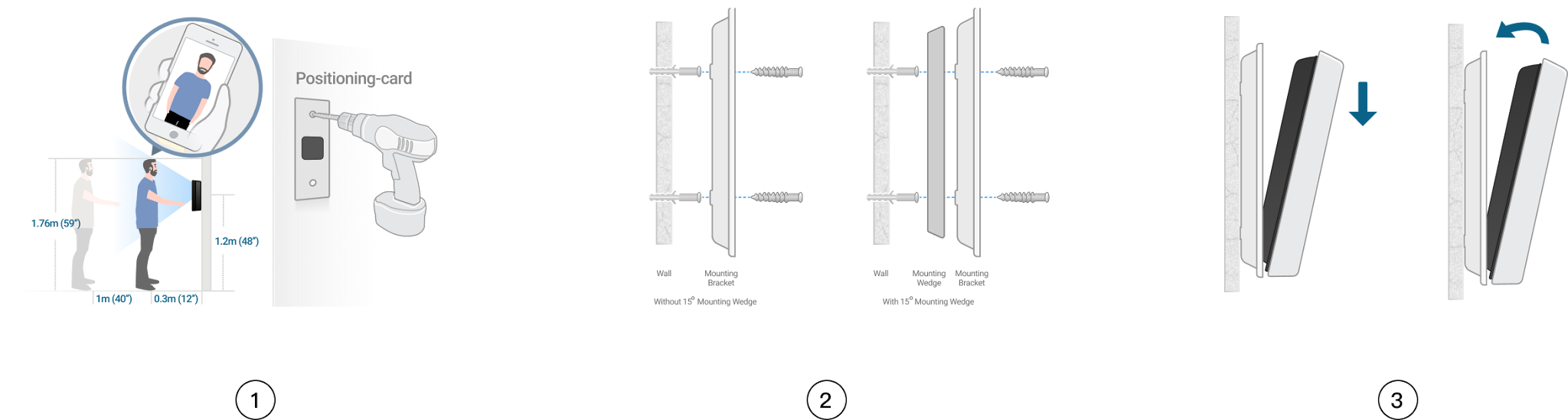
Wired Mode is suitable for users who are handy and enjoy DIY projects. You can choose the wiring method based on your specific use case.
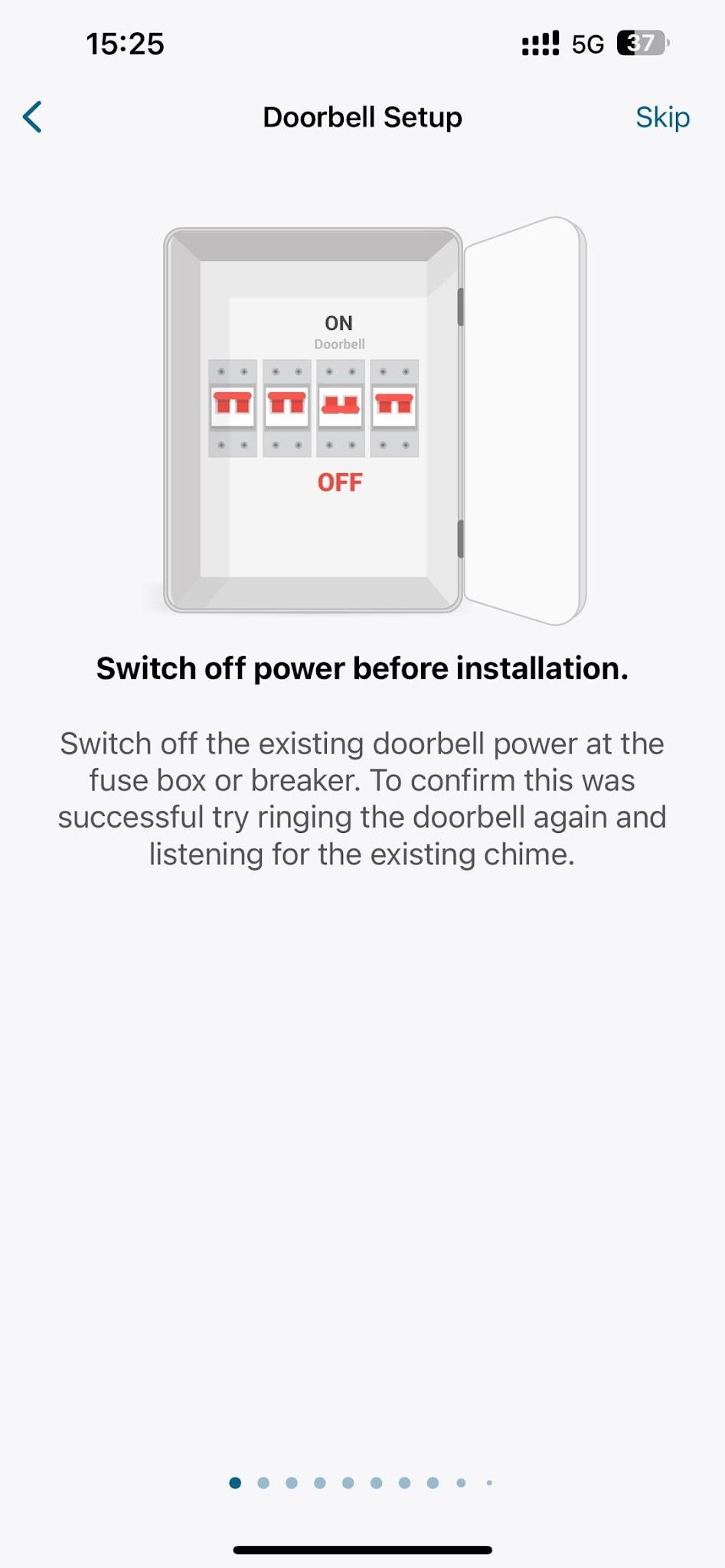
Note: No matter which wired method you choose, the battery pack must be inserted into the doorbell. After connecting the wires, if you need to remove the battery or replace the SD card, please switch off power for safety.
-
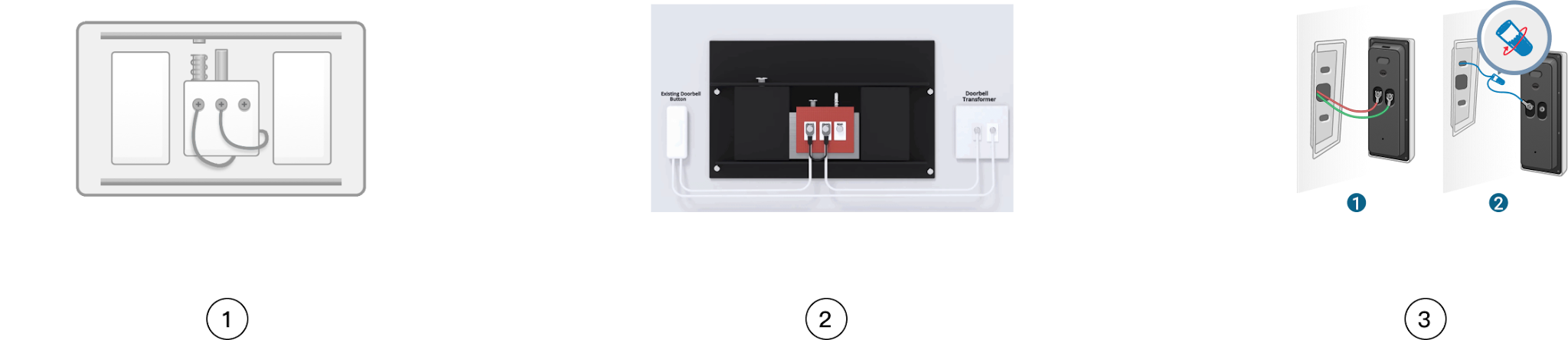
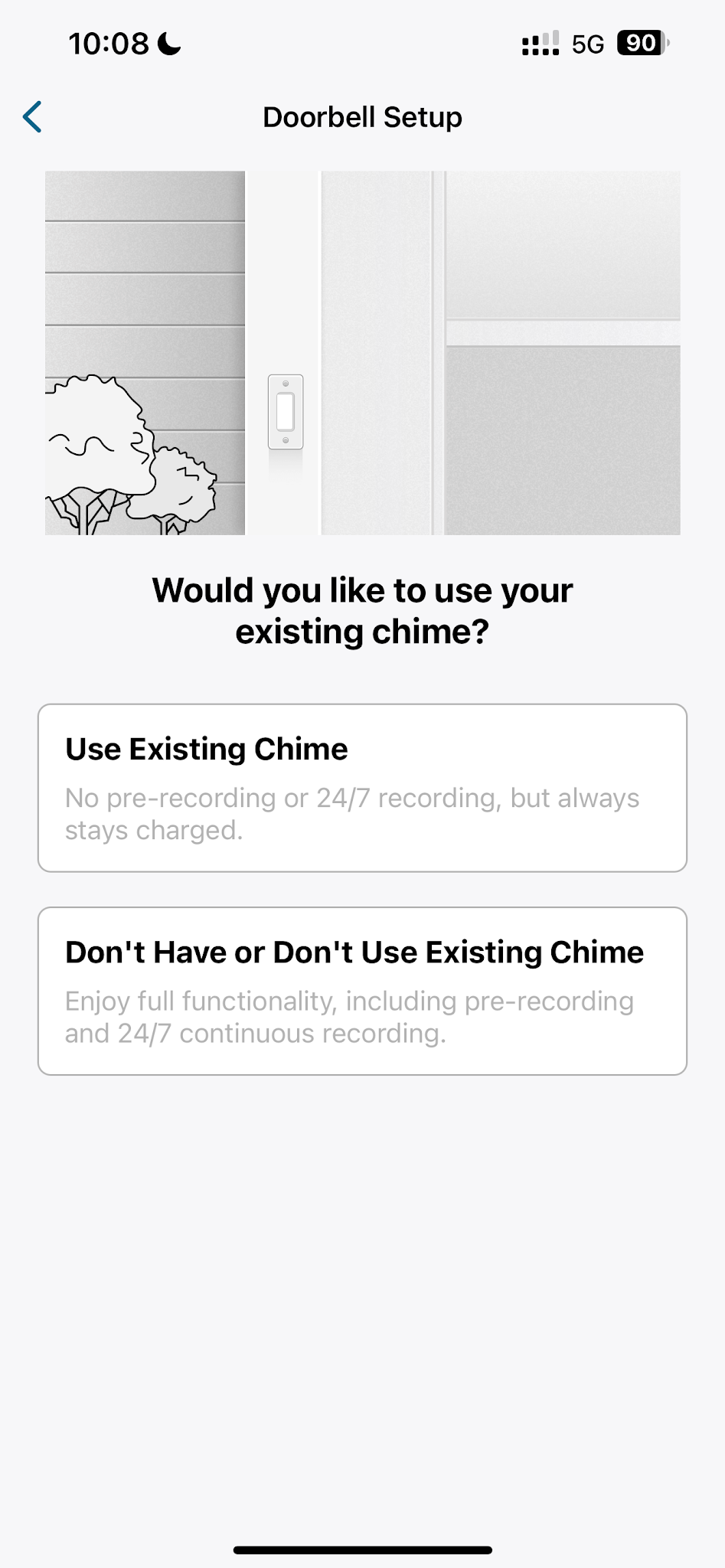
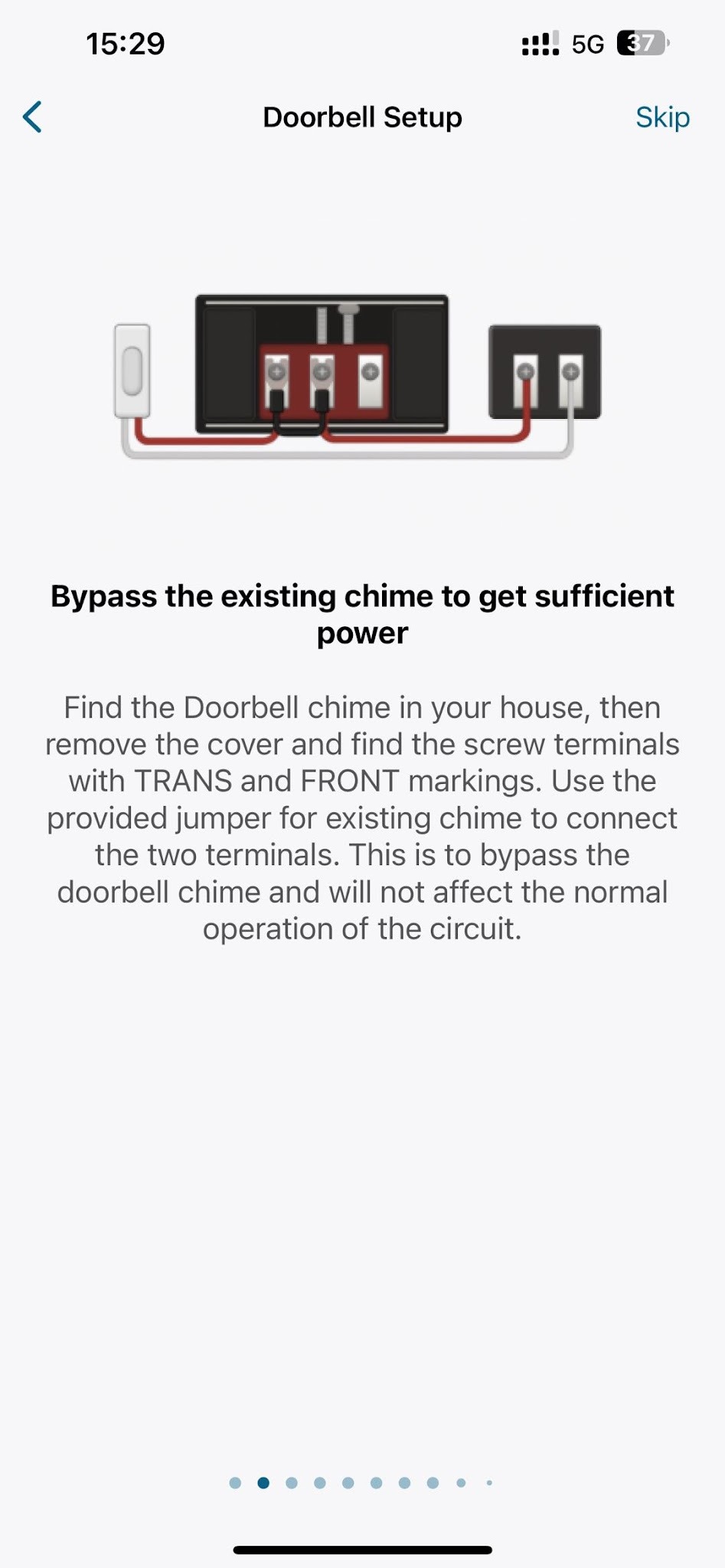
Bypass Existing Chime: You can enjoy full functionality, including pre-recording and 24/7 continuous recording, with the doorbell benefiting from an everlasting power supply.
-
Use Existing Chime as the indoor ding-dong: You can enjoy the convenience of using the existing chime, but this connection method only maintains the device in a low-current charging state.
Note: Since it charges with a low current, it is expected to take 6-7 days to fully charge the doorbell. If there is a lot of foot traffic or vehicle activity near your door, it may cause the battery to still drain. We recommend that you switch to the "Bypass Existing Chime" mode.
How to switch from Battery-Only Mode to Wired Mode
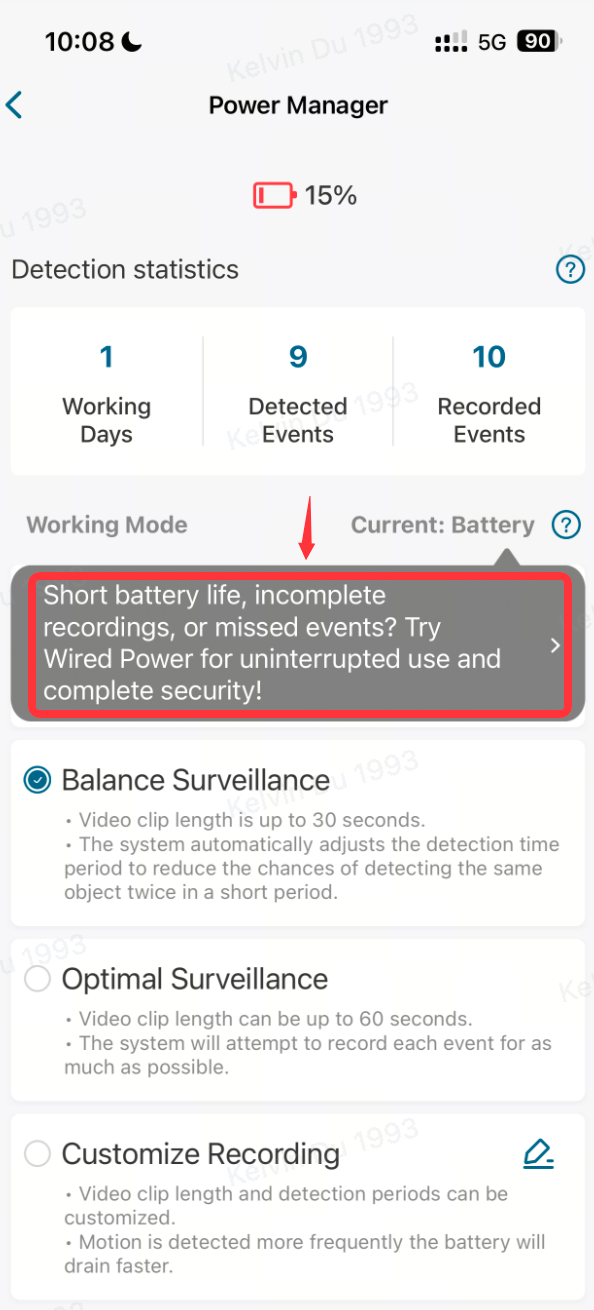
Steps: Anker eufy app>>Doorbell setting>>Power Manager>>Tap Current: Battery >>Doorbell Setup>>Choose Use Existing Chime or Don't have or Don't Use Existing Chime.
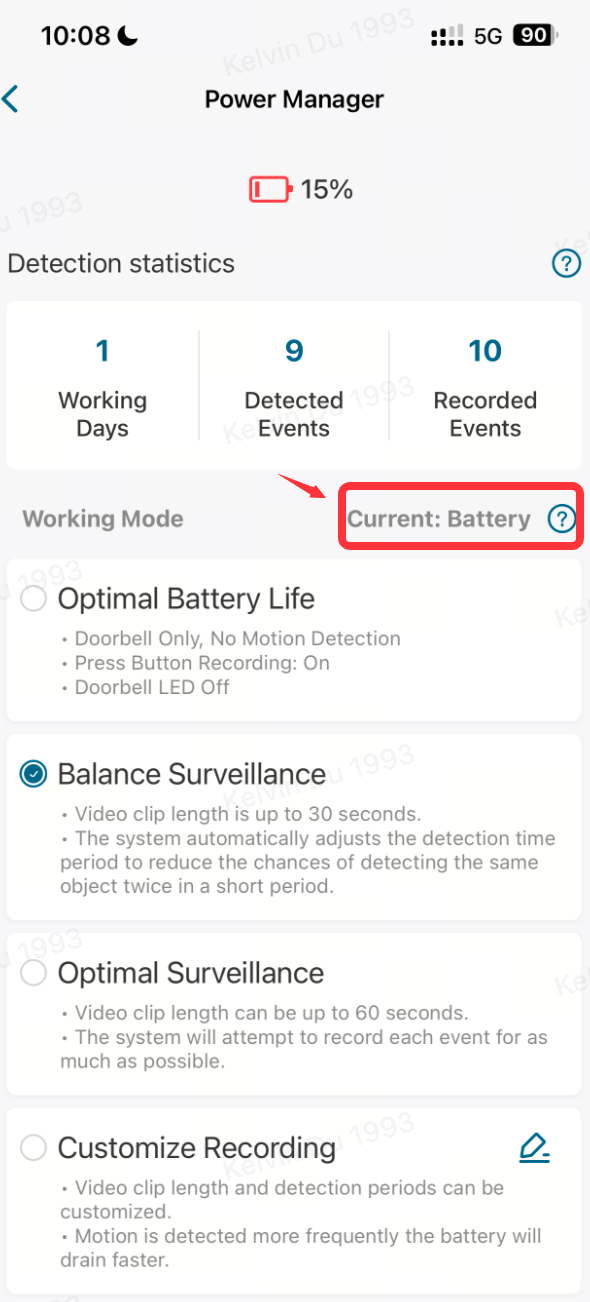
How do I set the doorbell to 24/7 continuous recording mode after wiring the doorbell?
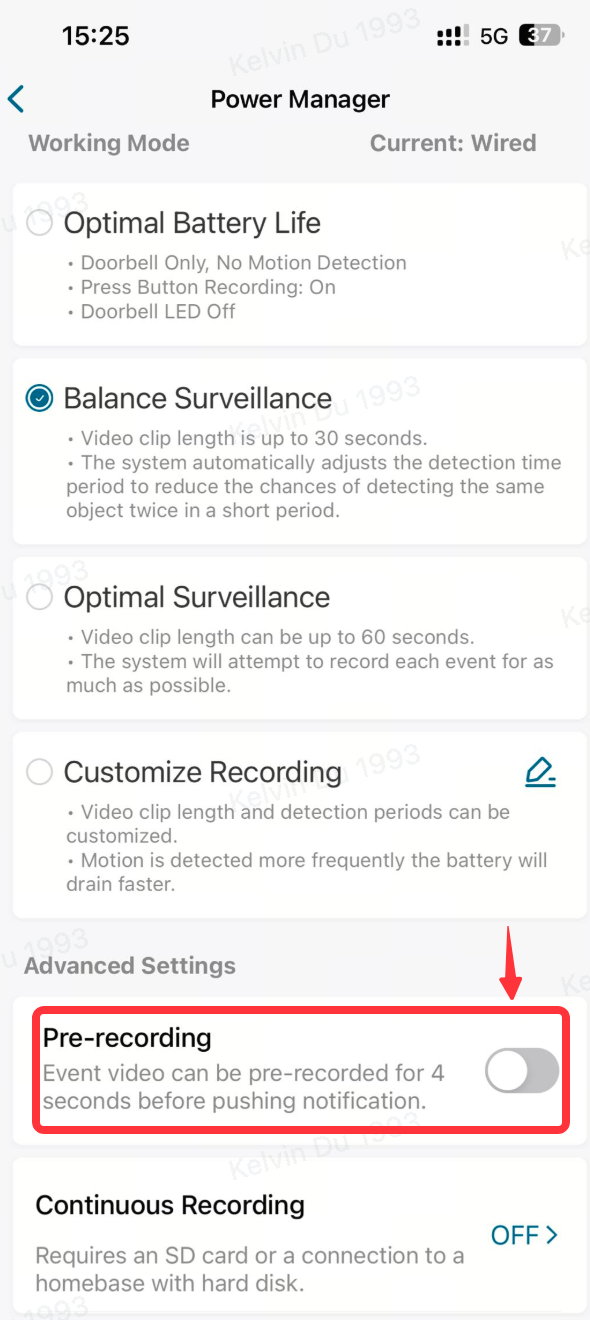
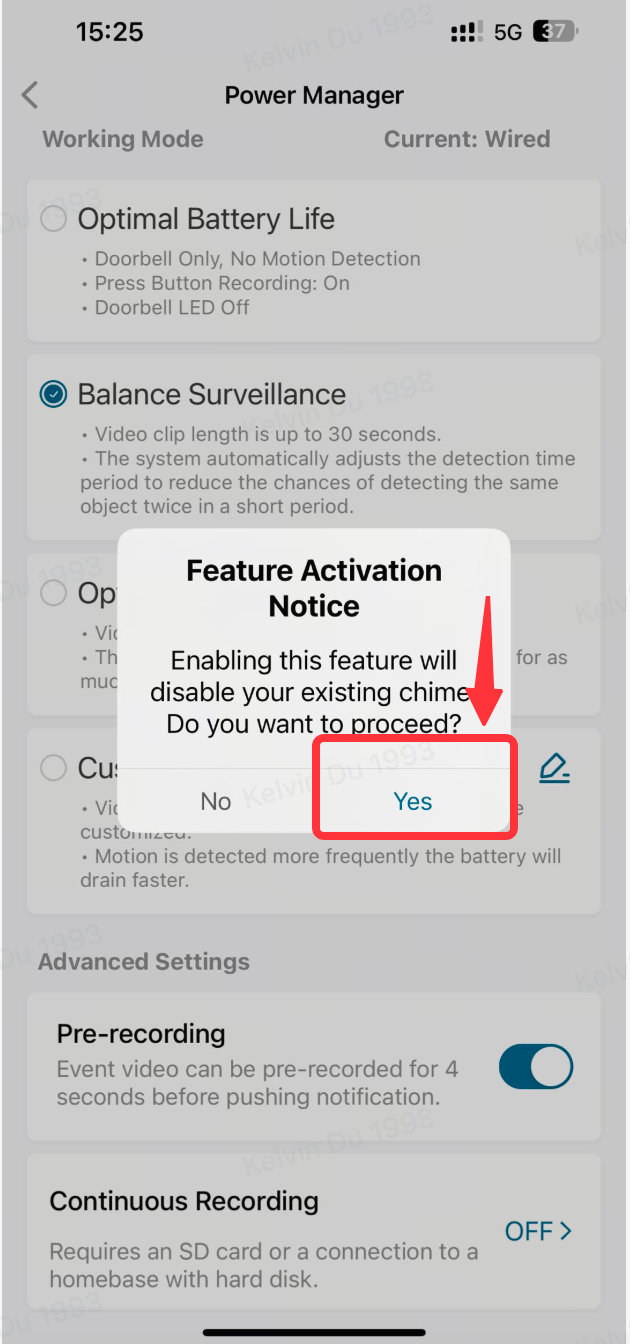
Steps: Anker eufy app>>Doorbell setting>>Power Manager>>Enable Pre-recording>> Enter the Doorbell Setup process.
FAQ
Q: Why isn't my chime working even though my doorbell is wired?
A: If the setup is not completed according to the onboarding guide, the chime switch is turned off by default. Please go to Settings ⇢ Indoor Chime ⇢ Existing Chime to enable the configuration.
Q: Why does my doorbell still experience power drain even though it's wired?
A: If you're using an existing chime as the indoor ding-dong, the doorbell is continuously charged with a low current through the wired connection. It is expected to take 6-7 days to fully charge. However, if there is a lot of foot traffic or vehicle activity near your door, it may cause the battery to drain. We recommend that you switch to "Bypass Existing Chime" mode for better power management.
Q: I have connected the Doorbell C31 to Homebase 2, why don't I have the 24/7 continuous recording feature?
A: The HB2 doesn't have enough storage space to support the 24/7 continuous recording mode. As a result, when the doorbell is connected to the HB2, the 24/7 continuous recording mode is unavailable. However, we are evaluating the HB2 compatibility now, and it will be updated to support this feature once ready. We recommend using the Solo mode or pairing the doorbell with Homebase 3 to enable the 24/7 continuous recording feature.
If you have any other questions regarding the Video Doorbell C31, please don't hesitate to contact eufy Support Engineers for further assistance.


