Type 1: No notification received on the screen
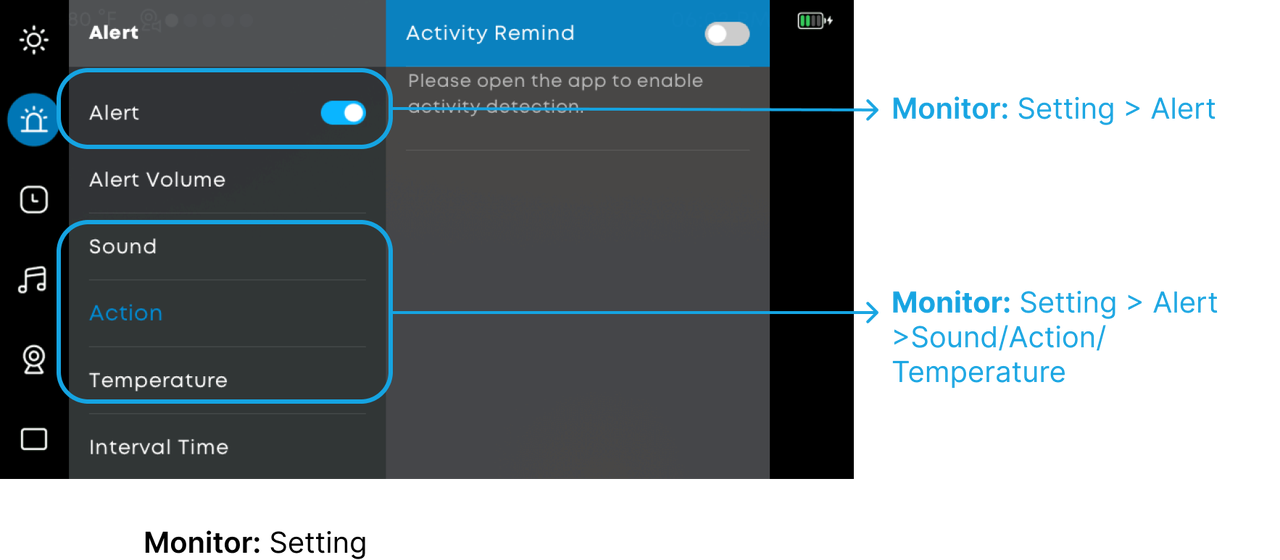
Step 1: Confirm whether display screen Alert are enabled (if you need to receive alerts on the Monitor)
If you want to receive Alert on the display screen, please first confirm that the display screen Alert function is enabled.
- Display screen Alert include a master Alert switch and individual Alert switches for each detection type.
- Please turn on the master Alert switch first, and then turn on or off alerts for different detection types as needed (e.g. Sound, Action, Temperature).
- Monitor Settings path: Settings > Alert page
Note: If the master Alert switch is off, the display screen will not receive any alerts even if the detection function and app notifications are enabled.
Step 2: Confirm Detection Functionality Enabled (App Version)
Detection functionality is a prerequisite for all notifications and is currently only supported in the app.
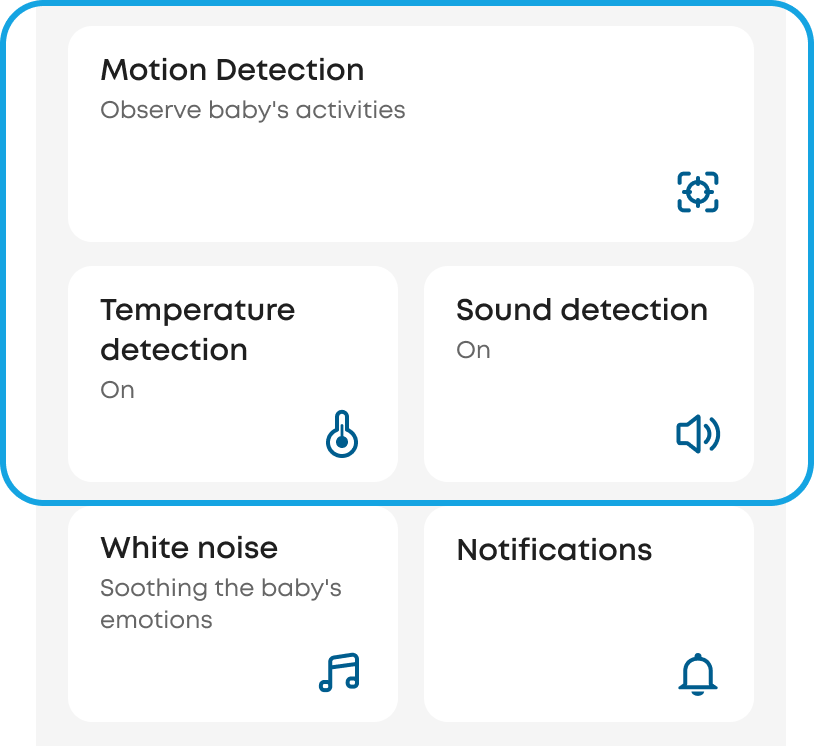
Please ensure you have enabled the necessary detection functions, such as: Sound (crying/loud sound), Activity Remind, and Temperature.
- Detection switch path on the app:
- Enter the corresponding device's Camera settings page
- 【Cam Settings > Motion Detection】
- 【Cam Settings > Temperature Detection】
- 【Cam Settings > Sound Detection】
Note:
- Sound detection (crying/loud sound) and temperature detection are enabled by default.
- Activity detection needs to be manually enabled; otherwise, activity-related notifications or alerts will not be triggered.
Type 2: No notification received on the app
Step 1: Confirm if detection functions are enabled (App)
Detection functions are a prerequisite for all notifications and are currently only supported in the app.
Please confirm that you have enabled the required detection functions (e.g. crying/loud sound/activity/temperature).
- Detection switch path on the app:
- Enter the corresponding device's camera settings page
- 【Cam Settings > Motion Detection】
- 【Cam Settings > Temperature Detection】
- 【Cam Settings > Sound Detection】
Note:
- Sound detection (crying/loud sound) and temperature detection are enabled by default.
- Activity detection needs to be manually enabled; otherwise, activity-related notifications or alerts will not be triggered.
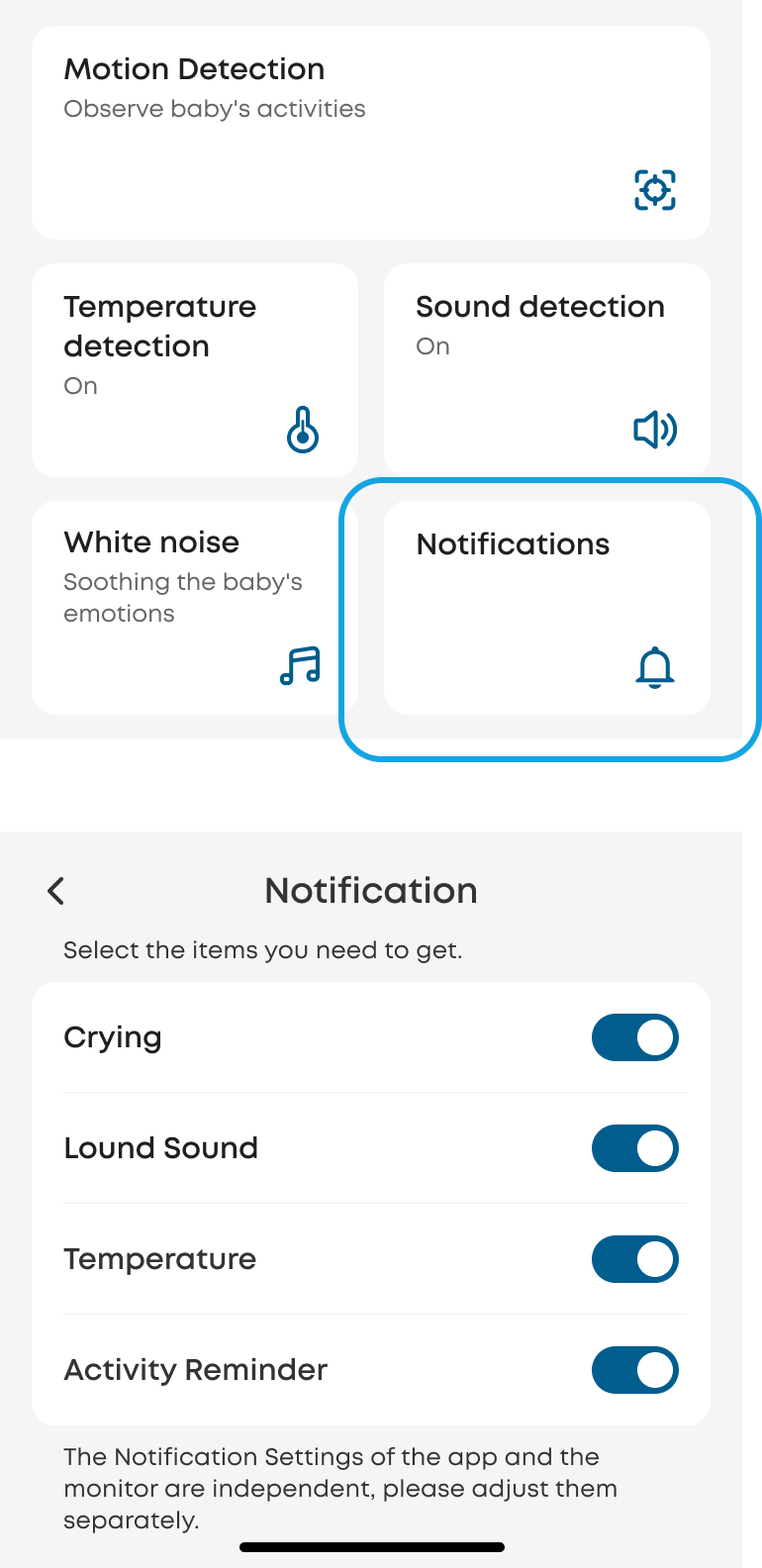
Step 2: Confirm App Notifications are Enabled (Mobile Device)
If you wish to receive notifications on your phone, please ensure that App Notifications are enabled.
- eufy App Settings Path: [Cam Settings > Notifications]
Note: App notifications for each detection type (such as crying, loud sound, activity remind, etc.) can be configured individually.
If you have any other questions, please don't hesitate to contact eufy Support Engineers for further assistance.