What Should I Do if My X8 Pro Series Triggers the Laser Sensor Stuck/Blocked Error?
 

If you're experiencing issues with the laser sensor on your X8 Pro Series, the robot may emit the following voice prompts or error messages:

- Laser sensor may be stuck. 

- Laser sensor may be blocked. 

- Error: Laser sensor error, please contact customer service. 

- Laser sensor cover may be stuck, please check. Please try the following troubleshooting steps to resolve the laser sensor error:

 
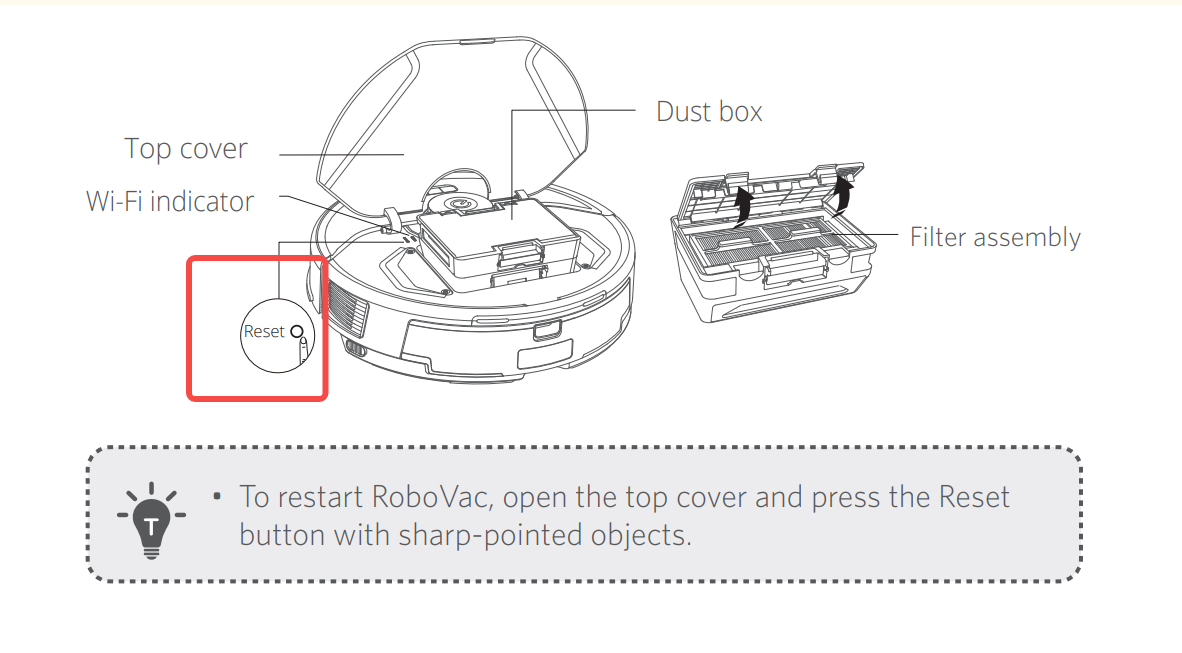
  1. Please lift the robot cover, use an object that has a sharply pointed tip to press the Reset button on the robot, and then restart the robot by pressing the Power button for three seconds to check if the error persists. The Reset button is located next to the WiFi indicator light under the robot cover. Please note that resetting your robot will not restore the robot to its factory settings, delete maps, or reset the robot's WiFi network.


  1. Remove the dustbin from the robot, turn the robot upside down, and then shake the robot to check if there is anything that may have been stuck on the laser sensor/laser cover. Please repeat this step a few times. If you have another vacuum cleaner, you can use the vacuum cleaner to clean any dust or debris that may have been stuck in the robot's lidar hole.
  2. Check whether there is anything that may have been stuck in the transmitting and receiving holes of the laser sensor, and then confirm whether the laser tube emits any light. Please gently remove debris or objects if there are any.

 
  1. Please check whether the radar rotates normally. Please use a pencil with a rubber end or a cotton swab (be careful not to touch the lens inside the radar hole with the object), turn the lidar head clockwise and then counterclockwise (at least one turn, please refer to the Guide video for visual instructions). Then, please turn the robot over, tap the back of the robot, and then shake the robot to dislodge any objects that may have been stuck on the lidar drive belt. It is recommended to repeat this step several times.


If you have any further questions or concerns, please don't hesitate to contact us for assistance.

Unresolved icon
56 undefined
What if my RoboVac runs with a loud noise?
10061 views2 likes/2025-04-07 18:26:09
How to contact a Human Customer Service Representative?
22266 views1 likes/2024-11-27 10:43:42
🤝How Your eufy Warranty Service Works
20958 views1 likes/2025-11-07 12:15:33
How to Empty the RoboVac’s Dust Collector
21612 views3 likes/2023-09-26 19:37:12
Tips on Using the Self-Empty Station and Dust Bag
6396 views1 likes/2025-04-07 18:06:38
Can't find devices?
16550 views3 likes/2025-06-04 14:38:57
Introducing the Mopping function of the X8 Pro Series
7214 views1 likes/2025-04-07 18:23:24
Download icon
X8 Hybrid_FI_Manual
Download icon
X8 Hybrid_DA_Manual
Download icon
X8 Hybrid_SV_Manual
Download icon
X8 Hybrid_NO_Manual
Download icon
X8 Hybrid_DA+FI+NO+SV_Quick Start Guide
Download icon
RoboVac X8/X8 Hybrid EU DOC (T2261/T2262)
View More
Play videoeufy RoboVac X8 Hybrid Unboxing Video
eufy RoboVac X8 Hybrid Unboxing Video
Play videoRoboVac X8 Series: How to Replace the Wheels
RoboVac X8 Series: How to Replace the Wheels
Play videoRoboVac X8 Series:How to Connect iOS Devices
RoboVac X8 Series:How to Connect iOS Devices
Play videoRoboVac X8 Series:How to Connect Android Devices
RoboVac X8 Series:How to Connect Android Devices
Play videoCleaning and Maintenance of X8 Series RoboVac Accessories
Cleaning and Maintenance of X8 Series RoboVac Accessories
Play videoIntroducing the world's first twin turbine powered robotic vacuum: eufy RoboVac X8 Series
Introducing the world's first twin turbine powered robotic vacuum: eufy RoboVac X8 Series
View More
Contact Us
Buy on the eufy Store
Download the App
affirmamazonPayamexapplePaydinnersClubdiscovergooglePaymastercardpaypalshopPayvenmovisa