If your E25/E28 robot exhibits diminished obstacle avoidance performance, please try the following troubleshooting steps:
-
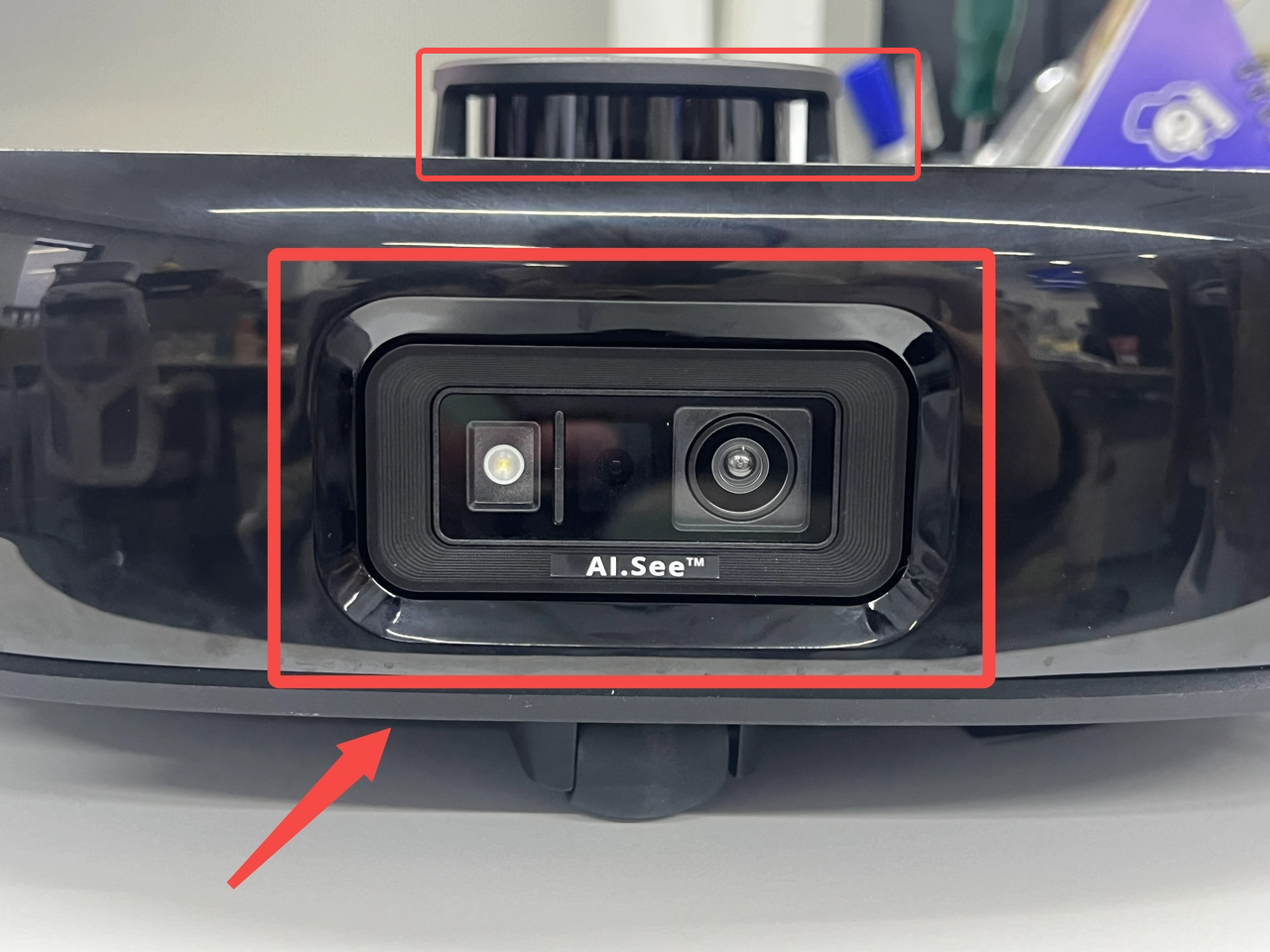
Inspect the sensor and radar window of the robot for any dirt or debris. Be aware that dirt on the lenses can hinder the robot's ability to avoid obstacles. Please wipe the lenses with a soft cloth that has been dampened with water. Additionally, it is recommended to perform regular maintenance and cleaning of the robot's sensors to ensure that the robot can avoid obstacles effectively and accurately.
-
For small objects such as cables and tiny toys, the robot may occasionally fail to detect them. Please remove these items from the floor before the robot starts a new cleaning session.
The E25/E28 robot primarily utilizes LiDAR (Light Detection and Ranging) sensors to emit and receive infrared radiation for obstacle detection and distance measurement. However, reflective surfaces such as mirrors and glass can interfere with infrared signals, leading to a high probability of inaccurate distance measurements. To prevent collisions with these surfaces, it is recommended to use the No-go Zone feature in the app to create virtual boundaries.
If your E25/E28 robot frequently gets stuck, please try the following troubleshooting steps:
-
Check whether the bumper is jammed. Gently tap the bumper to check if it can move freely.
-
Inspect the radar cover for any obstructions. Press down on it to make sure it can activate normally.
-
Use the No-go Zone feature in the app to create virtual boundaries that prevent the robot from getting stuck under objects like Barcelona chairs, fan bases, bar stools, or U-shaped couches.
-
The robot might become stuck due to a cluttered furniture layout or confined spaces. Please ensure that all obstacles in the area are removed.
-
If the robot gets stuck under furniture with a height similar to itself, such as tables or couches, it is recommended to block off those areas by using the No-go Zone feature in the app.
-
Inspect the side brushes for trapped debris. If the side brushes are clogged, please clean them thoroughly and perform regular maintenance.
-
Inspect the wheels for trapped debris. If necessary, please remove the trapped debris to ensure that both wheels can rotate freely.
If you have any other questions about the E25/E28 robot, please don't hesitate to contact us for further assistance.


