No-Go Zones, Virtual Boundaries, and No-Mop Zones are useful area-control features in the eufy app that allow you to control where and how the Omni E35 cleans.
-
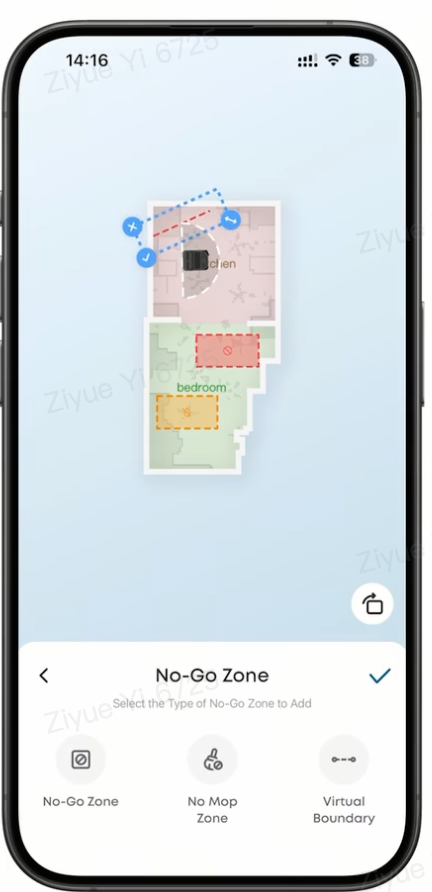
No-Go Zone: Draw a rectangular or irregular area on the map that the robot will not enter. This is useful for areas that should always be avoided.
-
Virtual Boundary: Draw a line on the map that the robot will not cross. This is ideal for blocking doorways or separating adjacent areas.
-
No-Mop Zone: Define an area that the robot will avoid while mopping. The robot can still clean the area without mopping, making this feature suitable for water-sensitive floors or carpeted areas.
Troubleshooting Steps
Step 1: Open the eufy App
Open the eufy app and select the Omni E35.
Step 2: Open the Map
Go to the device map page.
Step 3: Select Map Edit
Tap Map Edit to access the map editing tools.
Step 4: Select an Area-Control Feature
Select No-Go Zone, Virtual Boundary, or No-Mop Zone, depending on the area you want to control.
Step 5: Draw the Area or Boundary
Use the map to define the area you want the Omni E35 to avoid.
-
No-Go Zone: Pinch to zoom if necessary, then drag to create a rectangular or irregular zone.
-
Virtual Boundary: Tap two points on the map to draw a boundary line.
-
No-Mop Zone: Draw the area where you want the robot to avoid mopping.
Step 6: Adjust the Position and Size
Adjust the position and size of the zone or boundary to ensure that it covers the intended area.
Step 7: Save the Changes
Tap Save to apply the settings.
Step 8: Verify the Settings
Run a cleaning cycle to confirm that the Omni E35 follows the configured No-Go Zone, Virtual Boundary, and No-Mop Zone settings as expected.
Common Use Cases
-
Furniture with limited clearance: Create a no-go zone around areas where the robot could become stuck.
-
Fringed rugs or thin mats: Create a no-go zone to prevent the robot from cleaning over them.
-
Cable-heavy areas: Create a no-go zone around areas such as TV stands or desks with multiple cables.
-
Pet areas: Create a no-go zone around food bowls or litter boxes.
-
Separating areas: Use a virtual boundary to prevent the robot from entering another room or area.
Related Questions
Q1: What happens to the area inside a no-go zone?
The Omni E35 will not enter a no-go zone. If you need to clean the area occasionally, temporarily delete the zone, run the cleaning cycle, and then add the zone again. Alternatively, you can use Zone Clean to target the specific area manually.
Q2: How do I modify no-go zones after setting them in the eufy app?
You can modify no-go zones at any time. Go to Map Edit to resize, reposition, or delete an existing zone as needed.
If you have any other questions about the Omni E35, please don't hesitate to contact eufy Support Center for further assistance.