An incorrect map can affect room recognition and navigation, but most mapping issues do not require a repair. In most cases, deleting the existing map and remapping the home resolves the issue.
Common map issues include:
-
Rooms are merged together or divided incorrectly.
-
Doorways are incorrectly marked as walls, preventing the robot from passing through.
-
The map shape differs significantly from the actual floor plan.
-
Old and new maps overlap, resulting in duplicate areas on the map.
Troubleshooting Steps
Step 1: Delete the Current Map
Go to App → Settings → Map Management and delete the current map. This is the most effective way to resolve an inaccurate map. Instead of repeatedly editing an incorrect map, we recommend deleting it and creating a new one.
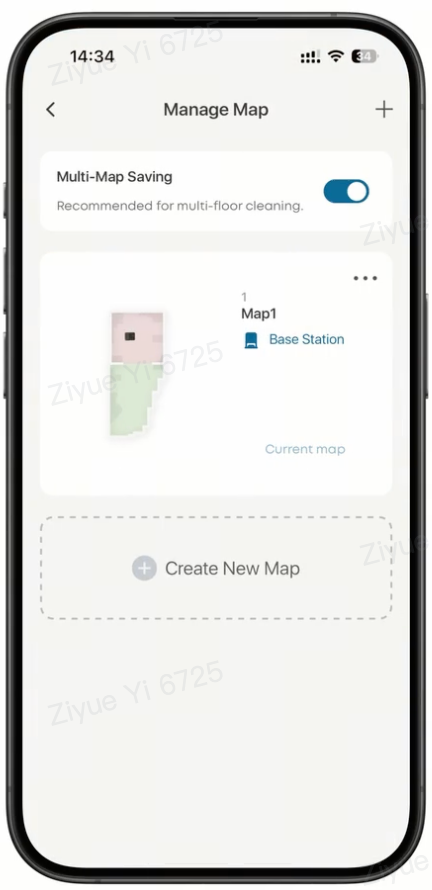
Step 2: Optimize the Mapping Environment
Before starting a new mapping cycle, make sure the environment is suitable for mapping:
-
Ensure all doors are fully open.
-
Make sure the area has sufficient lighting by mapping during the day or turning on the lights.
-
Remove clutter from the floor, including cords, toys, and shoes.
-
Keep in mind that mirrors and similar reflective surfaces can significantly affect mapping accuracy.
-
Do not follow or interfere with the robot while it is mapping. Allow it to explore freely.
-
Do not move the robot during the mapping process.
Step 3: Run Quick Mapping
Select Quick Mapping in the eufy app. The Omni E35 will explore the home without cleaning and typically complete the mapping process within 5-15 minutes.
Step 4: Review the Map
After mapping is complete, check whether doorways are correctly identified as passages rather than walls and whether the room divisions accurately reflect your home.
If the map is still inaccurate, repeat Steps 1-3 and make sure all mapping conditions are met.
Step 5: Manually Edit the Map
After creating a satisfactory map, use the available map editing tools to make adjustments as needed. You can merge or divide rooms, rename rooms, and add furniture markers.
Related Questions
Q1: Why is the Omni E35 map still inaccurate after remapping?
The most common causes are closed doors or insufficient lighting during the mapping process. Before remapping again, verify that all mapping conditions are met, including fully open doors, sufficient lighting, a clear floor, and no interference with the robot while it is mapping.
Q2: How does multi-floor mapping work on the Omni E35?
Move the Omni E35 to the new floor and allow it to detect the new environment and create a new map. The Omni E35 can store up to five maps.
If you have any other questions about the Omni E35, please don't hesitate to contact eufy Support Center for further assistance.