When the Omni E35 encounters a technical issue that cannot be resolved through standard troubleshooting, contacting eufy Customer Support can help identify the cause and determine the appropriate solution.
Providing complete information in advance can reduce back-and-forth communication and help eufy Support Engineers diagnose the issue more efficiently. The most important information to provide includes:
-
A detailed description of the issue and any error code or voice alert.
-
The Activity Log uploaded through the eufy app.
-
The Device Information copied from the eufy app.
Troubleshooting Steps
Step 1: Provide a Detailed Description of the Issue
Include the following information:
-
What is the problem?
-
When did the issue start? Include the date and approximate time.
-
How often does it occur? For example, every cleaning cycle, occasionally, or only once.
-
Which room or location does the issue occur in?
-
What type of floor is present? For example, hard floor, carpet, or a combination.
Step 2: Provide the Error Code or Voice Alert
-
If an error code appears in the eufy app, provide the complete code to eufy Customer Support.
-
If the Omni E35 plays a voice alert, provide the exact message you hear.
Step 3: Upload the Activity Log
Uploading the Activity Log is one of the most important steps when reporting a technical issue.
-
Go to App → Device → Select the Omni E35 → Settings → Select the device name → More Settings → Activity Log Upload
After the log is uploaded, the robot's operation logs are sent to eufy Support Engineers for analysis.
Note: Upload the Activity Log as soon as possible after the issue occurs. Logs may be overwritten as the robot continues to operate.
Video: https://d3pkbgk01oouhl.cloudfront.net/upload_file/prod/LogUploadE35.MP4
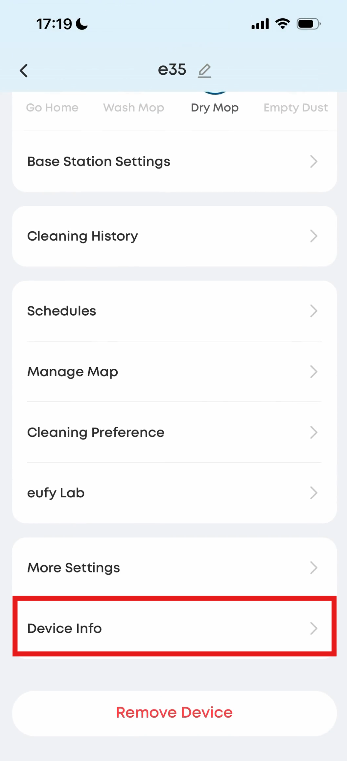
Step 4: Copy the Device Information
The device information may include details such as the Device ID, MAC address, firmware version, app version, and other vital information needed for troubleshooting.
-
Go to App → Device → Select the Omni E35 → Settings → Select the device name → Device Info → Copy Device Information
Step 5: Provide a Cleaning History Screenshot
If the issue is related to a specific cleaning task, provide a screenshot of the relevant cleaning history.
-
Go to App → Device → Select the Omni E35 → Map page → Settings → Cleaning History
Find the affected cleaning task and take a screenshot showing the cleaning path and time. If the cleaning task is still in progress, take a screenshot of the ongoing cleaning interface instead.
Step 6: Provide Photos or Videos
Photos and videos can help eufy Customer Support better understand the issue.
-
Record a video showing the Omni E35's abnormal behavior.
-
Take photos of the environment where the issue occurs, including the floor type, obstacles, and lighting conditions when relevant.
-
If the issue caused physical damage, such as a scratched baseboard, take clear photos of the damaged area.
Step 7: List the Troubleshooting Steps Already Completed
Inform eufy Customer Support about troubleshooting steps you have already tried. This helps prevent unnecessary repetition.
For example:
-
Cleaned the brush roll.
-
Restarted the robot.
-
Deleted and recreated the map.
Step 8: Provide Proof of PurchaseIf the issue involves a warranty claim, provide proof of purchase, such as a screenshot of your order or a photo of the receipt. Make sure the proof of purchase clearly shows the purchase date and purchase channel.