If your S2 robot’s mopping or vacuuming performance does not meet expectations, please refer to the video guide [Video: https://youtu.be/59lZhZWZjmg] or follow the troubleshooting steps below to identify potential issues and improve overall cleaning results.
Mopping-Related Troubleshooting
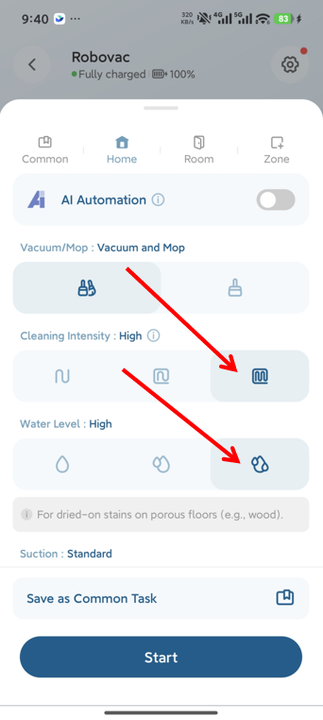
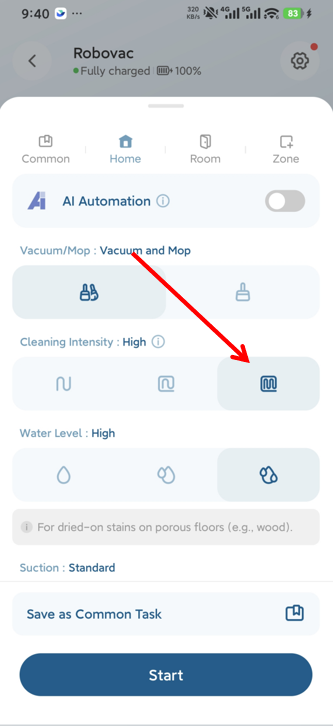
Step 1: Adjust Cleaning Intensity and Water Volume
-
Increase both the cleaning intensity and water usage level in the app settings.
-
Setting these options to their highest levels can significantly improve mopping performance.
Step 2: Enable the "Dirty Spot Cleaning" Feature
-
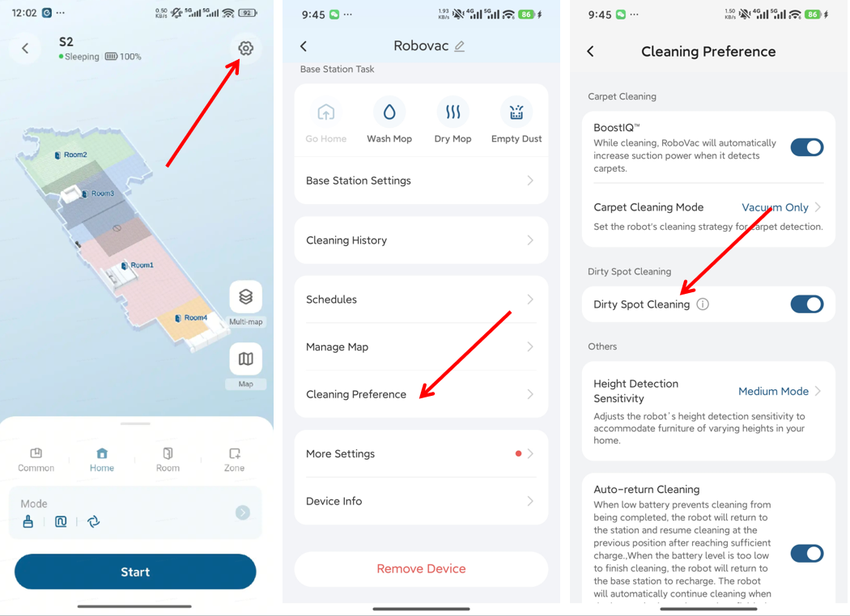
In the app, navigate to Settings → Cleaning Preference → Dirty Spot Cleaning.
-
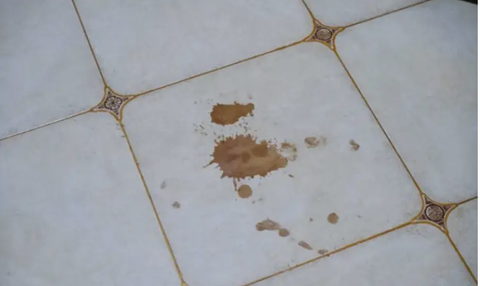
When enabled, the robot will automatically perform intensive scrubbing on heavily soiled areas, such as coffee spills, for enhanced mopping results.
Step 3: Manually Handle Extremely Stubborn Stains
-
Stains such as dried oil, glue, or paint may require manual cleaning due to their hardened or adhesive nature.
-
The S2 robot is designed for daily maintenance cleaning and may not be effective on industrial-grade or hardened residues.
Vacuuming-Related Troubleshooting
Step 1: Clean the Dustbin and Filter
-
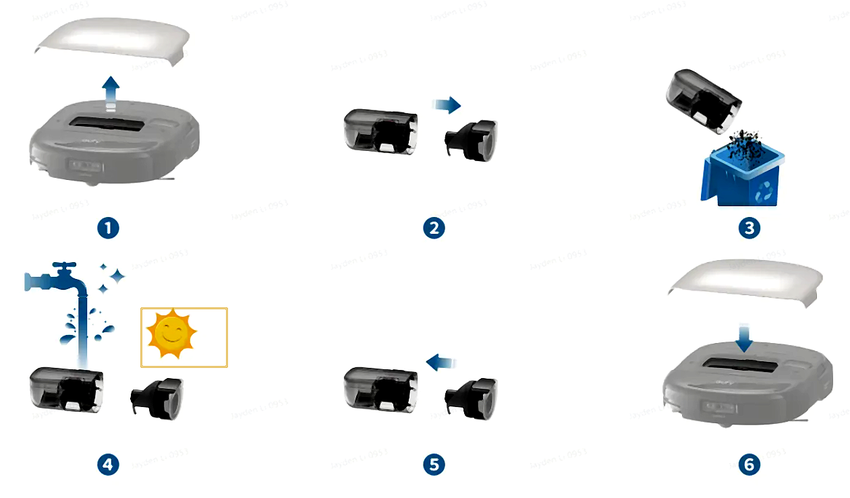
If the dustbin and filter have not been cleaned regularly, suction power may decrease and cleaning performance will be affected.
-
Please follow the maintenance tutorial [Video: https://youtu.be/aTNrP6QlqF8] to restore optimal suction.
Step 2: Check the Air Outlet Silicone Seal
-
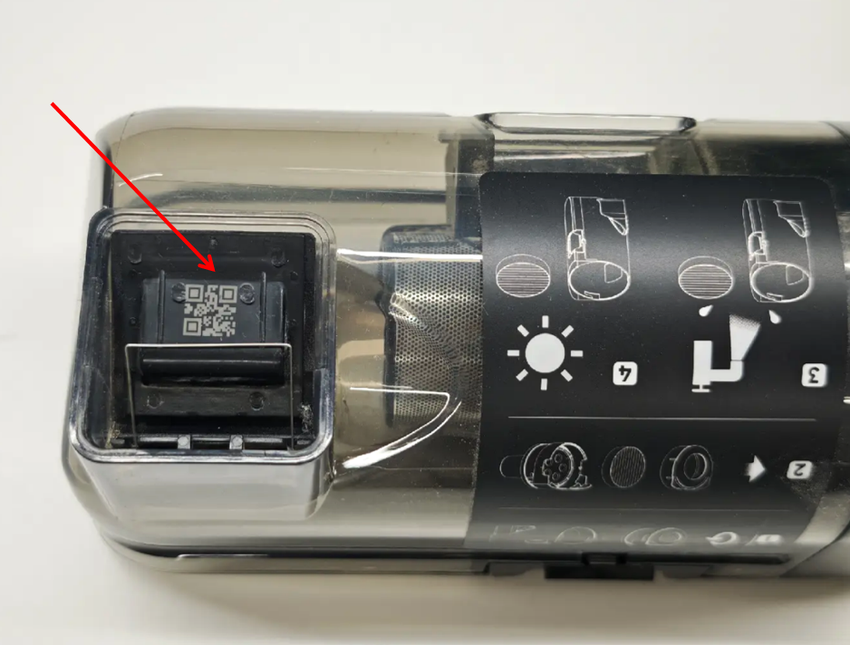
Inspect the silicone seal at the dustbin’s air outlet.
-
Ensure it is properly seated, fully sealed, and free of debris.
-
Clean the seal if necessary to maintain correct airflow.
Step 3: Replace Side Brushes and Roller Brush
-
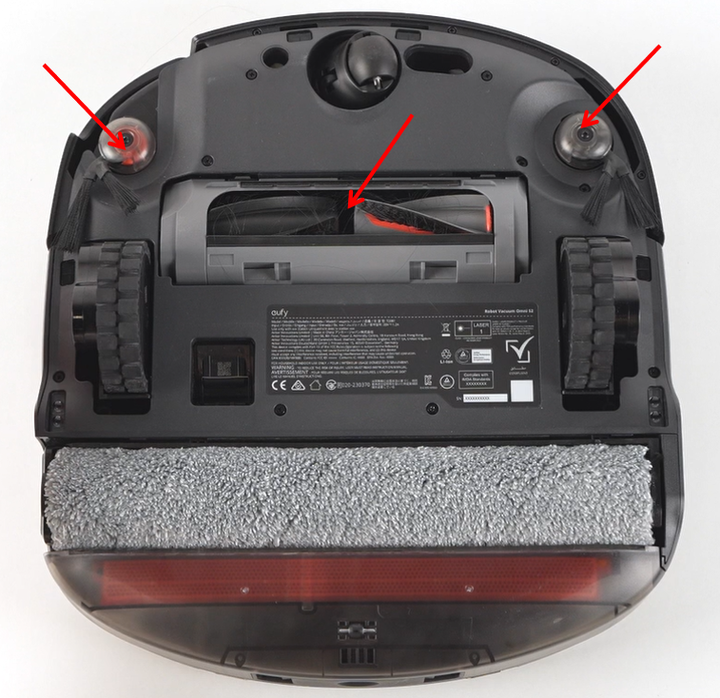
Worn, deformed, or overused side brushes and roller brush should be replaced promptly.
-
Refer to [Video: https://youtu.be/5p9KL4Fe0s0] for correct replacement instructions.
Step 4: Review Cleaning Records and Coverage
-
Check the cleaning records in the app to confirm all target areas were covered.
-
If certain zones were missed, verify whether temporary obstacles (such as furniture or pets) blocked the robot’s path.
-
Redraw the cleaning area and run the task again.
-
If the issue continues, please take photos of the area and contact our support team for further assistance.
Step 5: Perform an Additional Cleaning Cycle
-
Some areas may require multiple passes to achieve satisfactory results.
-
In the app, set Cleaning Intensity to High for maximum performance.
Step 6: Carpet Cleaning Performance
-
Cleaning effectiveness on carpets may vary compared to hard floors.
-
Bent side brushes or reduced suction can impact results.
-
For improved carpet cleaning, increase suction power in the app or run multiple cleaning cycles.
If you have any additional questions or need further assistance with your S2 robot, please do not hesitate to contact our support team.