If your S2 robot frequently bumps into furniture or shows reduced obstacle avoidance, the issue may be related to sensor settings, object types, or environmental factors. Follow the troubleshooting steps below to improve obstacle recognition and navigation performance.
Step 1: Enable "AI.See" to Improve Obstacle Recognition
-
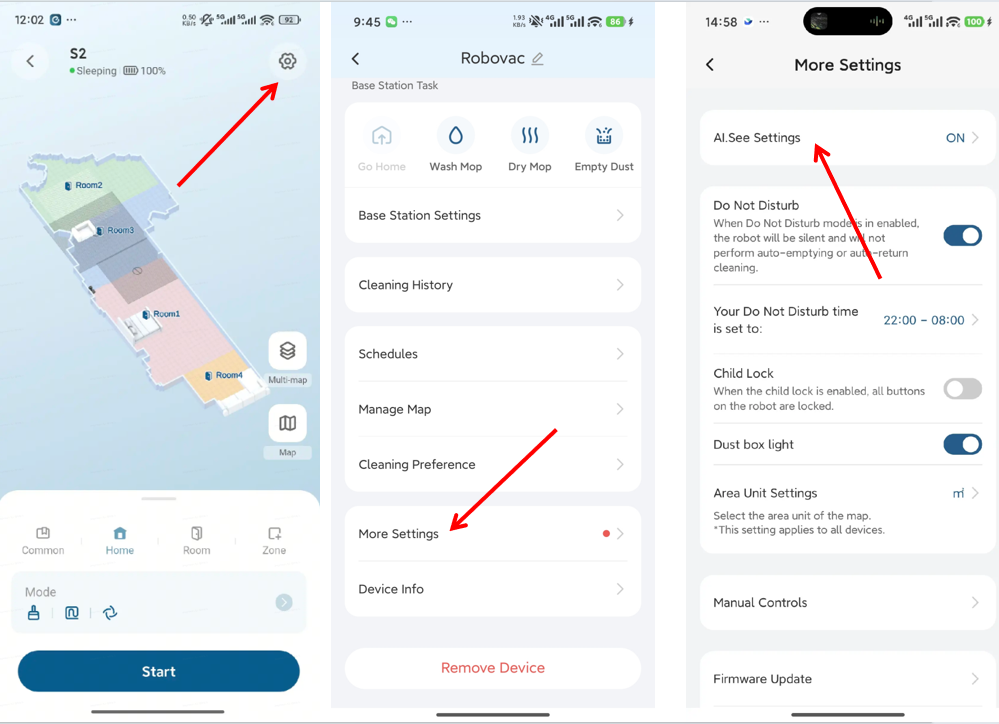
Launch the app and navigate to Settings → More Settings → AI.See Settings.
-
Enable the AI.See feature to enhance the robot’s ability to identify obstacles, allowing smarter avoidance of floor objects.
Step 2: Clear Small Items Before Cleaning
-
Remove small objects from the floor before running the robot, such as:
-
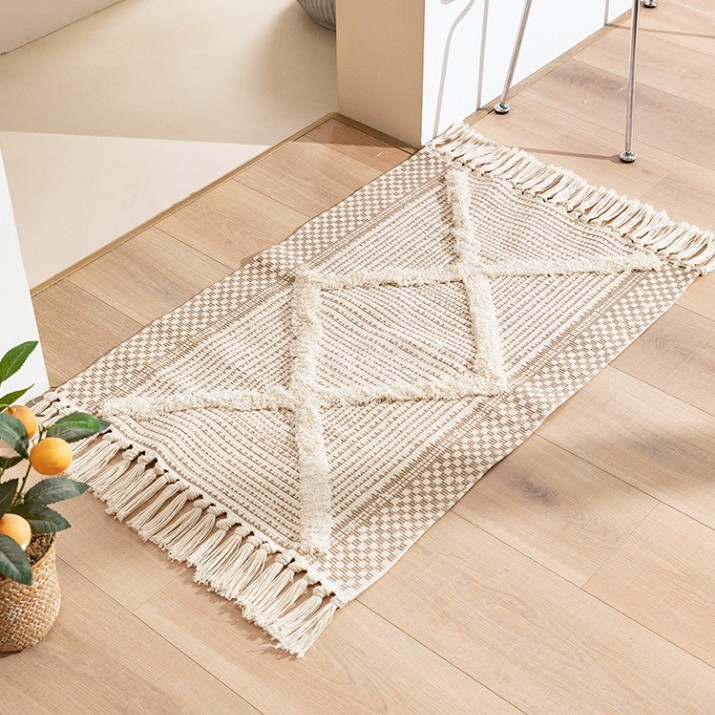
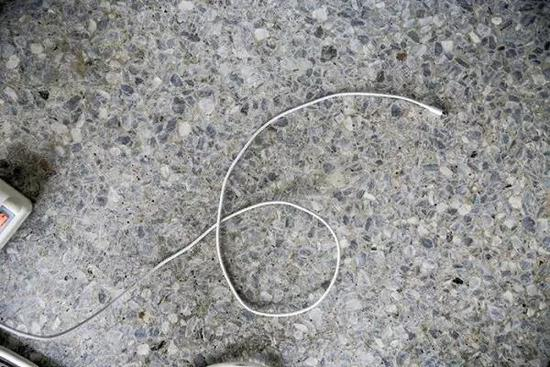
Cables, toys, tassel rugs, or any items that could cause tangling or obstruction.
-
For areas where the robot frequently gets stuck, create no-go zones in the app to protect fragile items and prevent entry.
Step 3: Identify Hard-to-Avoid Objects
-
The robot may struggle to recognize low-lying items, including:
-
Flat tissues, small blocks, spread-out clothes, cables, or other objects below 2.5 cm in height.
-
On carpets or uneven surfaces, the robot’s movement may reduce detection accuracy.
-
Minimum detectable object height: 3.5 cm.
-
Step 4: Address Dark, Black, or Transparent Materials
-
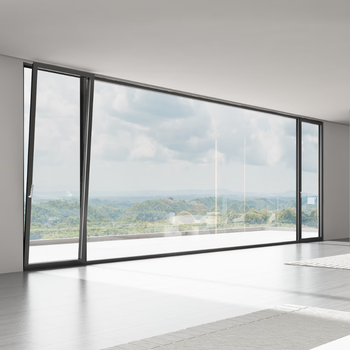
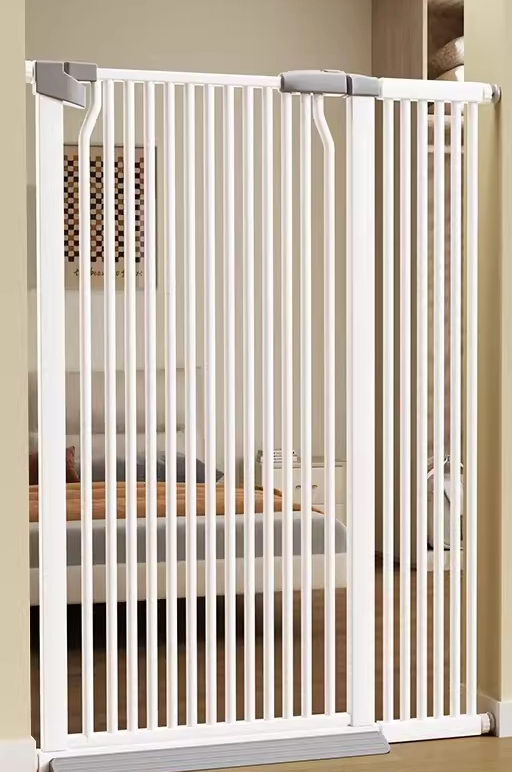
Objects such as black glass cabinets, transparent partitions, balcony glass, or pet gates may not be recognized properly.
-
Due to sensor limitations, collisions are more likely in these areas.
-
It is recommended to create no-go zones around these objects in the app to prevent accidental bumps.
Following these steps will help improve your S2 robot’s obstacle avoidance and reduce collisions with furniture or other items.
If you have any additional questions or need further assistance with your S2 robot, please do not hesitate to contact our support team.