If your S2 robot is set to Vacuum and Mop Mode but only vacuums, the issue may be related to sensor detection, floor surface types, or mode settings. Follow the steps below to troubleshoot and resolve the issue.
Step 1: Restart the Robot
-
Before troubleshooting, restart your S2 robot to ensure it is functioning properly. This can often resolve minor operational glitches.
Step 2: Clean the Ultrasonic Sensors
-
Gently wipe the ultrasonic sensors located on the bottom of the robot with a dry cloth.
-
Dust or smudges on these sensors can interfere with surface recognition, causing the robot to skip mopping.

Step 3: Check Floor Type and Pattern Recognition
-
The robot may sometimes misidentify certain floors as carpet and switch to Vacuum-only Mode.
-
This is more likely on:
-
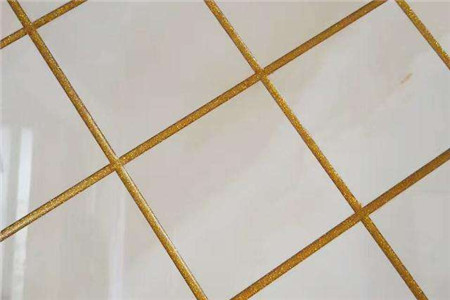
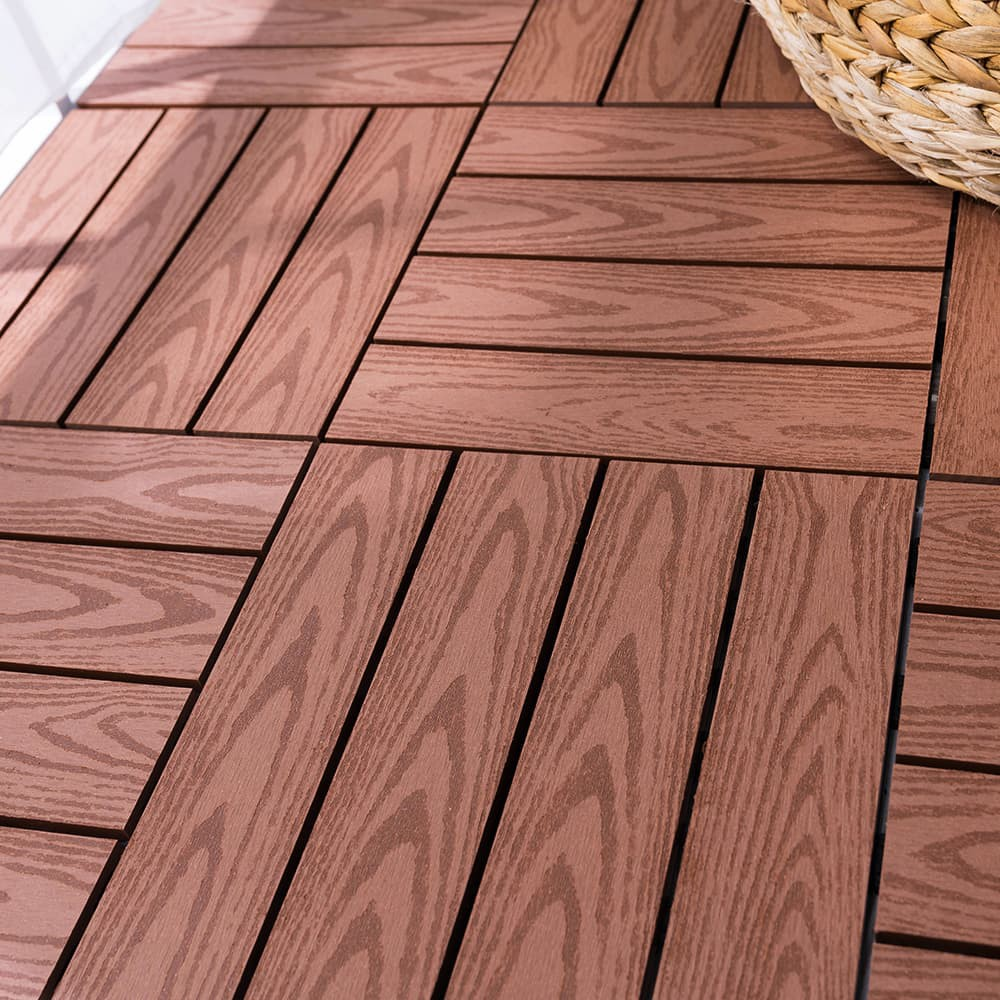
Floors with large gaps, such as tiles or wooden planks.
-
Patterned, complex, or reflective surfaces.
-
If the issue persists, please contact our customer support team. Provide photos or videos of the floor, enable the log, and share your device information for further analysis.
Step 4: Multi-Floor or No Base Station Operation
-
When performing multi-floor cleaning or if the robot cannot detect the base station, it may automatically switch to Vacuum-only Mode to maintain continuous operation.
-
To enable Vacuum and Mop Mode on floors without a base station:
-
Start the robot from the base station, even for remote floors.
-
Follow the multi-floor setup instructions in the manual or app to ensure proper mapping and mop activation.
By following these steps, your S2 robot should resume proper vacuum and mop operation.
If you have any additional questions or need further assistance with your S2 robot, please do not hesitate to contact our support team.