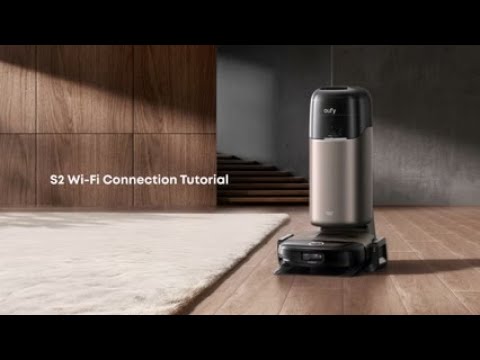
If your S2 robot disconnects from the base station or displays a disconnection message in the app, the issue may be caused by a power reset, signal interruption, or environmental interference. Follow the steps below to restore the connection.
Step 1: Restart the Robot
-
Press and hold the Power button to restart the robot.
-
Wait approximately 1 minute after restarting to allow the robot to re-establish a connection with the base station.
Step 2: Reset the Base Station Power
-
Unplug the base station’s power cord from the wall outlet, wait 1 minute, and then plug it back in.
-
This step ensures the base station reboots properly and reinitializes communication with the robot.
Step 3: Reconnect the Robot to the Base Station
-
If restarting does not restore communication, perform a manual reconnection between the robot and the base station.
-
For step-by-step instructions, refer to the video guide [Video: https://youtu.be/y1nt3DRA6xw].
Step 4: Adjust the Base Station Placement Environment
-
Signal interference from complex or cluttered environments can cause disconnection.
-
Move the base station to a more open area, away from walls, metal furniture, or large electronic devices.
-
Check whether the connection stabilizes after repositioning.
Following these steps will help restore a stable connection between your S2 robot and its base station.
If you have any additional questions or need further assistance with your S2 robot, please do not hesitate to contact our support team.