When the robot or app reports 6026 “Base station dirty water pump error. Please contact customer service.”, follow the steps below to troubleshoot, or refer to the video (49s–1min45s) https://www.youtube.com/watch?v=9cMbuaeuGsk
1.Check whether the lid of the base station's wastewater tank is securely closed. Reopen and reclose the lid to ensure it is properly seated and fully installed.
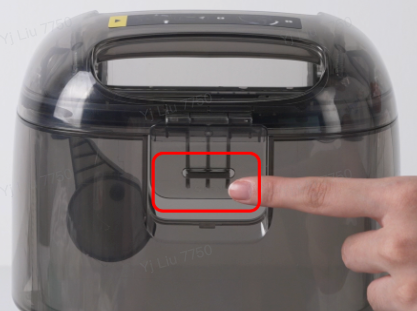
2.Verify that the wastewater tank is correctly positioned. Remove and reinsert the tank, pressing firmly into place.
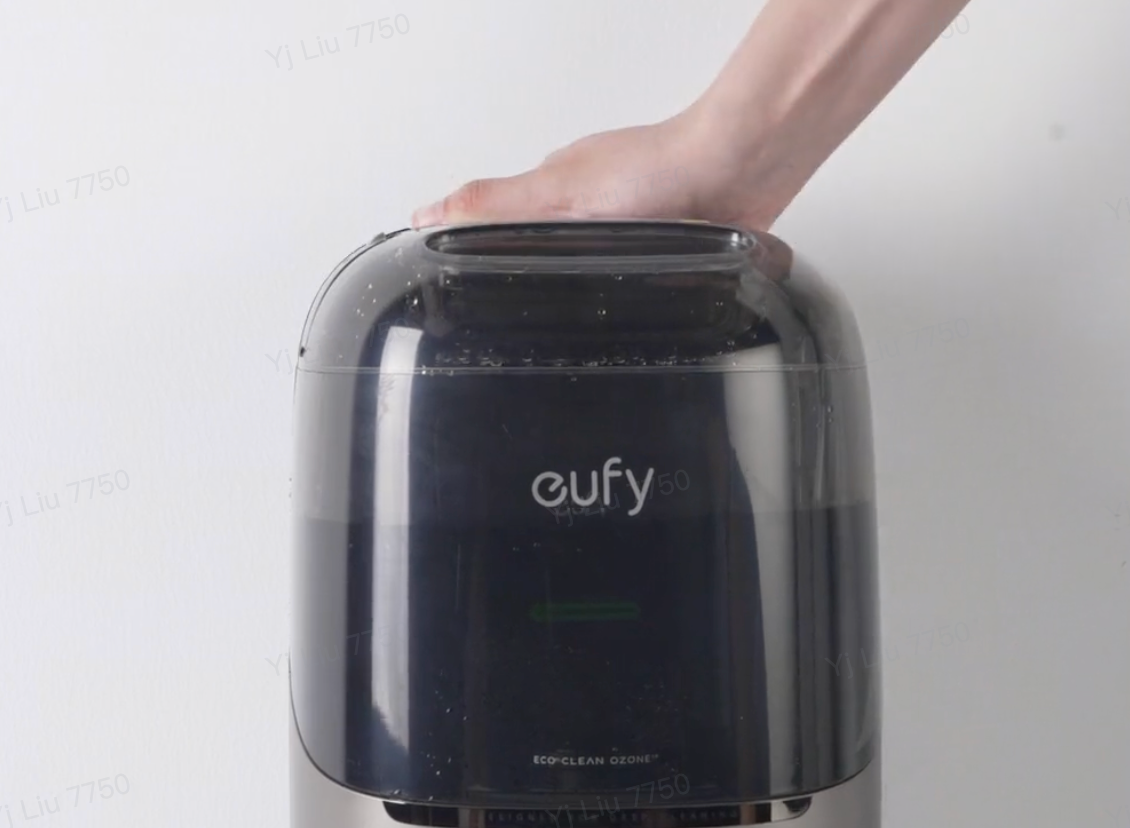
3.Inspect the float inside the wastewater tank for abnormalities (gently shake the tank; the float should move up and down smoothly—check for sticking or misalignment). Ensure both sealing rings are properly installed and undamaged or deformed. If any issues are found, contact customer service to replace the wastewater tank.
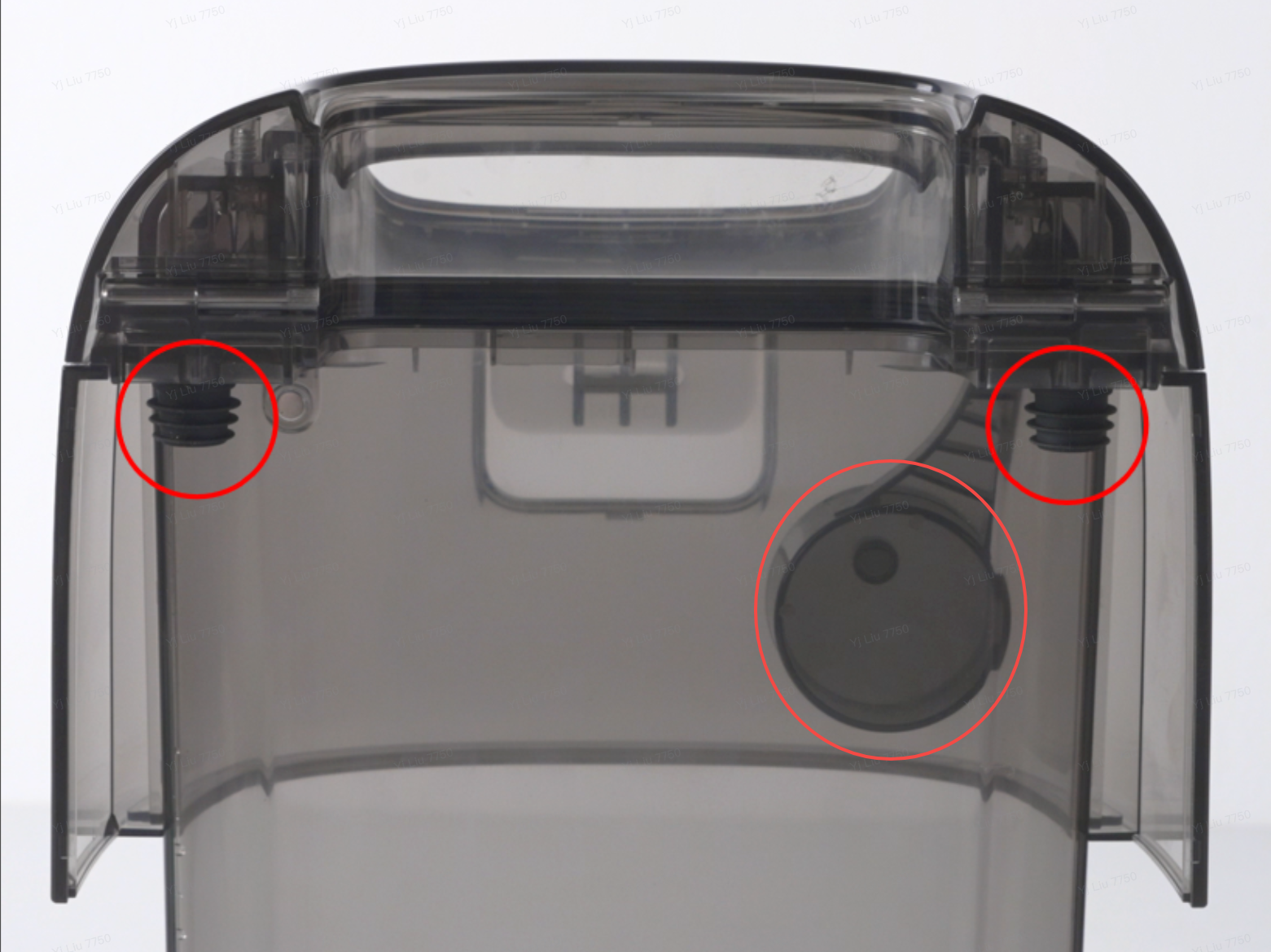
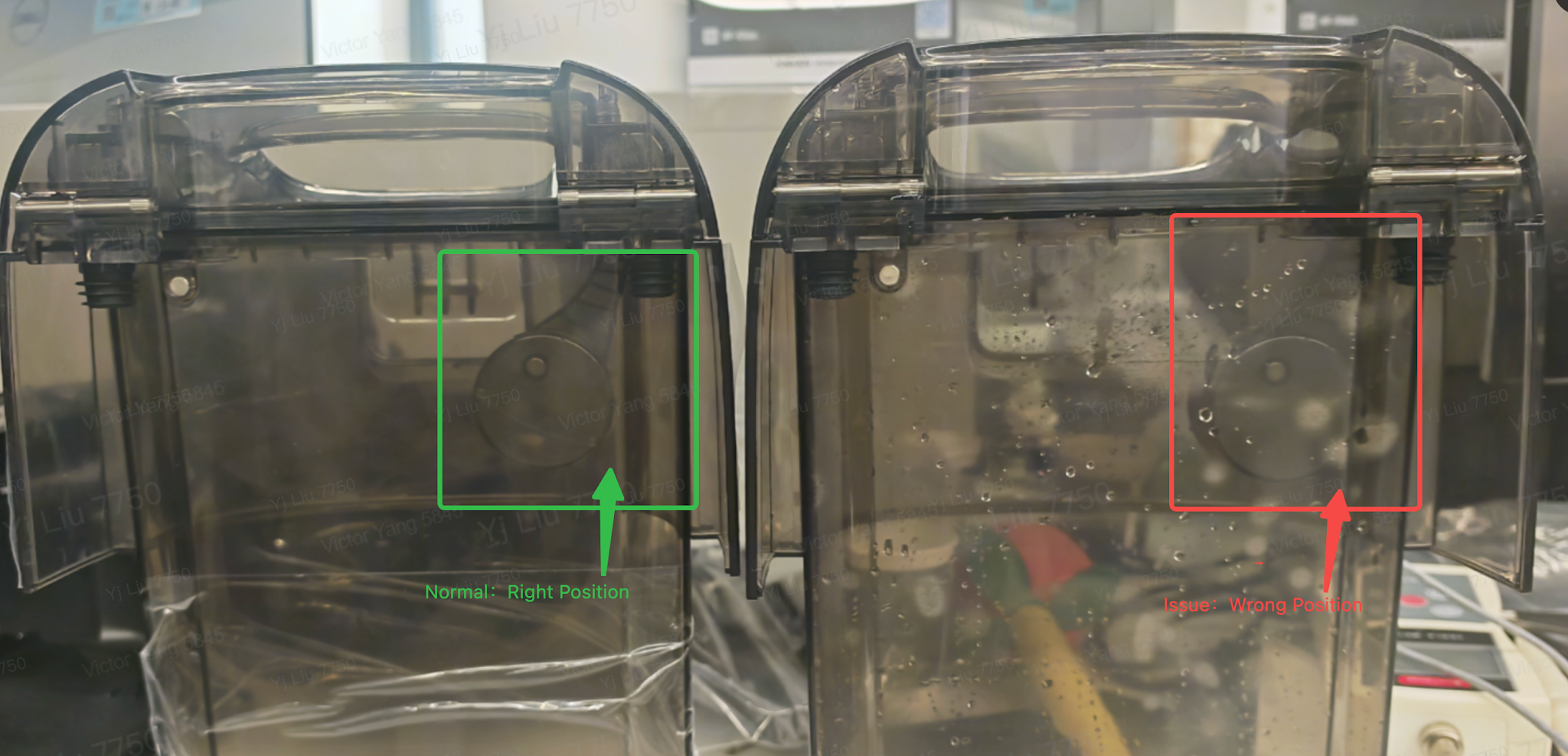
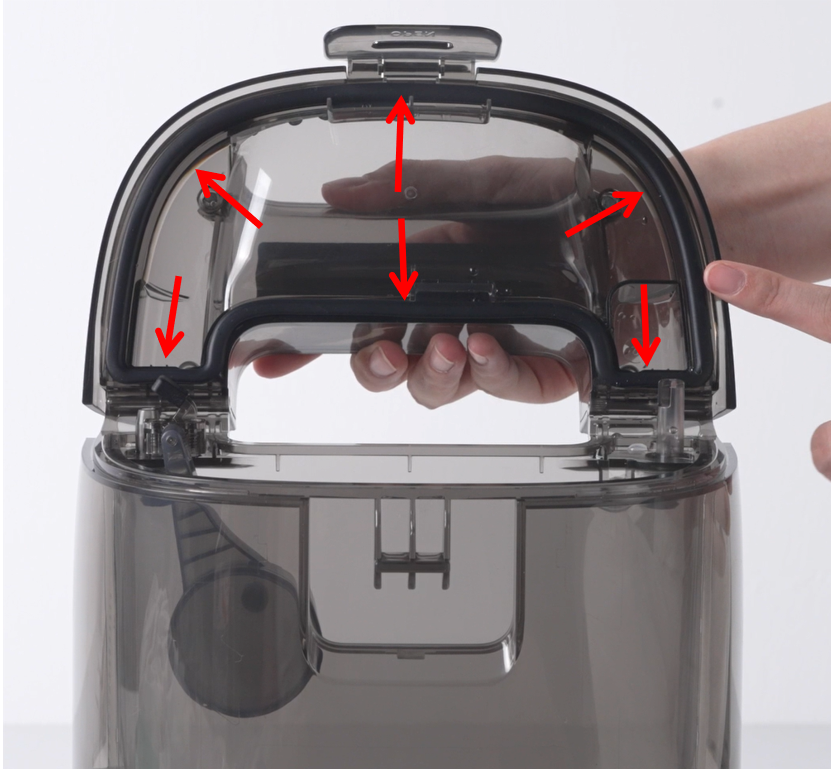
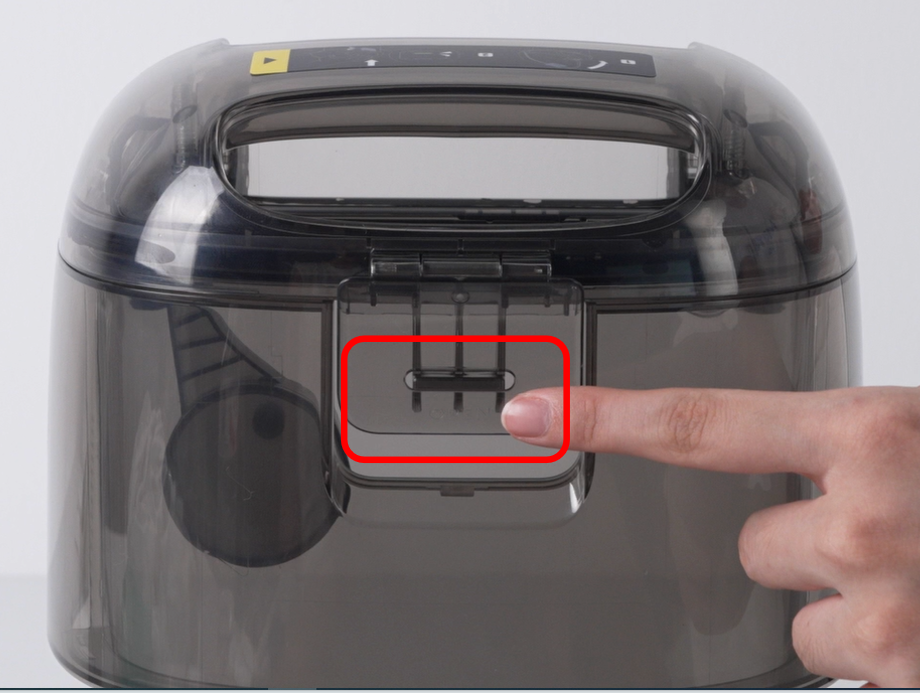
4.Open the wastewater box and check if the upper lid seal is damaged, lifted, or curled. Press down gently on the seal with your hand to ensure it is tightly fitted and properly installed.
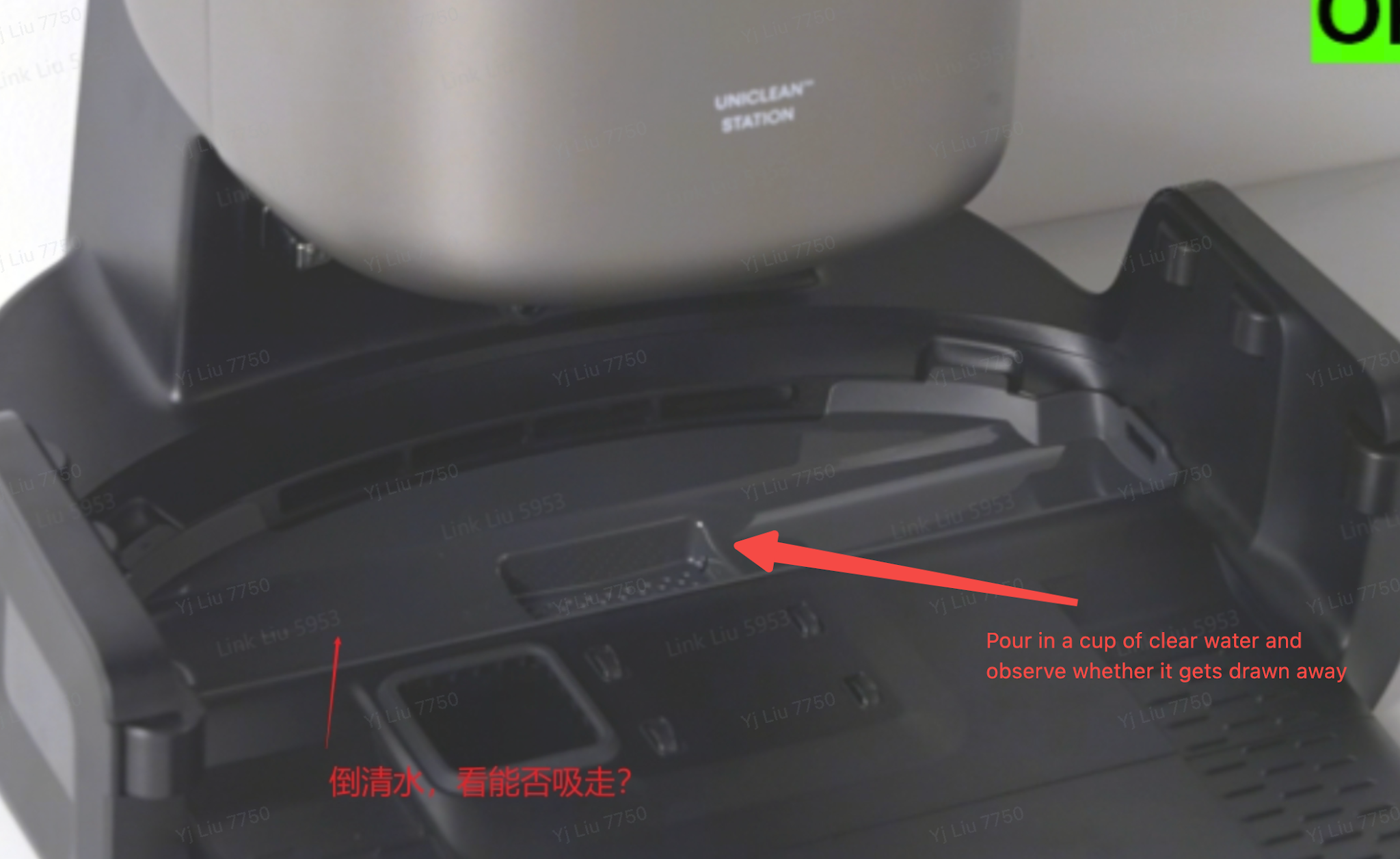
5.Pour a cup of clean water into the base station’s wastewater reservoir and observe whether the system automatically draws the water into the wastewater tank. If it does, the base station is functioning normally—the issue lies with the main unit. If it fails to suction the water, the base station is faulty; contact customer service to replace the base station.
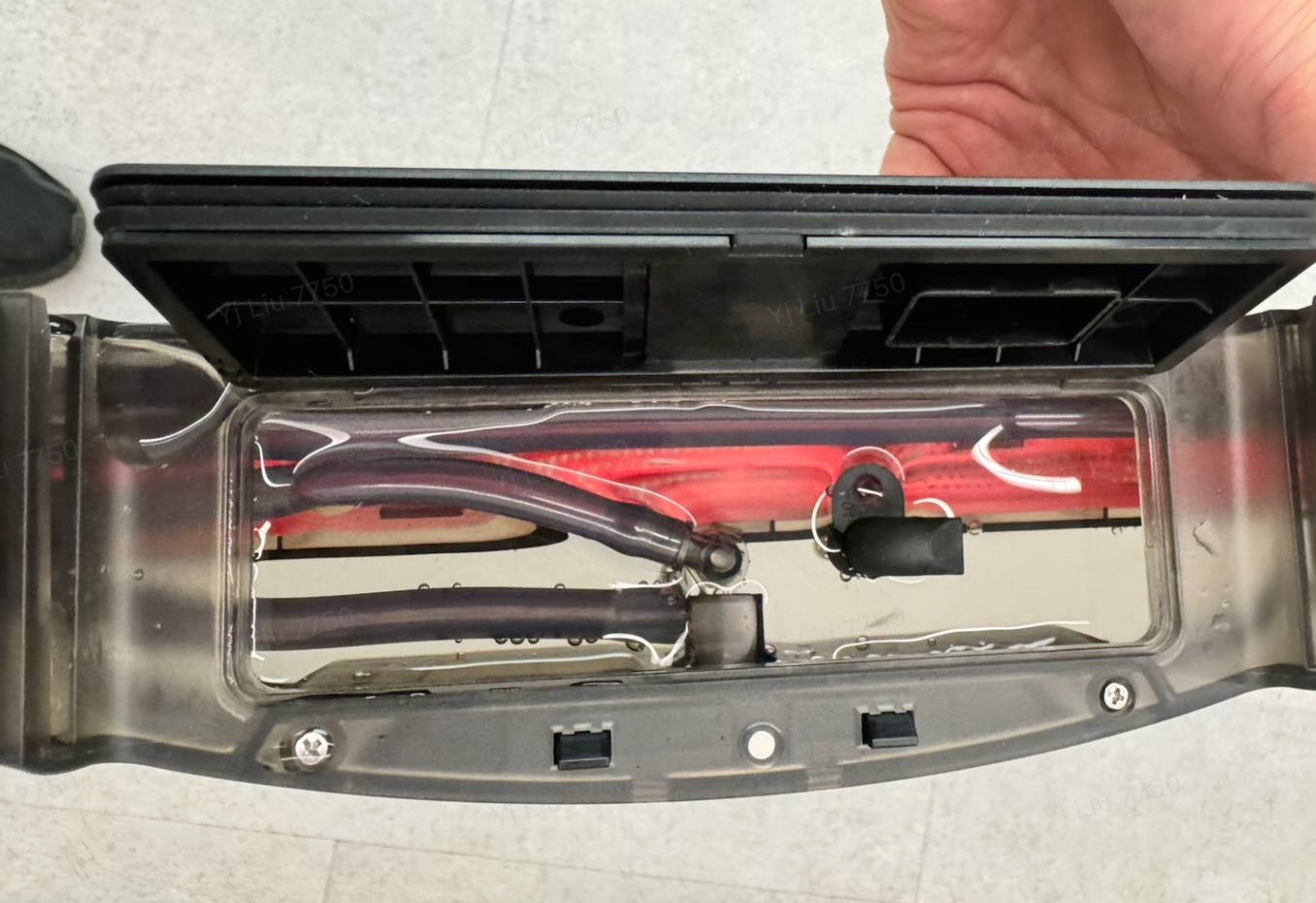
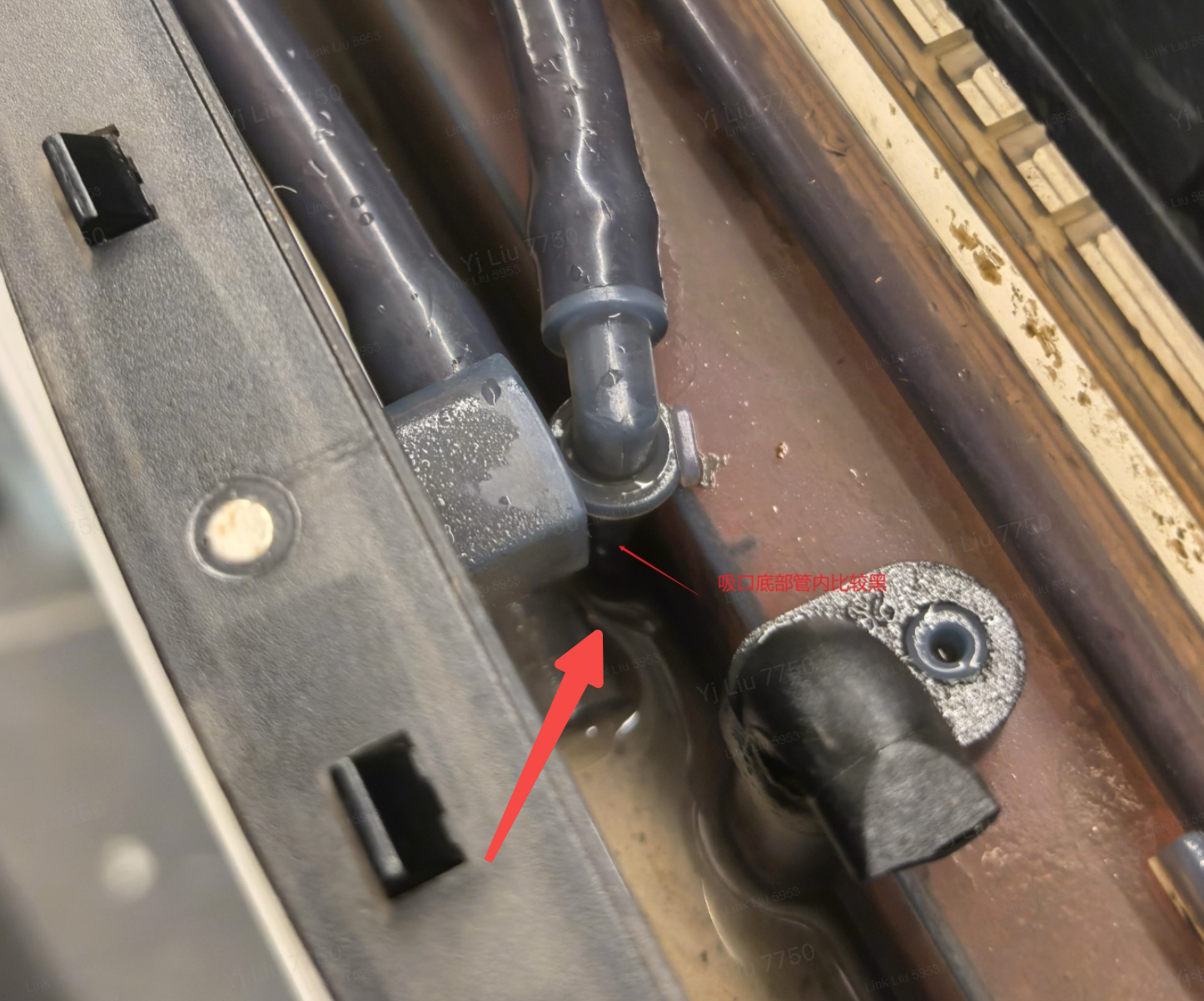
6.Check if the main unit’s wastewater box is completely filled with water (left image). After emptying the water, inspect the pipes for blockages (right image) (or continue suctioning; if the wastewater box refills quickly, this indicates a clog). Contact customer service to replace the main unit’s wastewater box.
7.Check if the float in the main unit’s wastewater box is stuck: after cleaning out the wastewater, the white float should drop freely to the bottom of the box (left image). If it remains stuck or does not fall freely (right image), contact customer service to replace the main unit’s wastewater box.
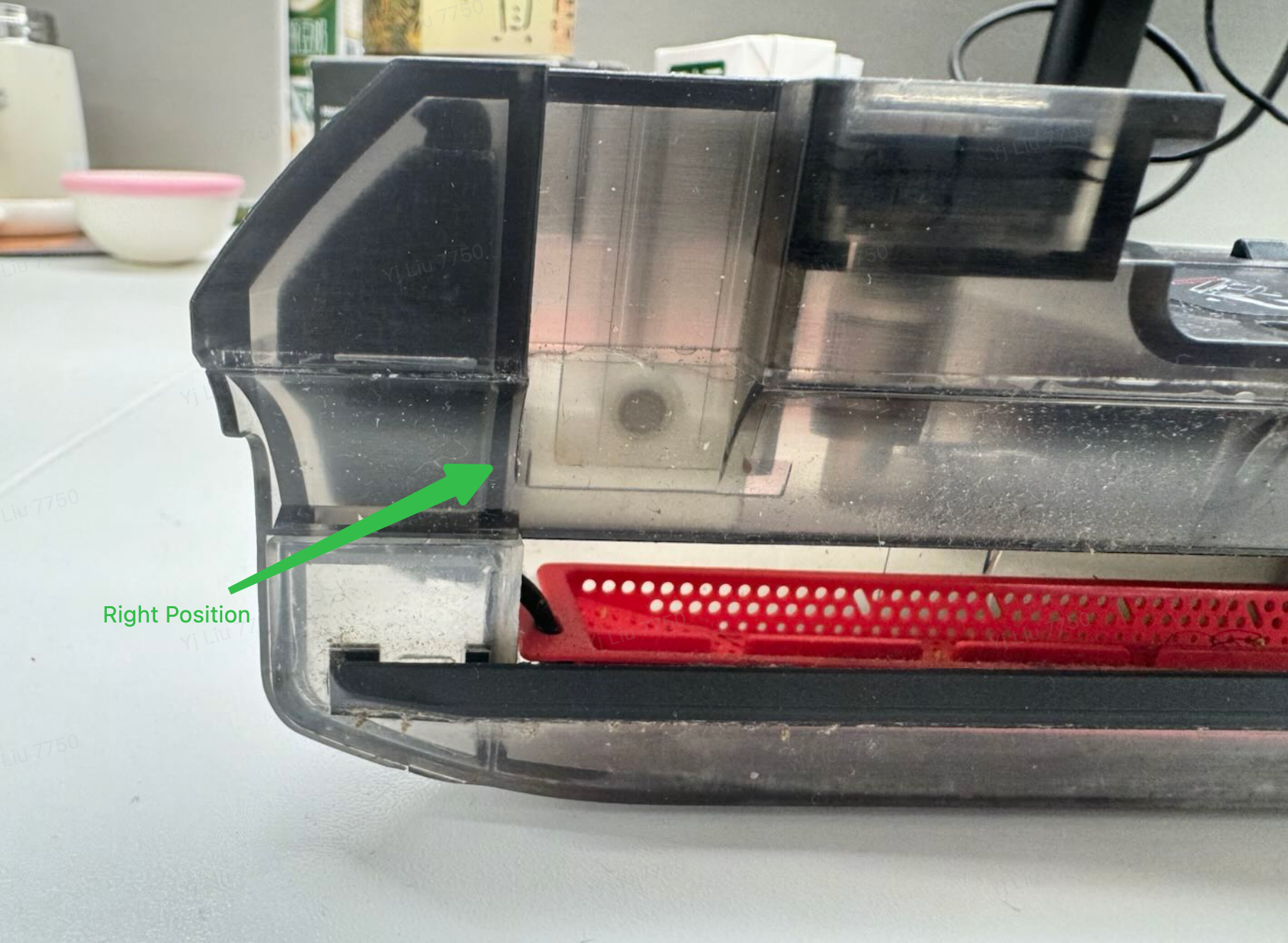
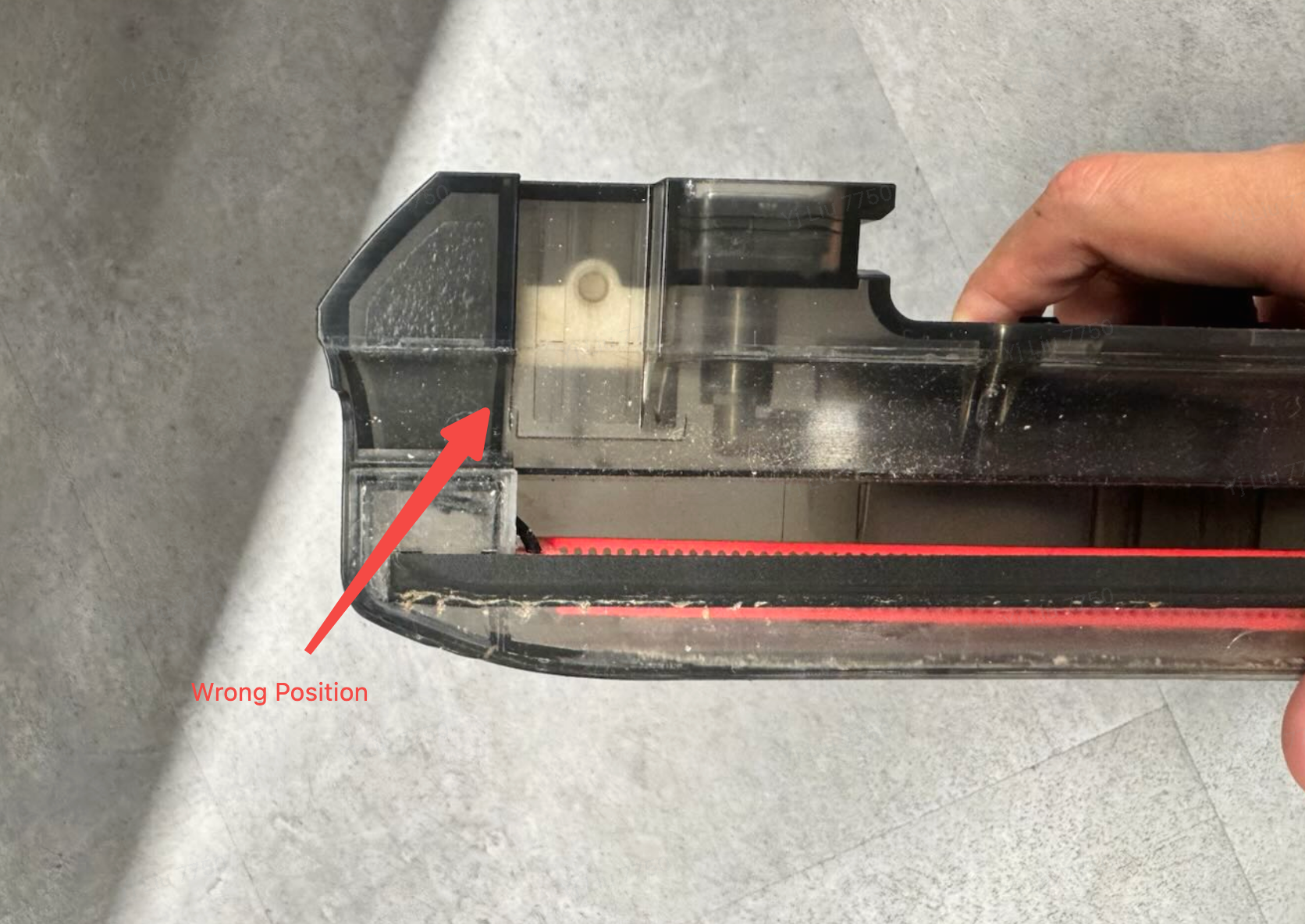
8.Move the robot away from the base station. Remove the waste tray from the base station and clean thoroughly, especially removing debris from the filter holes.
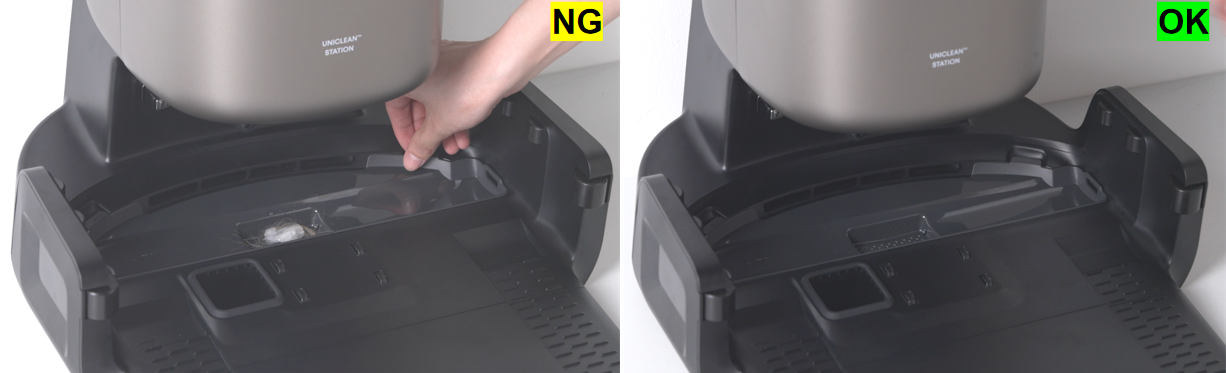
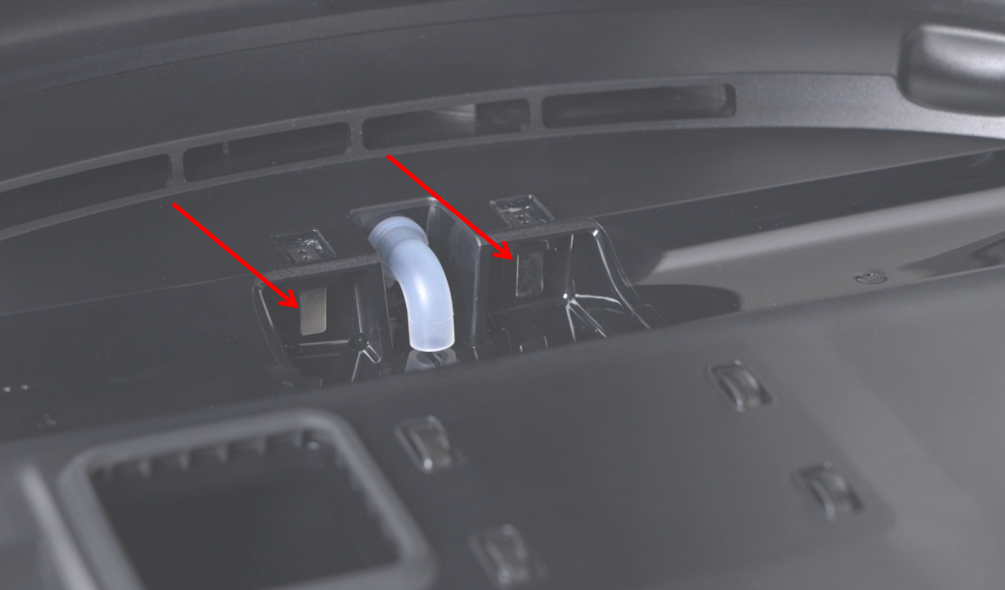
9.Check the base station’s suction port for blockages and clear them. Also, wipe the metal pins of the wastewater reservoir clean.
If you have any additional questions or need further assistance with your S2 robot, please do not hesitate to contact our support team.